Vault includes robust annotation capabilities, allowing you to add or reply to annotations on your documents. There are five different types of annotations: Comment, Line, Document Link, Permalink Link, and Anchor annotations. Limited annotation functions are available for video files.
Using Comments & Annotations
This video demonstrates how to create various types of annotations and comments, including line annotations:
Annotate Mode
Vault loads the Doc Info page in Annotate mode or Select mode, depending on your user preferences and permissions. There are several ways to open or close Annotate mode:
To open Annotate mode:
- Click View Annotations () on the Doc Info pane toolbar
- Select an annotation tool from the annotation tool menu
To close Annotate mode and return to Select mode:
- Click Hide Annotations () on the Doc Info pane toolbar
- Click Hide Annotations () on the annotations panel to close it
- Select Select () from the select menu on the document viewer toolbar
Annotation Tools
You can select different annotation tools from the annotation tools menu on the document viewer toolbar to open Annotate mode and create annotations.
When in Select mode, you can select content to open the context menu and select the type of annotation you want to create. Options in this menu vary based on the type of content you select and your permissions.
When in Annotate mode, you can select different tools to create specific types of annotations: Comment (), Line (), Document Link (), Permalink Link (), and Anchors ().
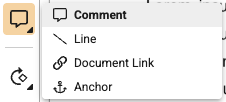
After selecting a tool, click or highlight the area where you want to add the annotation.
User Preferences
Vault remembers your selected annotation tool and re-selects it for you when you navigate to another document, log out and log in, or switch browsers. For example, if you select the Document Link tool and then navigate to a new document, Annotate mode opens with Document Link enabled by default. In addition, if you select content in View mode without performing a Context Menu action, and then switch to Annotate mode, Vault unselects the content and defaults the annotation tool to the user preference.
If you lose access to an annotation tool due to a change in permissions, Annotate mode defaults to Select mode. Using Link to Content from the Linked Documents section of Relationships panel on the Doc Info does not update your user preference for annotation tool selection. However, if you select an annotation tool in the Select Anchors: Select or create new anchor in this document window, Vault uses that selection as your saved user preference.
How to Add Comment Annotations
You can create several types of comment annotations: text comment annotations, area selection comment annotations, and sticky comment annotations. Text selections can be up to 500 words and image selections must be within the boundaries of a single page. You cannot create sticky comment annotations over text.
To add comment annotations:
- On the Doc Info page, select Comment () from the annotation tools menu on the document viewer toolbar to enter Annotate mode.
- To create a text comment annotation: If the area contains selectable text, highlight the text. Vault supports whole word selection only.
- To create an area selection comment annotation: If the area does not contain selectable text, click and drag to select an area.
- To create a sticky comment annotation: Click an area without selectable text.
- Vault creates a blank comment annotation based on your selection. You can also perform the steps above using the Select () tool and selecting Create Comment from the context menu to create a blank comment annotation based on your selection.
- Optional: Change the color, shape, or style of your comment annotation by selecting from the drop-down menus in the annotation info card.
- Optional: Type a comment in the annotation info card.
- Optional: To notify a user about an annotation, add a user mention by typing @ and the beginning of their first name, last name, or Vault username in the Comment field and selecting from the list of users.
- Optional: If configured by an Admin, select tags from the drop-down in the annotation info card to apply them to the annotation.
- Click Save.
Vault cancels annotations when you click outside of an unsaved annotation without any user input. If unsaved user input exists, Vault displays a message indicating that it will discard unsaved changes. Click Continue to discard the changes or Cancel to return to the unsaved changes and continue editing the annotation.
How to Add Line Annotations
To draw a line annotation on the document:
- From the Doc Info page, select Line () from the annotation tools menu on the document viewer toolbar to enter Annotate mode.
- Click and drag on the document to create a line.
- Optional: Click and drag again to create additional lines in the line group. You can also resize and move individual lines or the entire line group.
- Optional: Modify the color and width of the lines in the line group using the drop-down menus in the annotation info card.
- Optional: Type a comment in the annotation info card.
- Optional: If configured by an Admin, select tags from the drop-down in the annotation info card to apply them to the annotation.
- Optional: If you want to notify a user about an annotation, add a user mention by typing @ and the beginning of the first name, last name, or Vault user name and selecting from the list of users.
- Click Save to save the line annotation.
Line annotations do not appear correctly when a page is rotated in the document viewer. Make sure you are viewing the page in its original orientation when adding line annotations.
Adding Link Annotations
Link annotations are made up of two components: links and anchors. Links, anchors, and Permalink links are reviewed in Using Document Links & Anchors.
Notifications
Vault notifies you when users:
- Add a reply to your note annotation
- Add a new note or reply to an existing note on a Favorite document
- Mention you in an annotation
Vault only sends notifications for new user mentions. Vault does not send notifications if a user edits a note with an existing user mention.
Vault limits the number of notifications from a single annotation event, preventing redundant notifications. For example, if you respond to another user’s note annotation and mention them, that user will only receive one notification and one email. An Admin can configure the notification and email text.
User Mentions
When creating or replying to an annotation, you can mention another Vault user in your annotation to send them a notification about your annotation. While Vault allows you to mention one or more users, you cannot mention groups. You can only save an annotation if all mentioned users have View Content and View Document permissions. User mentions do not grant any permissions.
After you save an annotation with a user mention, Vault sends a notification and an email to the mentioned user. If you mention a user more than once in a single comment, that user will only receive one notification and one email. An Admin can configure the notification and email text.
Annotation Color Selector
You can select a color from the palette in the annotation info card. Vault stores and uses that color for your notes, replies, and text highlighting until you select a different color. If your document role has a required color, your Admins have defined a color for you and you cannot edit this.
Text Annotation Styles
Annotation styles change the way the selected text displays on the page. To change between styles, select one of the following from the drop-down in the annotation info card:
- Highlight displays the selected text highlighted.
- Insert underlines the selected text.
- Strikethrough strikes out the selected text.
- Revise Text shows a dashed underline and highlight on the selected text and automatically inserts the selected text into the Comment field unless other text exists in that location.
- External Link highlights the selected text and makes it an active hyperlink to the URL you enter.
Actions for Existing Annotations
Once you or another user has added an annotation, there are various actions available:
- Edit allows you to change any part of your annotation. This option is only available to the user who created the annotation. You can edit your reply on another user’s annotation if your reply is the latest. Click the Actions menu to use this action.
- Delete allows you to delete an annotation or reply when the appropriate permissions or settings are configured.
- Move allows you to move your annotation. Click the Actions menu to use this action.
- Hide hides the annotation temporarily. This action works differently from the show/hide options in the Filter menu. To show an annotation that you’ve hidden this way, you must reload the document viewer. Other users will continue to see the annotation. Click the Actions menu to use this action.
- Resolve annotation () adds a Resolved attribute to the annotation. By default, resolved annotations remain visible. You can hide them using the Filters menu. You cannot resolve Link and Anchor annotations.
- Reopen annotation () removes the Resolved status for an annotation.
Moving Annotations
Annotations are attached to a specific location on a document. To move an annotation, select Move from the annotation’s Actions menu. Move the annotation to a new location and click Save () to save your changes, or Cancel () to cancel the move.
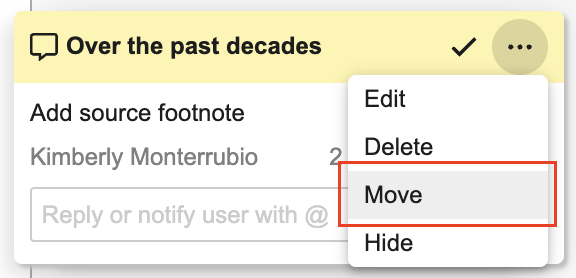
You can move annotations in the following ways:
- Comment or Link Annotations with Text Selections: Moving the annotation changes which text is selected. Editing can also change a text selection into an image selection.
- Comment or Link Annotations with Image Selections: Moving the annotation can move or resize the selected area. Editing can also change an image selection into a text selection.
- Comment or Link Annotations on Videos: Moving the annotation adjusts the time signature and the selected area.
- Sticky Comment Annotations: Moving the annotation moves the sticky note icon. Although you can’t create a sticky comment over text, you can move it over a text area. You cannot resize the sticky comment icon.
- Line Annotations: Moving the annotation can move the line group to a different location on the document. When moving a line group, you can also add, remove, or edit the lines in the group.
- Anchor Annotations: If you have the Manage Anchors permission, or you authored the annotation, you can move any anchor annotations that do not have inbound references.
Viewing Annotations
When in Annotate mode, annotations appear in the annotations panel between the document viewer and the Doc Info pane. The annotations panel contains several tools that allow you to show or hide annotations, filter annotations, and navigate to the next or previous annotation in a document.
To navigate between annotations, click Previous annotation () or Next annotation () on the annotations panel to navigate to the previous or next annotation in the document.
Hiding Annotations
If you need to add an annotation to an area where there are already multiple annotations, you can hide annotations by clicking Filter () on the annotations panel and selecting Hide Annotations. To show the hidden annotations, select Show Annotations. You can also use keyboard shortcuts to show or hide annotation.
Filtering Annotations
Click Filters () on the annotations panel to show and hide annotations based on various criteria:
- Keyword
- Enter a keyword or phrase (up to 100 characters) to show only annotations where the text selection, comment, or reply contains matching text.
- Created Date
- Show annotations according to the date they were created. The In the range filter allows you to filter on annotations created between two dates. The Before filter allows you to filter on annotations created before a specified date. The After filter allows you to filter on annotations created after a specified date. Replies are included when calculating the Created Date, meaning an older note with a newer reply can be filtered by either date. For example, a note created on January 5 with a reply on January 10 is displayed when filtering for notes before January 10 as well as after January 5.
- Notes
- Show only unresolved or only resolved annotations.
- Placement
- Show annotations that have a text or image selection in the document, or show page-level annotations without a text or image selection.
- Links
- Show link annotations by type - Document, Permalink, or anchor. Filtering permalink annotations is only visible in Vaults with linking to permalinks enabled.
- Author
- Show annotations created by yourself, or show annotations created by other users.
- Tags
- Show only annotations with specific tags.
- Version
- Show only annotations created in the viewed document version. This filter excludes annotations that were brought forward from previous document versions.
- Filter Anchors
- Show only anchors that are used by specific selected documents. This option opens a dialog where you can search for and select documents. Vault will hide all anchors not used by one of the selected documents. To view all referencing documents, expand the anchors inside each link annotation on the document before clicking Filter Anchors. To filter out anchors that have no inbound links, uncheck Display empty anchors. This option is not available for videos.
Vault remembers and re-applies most Filters menu settings for each user, across all documents, browsers, and sessions within a single Vault. The only Filters menu settings not saved are Hide/Show Annotations, Filter Anchors, Author, and Tag. When you view a document in annotate mode, Vault displays the number of annotations you’ve hidden with either the shortcut key or filters.
Click Reset All to remove filters and show all annotations.
Deleting Annotations
The ability to delete annotations depends on your permissions and your Vault’s configuration for users in the Document Owner role.
To delete an individual annotation or reply, select Delete from its Actions menu.
Deleting Annotations with the Annotate Permission
Users with the required permissions can delete annotations that they authored, including anchor annotations with no inbound references. Once deleted, annotations are not recoverable. Users cannot delete an annotation on a document under Legal Hold or anchor annotations with inbound references.
Users with the required permissions can also perform the following deletion actions:
- Delete any individual brought-forward annotation, except anchors with inbound references.
- Bulk remove annotations that they brought forward.
- Bulk remove annotations brought forward by any user.
- Delete any anchor annotations with no inbound references.
If replies exist, the original creator can delete the original annotation, which also deletes any replies. Users can delete replies to annotations if their reply is the latest available.
Deleting Annotations as the Document Owner
Depending on your Vault’s configuration, the user in the Document Owner role on a document can delete individual annotations and replies created by any user. The Document Owner must have the required permissions to delete annotations and the annotations must meet the deletion criteria listed in the Deleting Annotations with the Annotate Permission section.
Bringing Forward Annotations
If your configuration allows this, you can bring forward link, note, anchor, and line annotations from previous document versions, dramatically reducing the effort required to maintain annotations throughout a document’s lifecycle.
Downloading Documents with Annotations
There are two options in Vault to download and view a document’s annotations offline. The first, the PDF with Annotations download option, is available on all Vaults. This option gives you a read-only version of the annotations. The second, Export Annotations, requires that your Vault uses the offline annotations feature.
To download the PDF viewable rendition showing annotations in the margins, navigate to the the Doc Info page or Library, then click and select PDF with Annotations. You can also select this option from the All Actions () menu. If some annotations are hidden by filters, Vault displays the Apply Filters dialog. Select the checkbox to exclude filtered-out annotations from the PDF. Annotations hidden manually are not excluded. Vault includes the annotation notes in the margin of the downloaded PDF.
Note: There is a known issue where Vault does not place annotations properly on a downloaded PDF with annotations if one of the pages is larger than 8×11. Users may also see a document processing error message when attempting to download an annotated PDF with very large page sizes. If either of these situations occurs, please contact Veeva Support.
Downloading Notes as a CSV File
You can download a CSV file of notes for any document version that has a viewable rendition and at least one annotation. To download notes, navigate to the Doc Info page, open the All Actions menu, and select Download Notes. If some annotations are hidden by filters, select Apply Filters in the dialog to exclude filtered-out annotations. Annotations hidden manually are not excluded. The CSV file downloads automatically.
Character & Placemark Limits
The following character and placemark limits apply when creating, editing, and importing annotations via the Vault UI and Vault API:
| Annotation Type | Field | Limit |
|---|---|---|
| Anchor | Name | 140 characters |
| Comment, Link, Anchor | Subject | 32,000 characters |
| Comment, Link, Anchor | Placemark on Text Selection | 32,000 characters. Cannot exceed 500 words. Must be within a single page. |
| Comment, Link, Line, Reply | Comment | 32,000 characters |
| External Link | URL Length | 32,000 characters |
| Line | Placemark | 50 lines |
Vault automatically truncates any characters beyond these limits and will not allow you to place a 51st line in a line annotation.
Annotation Color Mapping in Action UI
Every annotation in Vault retains a record of the color value assigned at the time of creation or last update, whether a legacy color or a new color associated with Action UI. For annotations with legacy color values: Vault maps the legacy color to a near-equivalent Action UI color, and displays the annotation using the new color.
Limitations
The following limitations apply to document annotations:
- Vault does not allow you to add, remove, or edit annotations on archived documents, but you can still view any existing annotations on archived documents.
- Vault does not support annotations on unclassified documents.
Related Permissions
The following permissions control your ability to annotate documents:
| Type | Permission Label | Controls |
|---|---|---|
| Document Role | Annotate | Ability to create, move, reply to, resolve, reopen, edit, or delete annotations. This option is only available to the user who created the annotation. Ability to bring forward non-resolved Note and Line annotations created by any user. |
| Document Role | View Content | Ability to access the Download Notes action. |
| Security Profile | Application: Viewer Administration: Manage Anchors | Ability to bring forward anchor annotations, or move or delete empty anchor annotations. |
| Security Profile | Application: Document: Download Rendition | Ability to download documents with annotations. |
See the following articles for additional annotation permissions that may be required: