# Working with Claims Management (Veeva Claims)

<a href="/en/gr/54331/">Veeva Claims</a> provides a standardized way for legal and regulatory teams to manage how your organization requests, develops, reviews, approves and, if needed, withdraws product claims in the consumer goods industry. Claims Management keeps substantiation documents and legal and regulatory approvals organized in a single place, which gives you a clear line of sight to all the claims you have in the market.

Claims Management provides the ability for organizations to create a statement library of desired messages which they can use when creating claims. A statement is a standalone desired message, such as "100% Organic." Statements are not tied to a specific product. With the availability of a statement library, you can create claims quickly by selecting the unique combination of a statement and the product to which you want to apply the selected statement. A claim is a statement about a particular product.

Depending on your <a href="/en/gr/54344/">Admin's configuration</a>, object, field, and section labels may appear differently than the labels mentioned in this article.

<div class="note-border alert-info">
  <div class="alert alert-info" role="alert">
    <div><i class="far fa-info-circle"></i></div>
    <div class="alert-text">
      <p><strong>Note</strong>: Depending on your Admin’s configuration, you may not have <em>Statements</em> or a statement library in your Vault.</p>
    </div>
  </div>
</div>


## Viewing Statements & Claims {#view}

You can access a master list of all _Statements_ on the _Statements_ tab and a master list of all _Claims_ on the _Claims_ tab. To view an individual _Claim's_ detail page, click on its _Name_. You can also view a document's _Related Claims_ from the <a href="/en/gr/9753/">Doc Info page</a>. For _Reference_ document types, _Substantiates Claims_ shows the claims that the document supports. Hover over the _Name_ of the _Claim_ to see a brief summary.

### Viewing Available Product Claims {#view-available}
When configured by your Admin, you can view the available parent and child _Claims_ on a _Product's_ detail page in the _Available Parent Claims_ and _Available Child Claims_ sections,  which display _Claims_ in the _Product's_ hierarchy based on Admin-defined criteria. You can also assign these available _Claims_ to a _Product_ and _Project_ using the [_Assign Available Claims_ action][7].

## Searching Statements & Claims {#search}

You can <a href="/en/gr/442/">search _Statements_ or _Claims_</a> from any tab by selecting _Statements_ or _Claims_ from the drop-down selector on the primary search bar.

The _Statement_ and _Claims_ tabs show all _Statements_ and _Claims_ by default. You can <a href="/en/gr/1616/">add filters</a> or <a href="/en/gr/23830/">custom views</a> to limit the types of claims shown.

## Creating Statements {#create_statement}

You can store _Statements_ in multiple languages and tie them to a global parent _Statement_. To create a new _Statement_:

1. On the _Statements_ tab, click **Create**.
2. Enter a **Statement**. This is the wording that will be used for _Claims_.
3. Select whether to check the _Statement_ for <a href="/en/gr/55515/">flagged words or phrases.</a>
4. Select the language for the _Statement_.
5. Optional: To tie the _Statement_ to a global parent, select the **Global Statement**. Leave this field blank if you are creating a global parent _Statement_.
6. Click **Save**, or to create another _Statement_, click **Save + Create**.

If your Admin has configured statement uniqueness, you cannot create a new _Statement_ that duplicates an existing _Statement's_ combination of text and language. 

## Creating Claims {#create-claim}

You can [create new _Claims_][3] and [copy existing _Claims_][2]. When configured by your Admin, you can also copy _Claims_ from one (1) _Product_ to another to create [product line extensions][8] and [assign available product _Claims_][7].

### Creating New Claims {#create-new-claim}

Depending on your Admin's configuration, you may be able to [create new _Claims_][5] from your Vault's [statement library][4]; otherwise, you can [create new _Claims_ without using _Statements_][6].

#### Creating Claims With Statements {#claim-statement}

To create a new _Claim_ using _Statements_:

1. On the _Claims_ tab, click **Create**.
2. Select a **Statement ID**.
3. Optional: Select a **Claim Category**.
4. Select whether to check the _Claim_ for <a href="/en/gr/55515/">flagged words or phrases</a>.
5. Select a **Product**. The combination of _Statement_ and _Product_ must be unique to your Vault.
6. Optional: Enter a **Footnote**. This is the legal fine print for the _Claim_.
7. Optional: Select whether the _Claim_ needs to be translated.
8. Optional: Select a **Re-evaluation date**.
9. Click **Save**, or to create another _Claim_, click **Save + Create**.


<div class="note-border alert-info">
  <div class="alert alert-info" role="alert">
    <div><i class="far fa-info-circle"></i></div>
    <div class="alert-text">
      <p><strong>Note</strong>: You can create multiple <em>Claims</em> from <em>Statements</em> at the same time as part of a <a href="/en/gr/58792/#bulk_create_claim">project</a>.</p>
    </div>
  </div>
</div>


#### Creating Claims Without Statements {#claim-no-statement}

To create a new _Claim_ without using _Statements_:

1. On the _Claims_ tab, click **Create**.
2. Select a **Product**.
3. Enter a **Statement**. This is the wording that will be used for the _Claim_.
4. Optional: Enter a **Footnote**. This is the legal fine print for the _Claim_.
5. Click **Save**, or to create another _Claim_, click **Save + Create**.

### Copying Claims {#copy-claim}

You can also create a new _Claim_ by <a href="/en/gr/32218/">copying</a> an existing _Claim_. Depending on your Admin's configuration, you may be able to deep copy the hierarchy of child [_Local Adaptations_][1] when you copy a _Claim_ by selecting the **Copy Related Records** checkbox in the _Hierarchical Copy Option_ dialog.

## Adding Substantiation Documents {#substantiation}

You can add _Substantiations_ to _Claims_ and _Local Adaptations_ to provide proof of validity and view all _Substantiations_, and their related _Claims_, supported by each substantiation document in your Vault. See <a href="/en/gr/492018/">Substantiating Claims & Local Adaptations</a> for more details about creating _Substantiations_, associating each record to a relevant reference document, and adding them to _Claims_.

## Creating Product Line Extensions {#line-extension}

You can copy _Claims_ from one (1) _Product_ to another to improve efficiency in cases where another _Product_ needs to utilize the same set of _Claims_. The new _Claims_ created for the selected _Product_ will be in the _Initial_ state. The _Product_ to which you want to copy the _Claims_ must already exist in your Vault. Vault copies all _Claims_ from the source _Product_ to the selected _Product_ but does not copy _Claim Comments_ or _Local Adaptations_. You can specify if you want to copy existing <a href="/en/gr/492018/">_Substantiations_</a> and their related documents to the new _Claims_.

<div class="note-border alert-info">
  <div class="alert alert-info" role="alert">
    <div><i class="far fa-info-circle"></i></div>
    <div class="alert-text">
      <p><strong>Note</strong>: Vault copies only <em>Claims</em> to which you have permission to modify but copies all related <em>Substantiations</em>, including those you may not have permission to view.</p>
    </div>
  </div>
</div>


_Claims_ with _Product_ line extensions include a read-only, non-editable field called _Copied From_, which identifies the _Claim_ from which the new _Claim_ was copied.

To copy _Claims_ from one (1) _Product_ to another:

1. Navigate to the _Product_ from which you want to copy _Claims_.
2. From the **All Actions** menu, select **Copy Claims to Another Product**.
3. In the _Copy Claims to Another Product_ dialog, select the **Product** to which you want to copy the _Claims_.
4. Optional: Select **Copy Related Substantiation Records** if you also want to relate the existing _Substantiations_ and their related documents to the new copies of the _Claims_. Depending on your Admin's configuration, you may only have the option to **Copy Related Substantiation Documents**.
5. Click **Continue**.

## Assigning Available Product Claims {#assign}

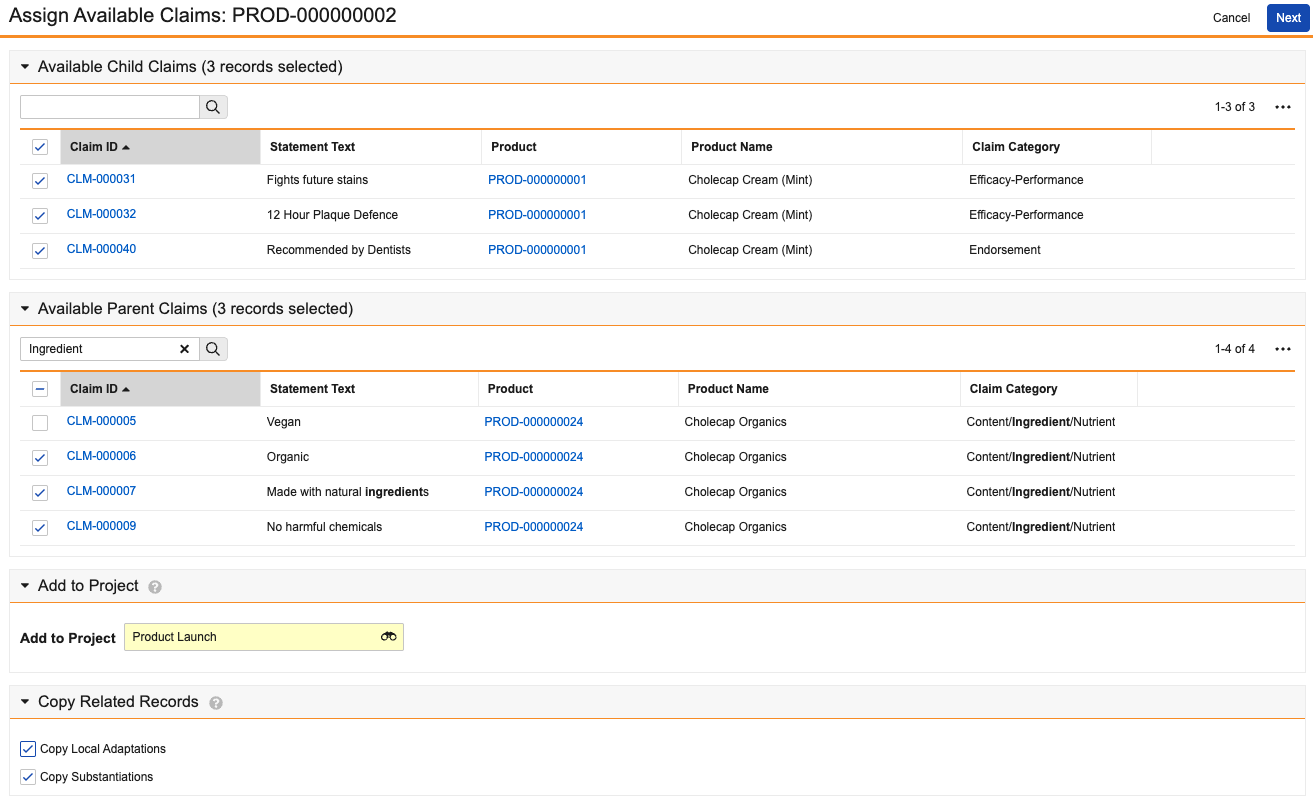
When configured by your Admin, you can use the _Assign Available Claims_ action to selectively generate new _Claims_ based on existing _Claims_ within a _Product's_ hierarchy. This allows you to assign available _Claims_ to a _Product_ and _Project_, such as those related to its brand, sub-brand, and associated products, according to its composition.

To review and assign available _Claims_ related to a _Product_:

1. Navigate to the applicable _Product_ for which you want to assign _Claims_.
2. From the **All Actions** menu, select **Assign Available Claims**.
3. On the _Assign Available Claims_ page, review the available claims and select which ones to assign to the _Product_ and add to a specific _Project_. You can use the search bars to find the records you want to add.
4. Optional: Click the **Available Child Claims** header to expand that section and select which claims to assign.
5. Optional: Click the **Available Parent Claims** header to expand that section and select which claims to assign.
6. Optional: Assign the _Claims_ to a specific _Project_:
   1. Click the **Add to Project** header to expand that section.
   2. In the **Add to Project** field, select the _Project_ to which you want to assign the selected _Claims_.
7. Optional: Copy related records to the generated _Claims_. If you select a _Project_ to which to add the _Claims_, Vault also copies the records to the _Project_.
   1. Click the **Copy Related Records** header to expand that section.
   2. Optional: Select the **Copy Local Adaptations** checkbox to copy active _Local Adaptations_ and their associated _Locations_.
   3. Optional: Select the **Copy Substantiations** checkbox to copy active _Substantiations_.
8.  Click **Next**.
9.  On the _Confirmation_ page, review the selected _Claims_ that Vault will copy to the _Product_. You can expand each section to review all _Claims_ you are assigning.
10. Click **Finish**.

This action does not create duplicate records. If a combination already exists, Vault will not generate a new record for that combination. When Vault finishes generating new _Claims_ based on your selections, you'll receive an email and a Vault notification. The notification lets you know if record creation was successful or if there were any errors and includes details about which _Product_ the _Claims_ have been added to.

The _Inherited from Product_ field on generated _Claims_ references the available _Product_ from which it was copied.

<a href="https://platform.veevavault.help/assets/images/cp-claims-assign-available.png" data-lightbox="cp-claims-assign-available.png" data-title="" data-alt="Assigning Available Product Claims">
  <img class="docimage" src="https://platform.veevavault.help/assets/images/cp-claims-assign-available.png" alt="Assigning Available Product Claims" style="max-width: 70%;"  />
</a>

<div class="note-border alert-info">
  <div class="alert alert-info" role="alert">
    <div><i class="far fa-info-circle"></i></div>
    <div class="alert-text">
      <p><strong>Note</strong>: The <em>Available Parent Claims</em> and <em>Available Child Claims</em> sections display up to 500 records.</p>
    </div>
  </div>
</div>


## Adding Comments {#comments}

When configured by your Admin, you can add comments to records. If configured, you can also reply to comments in comment threads for certain object records. See <a href="/en/gr/520894/">Using Comments</a> for more details.

## Creating Local Adaptations {#local-adapt}

Veeva Claims provides the ability to create _Local Adaptations_ of _Claims_ in order to review and approve _Claims_ for a _Product_ in different countries. See <a href="/en/gr/76204/">Working with Local Adaptations</a> for more details.

## Using Workflows {#workflows}

Veeva Claims uses <a href="/en/gr/33553/">workflows</a> to manage _Claims_ from proposal through to approval by assigning tasks to users. Claims Management includes the following standard workflows:

* **Substantiation Development**: Gathers substantiating documents for a _Claim_.
* **Review**: Sends a _Claim_ to regulatory or legal reviewers for feedback.
* **Approval**: Sends a _Claim_ to regulatory or legal approvers for final approval.

Your organization may modify these workflows or add custom workflows to suit your team's needs.

You can initiate a workflow from the **Workflow Actions** menu.

[1]: #local-adapt
[2]: #copy-claim
[3]: #create-new-claim
[4]: #view
[5]: #claim-statement
[6]: #claim-no-statement
[7]: #assign
[8]: #line-extension