# Configuring Requirement Generation (Registration & Dossier Management)

<a href="/en/gr/71498/">Registration & Dossier Management</a>
 provides users with the ability to define and track what needs to be completed for _Registration Objectives_ and _Registration Items_ so that they can register a product or amend an existing registration. Regulatory Affairs users can also create internal non-registration dossiers not typically meant for submission to authorities. For each registration objective or registration item, users can <a href="/en/gr/71503/">generate _Requirements_</a>
 with expected document lists and items based on either a dynamic template of a _Requirement Library_ hierarchy or an existing root _Requirement_. Users can then create <a href="/en/gr/76894/">Dossier Binders</a>
 for generated top-level _Requirements_. 

You can leverage the various relationships that exist between the associated _Product_ and other object records in the product hierarchy by defining <a href="/en/gr/71507/">Relational Tokens</a>
 and adding them to _Requirement Libraries_. This allows users to generate _Requirements_ specifically for the item to register. For example, instead of generating a generic `Proof of Claims` requirement, you can create a Relational Token named `product_claim__c`, which Vault will then use to generate three (3) _Requirements_, one (1) for each _Claim_ made on the _Product_: `Proof of Long-Lasting Claim`, `Proof of Dermatologically Tested Claim` and `Proof of Hypoallergenic Claim`.

You can also configure your Vault to populate supported fields with values from related source records defined in an <a href="/en/gr/74401/">Object Mapping</a>
 linked to the Relational Token when users generate _Requirements_, _EDLs_, and _EDL Items_.

## About Requirement Generation {#about}

You can configure the _Generate Requirements_ and _Update Requirements_ actions on the _Registration_ object, which lets users generate all _Requirements_ and any _EDLs_ for all _Registration Items_ in a _Registration Objective_. This allows users to create the same structure of requirements without having to manually recreate the hierarchy of records. You can also configure these actions on the _Event_ object, which we recommend if your users must generate requirements for large volumes of dossiers, so that Vault generates data for all _Registration Objectives_ associated with an _Event_ in a single instance. Depending on the needs of your organization, you can also configure the actions on the _Registration Item_ object so that users can generate the same structure of requirements for non-registration dossiers.

Users can determine if they want to generate _Requirements_ for every _Requirement Library_ in the hierarchy (including child requirements) based on [dynamic template requirement filters][5] or for specific root _Requirement Libraries_ they manually select.

Before users run the _Generate Requirements_ and _Update Requirements_ actions, they can specify a source root _Requirement_ from which to reuse shared requirements, allowing them to generate _Requirements_ based on an existing _Requirement_. This enables them to <a href="/en/gr/71503/#example">reuse shared requirements from a previously submitted dossier</a>
 that only requires a small change. When a user specifies a source root _Requirement_, Vault links the generated _Requirements_ to applicable shared source _Requirements_. Users can later specify if they want to reuse the documents related to the source records when they generate a Dossier Binder from the parent _Requirement_ generated by the _Generate Requirements_ action. When users generate Dossier Binders from parent _Requirements_ created from the _Generate Requirements_ action, Vault reuses documents related to the source records unless the user specifies not to use those source documents.

## Configuration Overview {#overview}

Configuring your Vault to generate _Requirements_ involves the following steps:

1. [Set up EDL][7]
2. [Configure object layouts][3]
3. Optional: [Configure the Requirement Hierarchy Viewer][19]
4. [Define referenced items][4]
5. Optional: [Define an Object Mapping with Field Mappings][8]
6. Optional: [Define Relational Tokens][9]
7. Optional: [Configure object types][14] so you can configure the _Generate Requirements_ and _Update Requirements_ actions on multiple objects
8. [Configure dynamic template requirement filters][5]
9. [Configure object actions][6]
10. Optional: [Configure dossier document creation from template][22]
11. [Configure custom lifecycles][10]
12. [Configure custom workflows][11]
13. [Configure user permissions][12]

<div class="note-border alert-info">
  <div class="alert alert-info" role="alert">
    <div><i class="far fa-info-circle"></i></div>
    <div class="alert-text">
      <p><strong>Note</strong>: Depending on your Vault’s creation date and which features are currently enabled and configured, some of the steps described in this article may be unavailable or already complete in your Vault.</p>
    </div>
  </div>
</div>


## Setting up EDL {#EDL}

You must set up EDL in order for Vault to create _EDL_ and _EDL Items_ when users run the _Generate Requirements_ and _Update Requirements_ actions. See <a href="/en/gr/33316/">EDL Administration</a>
 for more details.

If you configure object types on the _EDL_ or _EDL Item_ objects, you must <a href="/en/gr/32857/#assign">assign</a>
 all relevant fields included on the base object types to the custom object types you configure.

Each _Requirement_ can link to one (1) _EDL_ and one (1) _EDL Item_.

## Configuring Object Layouts {#page-layouts}

You must configure <a href="/en/gr/26387/">object layouts</a>
 in the following ways:

* For the _Requirement Library_ object:
  * Create an object layout that includes the _Regulated Category_, _EDL_, and _Token Label_ fields in a _Details_ section.
  * Optional: Add the _Default Order_ field to allow users to specify a default order for generated _Requirements_.
  * Insert a related object section for the _Requirement Library_ object. We recommend using the section label "Child Requirements".
  * Insert a related object section for the _Requirement_ object. We recommend using the section label "Related Requirements".
  * Insert a related object section for the _Regulated Categories_ object. We recommend using the section label "Regulated Categories".
* For the _Registration_ object:
  * Create an object layout that includes the following fields in a _Details_ section:
    * _Registration_
    * _Source Dossier_: Allows users to select a root _Requirement_ to copy and amend, reusing the applicable shared requirements associated with the specified record.
    * _Generate Requirements Job Status_: This field value updates to reflect the current status of the job after users run the _Generate Requirements_ and _Update Requirements_ actions.
    * Optional: Add the _Select Root Requirement_ field. If users select _Yes_ for this field value before running an action on a _Registration Objective_ or _Registration Item_, Vault will display a dialog when they execute the _Generate Requirements_ user action for a _Registration_ and allow them to select specific root _Requirement Libraries_. If users select _No_ or leave it blank, Vault selects _Requirement Libraries_ based on [dynamic template requirement filters][5] you configure for the dynamic template. If you have not defined any Criteria VQL, Vault selects all active _Requirement Libraries_. You can also configure defaults for this field to ensure users enter the correct data.
  * Insert a related object section for the _EDL Item_ object. We recommend using the section label "Related Documents".
  * Optional: Insert a related object section for the _Requirement_ object. Do not insert this section if you plan to configure the [Requirement Hierarchy Viewer][19] on the _Registration_ object.
* For the _Registration Item_ object:
  * Create an object layout that includes the _Event_, _Location_, _Product_, _Registration_, and _Registration Objective_ fields in a _Details_ section.
  * Optional: Insert a related object section for the _Requirement_ object. We recommend using the section label "Related Requirements". Do not insert this section if you plan to configure the [Requirement Hierarchy Viewer][19] on the _Registration_ object.
  * Insert a related object section for the _Registration Item_ object. We recommend using the section label "Related Registration Items".
* For the _Requirement_ object: 
  * Add the _Source_ and _Use Source_ fields. The _Source_ field cannot be edited by users.
  * Create and add custom Formula fields to display relevant <a href="/en/gr/44478/#icons">status icons</a>
.

#### Non-Registration Dossiers {#non-registration}

If you also plan to configure the _Generate Requirements_ and _Update Requirements_ actions on the _Registration Item_ object so that users can generate _Requirements_ for non-registration dossiers, make the following updates to the _Registration Item_ object layout:

* Insert a related object section for the _EDL Item_ object. We recommend using the section label "Related Documents".
* Add the _Source Dossier_ field.
* Optional: Add the _Select Root Requirement_ field.
* Optional: Add the _Generate Requirements Job Status_ field.

#### Copy & Amend Dossier: Multiple Templates {#multiple-templates}

To support multiple templates so users can <a href="/en/gr/71503/#reusing-shared">copy and amend</a>
 from a source with a different _Requirement Library_ template than the target dossier, we recommend updating the [_Requirement Matching Group_][24] object layout to include a related object section for the _Requirement Library_ object.

## Configuring the Requirement Hierarchy Viewer {#viewer}

You can configure the _Registration_ and _Registration Item_ objects to display related _Requirements_ in a hierarchical structure, allowing users to review and adjust records, nested order, and matched documents before generating a <a href="/en/gr/76894/">Dossier Binder</a>
 for a root _Requirement_. See <a href="/en/gr/623830/">Configuring the Requirement Hierarchy Viewer</a>
 for more details.

## Defining Referenced Items {#define-ref-items}

For users to be able to generate _Requirements_, you must define referenced items before they can leverage functionality appropriately, including the _Requirement Libraries_ hierarchy template. You can use <a href="/en/gr/26607/">Vault Loader</a>
 to create and update fields on multiple records.

### Regulated Categories {#regulated-categories}

You can create _Regulated Categories_ to relate each _Requirement Library_ to a _Location_. Regulated categories help to organize regulations into logical groupings, such as `Cosmetics` or `Over the Counter (OTC)`.

### EDLs & EDL Items {#edls}

You can define <a href="/en/gr/32749/">_EDLs_ and _EDL Items_</a>
 to link to the applicable _Requirement Libraries_.

### Requirement Matching Groups {#rmg}

_Requirement Matching Groups_ allow you to group descendant _Requirement Libraries_. For example, if your Vault includes multiple `Proof of Product Claim` _Requirement Libraries_, each in a different template, you could add them both to the `Proof of Claim` _Requirement Matching Group_. This allows users to copy and amend a dossier from a source with a different _Requirement Library_ template than the target dossier. 

When users select a _Source Dossier_ with a different template from the target dossier, Vault identifies the matching _Requirement Libraries_ based on their shared _Requirement Matching Group_. For example, when a global team builds a core dossier that is then used as a source for local affiliates, they can use the same source when copying and amending a source dossier.

### Requirement Libraries {#requirements}

_Requirement Libraries_ are a hierarchical structure containing levels of parent and child requirements, including some requirements that can act as section groupings. Creating the hierarchical template structure of _Requirement Libraries_ allows you to ensure users generate the appropriate _Requirements_ when they generate _Requirements_. The number of _Requirement Libraries_ to create and the parent-child relationships for your templates varies depending on your organization's needs. For example, you can create one structure for the `Cosmetic Product Information File (PIF) Template` and another for the `Canada PIF Template`.

For each _Requirement Library_, you can define the following as needed:

* To associate a descendant _Requirement Library_ with a _Requirement Matching Group_, select the appropriate group. You cannot populate this field on root records.
* To associate the _Requirement Library_ with a _Location_, select the appropriate _Regulated Category_.
* To generate an _EDL_ and _EDL Item_ for the _Requirements_ generated when users run the _Generate Requirements_ and _Update Requirements_ actions, select the _EDL_ checkbox.
* To specify the default order, populate the _Default Order_ field for records within each hierarchical level, with `1` being the top-most record in each section or subsection. 
  * If you leave this field blank, any _Requirements_ generated from that record will sort at the bottom of the list of ordered records in the section it is located within. 
  * If the _Generate Requirements_ action creates multiple records from _Requirement Libraries_ with the same _Default Order_, Vault sorts them based on the related _Requirement Library's_ name, created date, and _ID_ and then by the _Requirement's_ name. 
  * Vault creates system-managed _Requirement Orders_ to track each _Requirement Library's_ order.
  * After users run the _Generate Requirements_ and _Update Requirements_ actions, the new _Requirements_ are listed in the [Requirement Hierarchy Viewer][19] based on the _Default Order_ of their associated _Requirement Libraries_ in the applicable template. Users can reorder them in the viewer before generating <a href="/en/gr/76894/">Dossier Binders</a>
.

#### Example {#requirement-example}

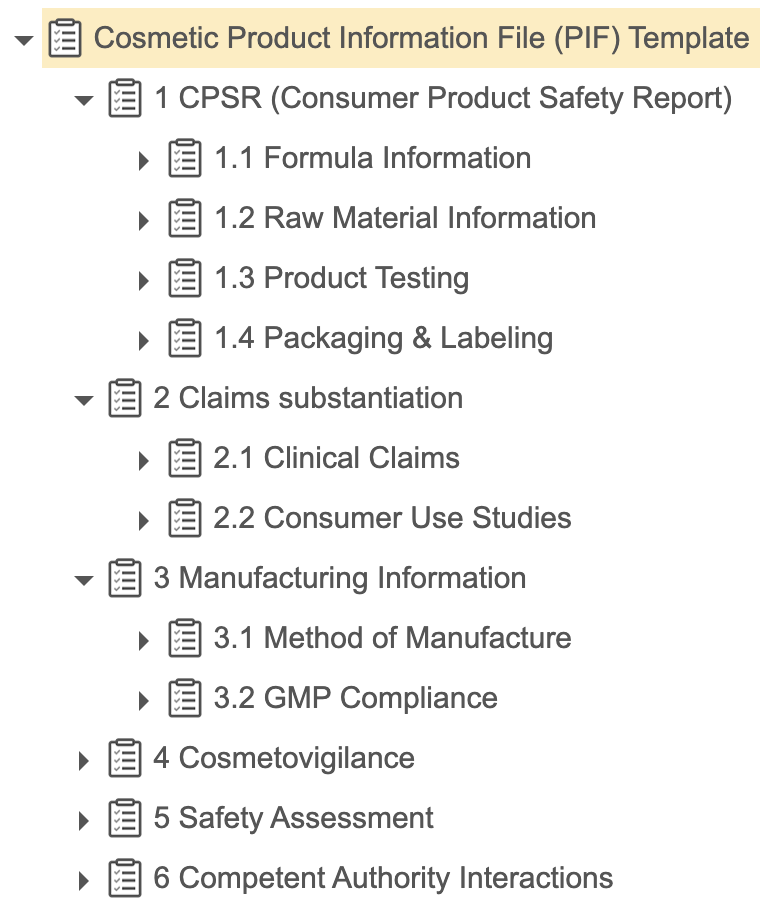
Review the following image for an example of the _Requirement Library_ hierarchy you could create to allow users to generate all required _Requirements_ for a Cosmetic PIF. Each item represents a _Requirement Library_ and the parent-child relationships are represented by the nested indentation in the image. In this example, an Admin has included numbered levels in the _Name_ field to help represent the overall structure of the template.

<a href="https://platform.veevavault.help/assets/images/CPC-RDM-RequirementsTemplate.png" data-lightbox="CPC-RDM-RequirementsTemplate.png" data-title="" data-alt="Requirements Template">
  <img class="docimage" src="https://platform.veevavault.help/assets/images/CPC-RDM-RequirementsTemplate.png" alt="Requirements Template" style="max-width: 25%;"  />
</a>  

## Defining Object Mappings & Field Mappings {#field-mappings}

You can map field values between a source and target object so that the generated _Requirements_, _EDLs_, and _EDL Items_ contain the same values as the source records. 

You can leverage Object Mappings to populate values on generated records in the following ways:

* To populate default values on generated _Requirements_, _EDLs_, and _EDL Items_ based on values from the source _Requirement Libraries_ (for example, to support <a href="/en/gr/33316/#automatic-document-matching">automatic document matching</a>
).
* To populate values based on the resolution of linked [Relational Tokens][9].

See <a href="/en/gr/74401/">Defining Object Mappings & Field Mappings</a>
 for more details.

## Defining Relational Tokens {#define-tokens}

To create multiple _Requirements_ for each instance of a specific product hierarchy relationship, you can optionally define Relational Tokens and reference the Relational Token in the _Token Label_ field of the _Requirement Library_. This also allows you to use the name of that token enclosed in curly brackets (`{` and `}`) (for example: `{product_claim__c}`) in the _Name_ field of _Requirement Libraries_ to populate the _Requirement_ name based on the definition of the token (for example: `Proof of {product_claim__c}`). You can create recursive Relational Tokens if your product hierarchy has nested levels of the same object.

If token resolution generates multiple _Requirements_ for the same [_Requirement Library_][21] with a defined _Default Order_, Vault orders those _Requirements_ based on their _IDs_.

See <a href="/en/gr/71507/">Defining Relational Tokens</a>
 for more details about how to create Relational Tokens and then <a href="/en/gr/71507/#requirements">add them to _Requirement Libraries_</a>
.

## Configuring Object Types {#object-types}

To configure the _Generate Requirements_ and _Update Requirements_ actions on multiple objects, you must configure object types. To configure the actions on both the _Registration_ and _Registration Item_ objects, you must configure [_Requirement_ object types][30]. To configure the action on the _Event_ object, you must configure [_Registration_ object types][29].

### Requirement Object Types {#requirement-object}

To configure the _Generate Requirements_ and _Update Requirements_ actions to generate _Requirements_ for both _Registration Objectives_ and _Registration Items_, you must <a href="/en/gr/32857/">configure object types</a>
 on the _Requirement_ object. 

You must create at least one (1) custom object type in addition to the base object type for the _Requirement_ object and [assign certain fields][18] to all object types. Then, you can [configure dynamic template requirement filters][5] on the _Requirement Library_ field for each object type. When you configure [Relational Token Setting Components][15], you will specify which  types of _Requirement_ Vault generates when users run the _Generate Requirements_ and _Update Requirements_ actions, depending on if they are generating _Requirements_ for a _Registration Objective_ or _Registration Item_.

<div class="note-border alert-info">
  <div class="alert alert-info" role="alert">
    <div><i class="far fa-info-circle"></i></div>
    <div class="alert-text">
      <p><strong>Note</strong>: If you do not configure object types on the <em>Requirement</em> object, you can only configure the <em>Generate Requirements</em> and <em>Update Requirements</em> actions with <a href="#filter-config">dynamic template requirement filters</a> on the <em>Registration</em> object or the <em>Registration Item</em> and <em>Event</em> objects.</p>
    </div>
  </div>
</div>


#### Assigning Fields {#assign-fields}

After creating custom object types, you must <a href="/en/gr/32857/#assign">assign</a>
 the following fields to all _Requirement_ object types:
 
* _Depth in Source Hierarchy_
* _Parent Requirement_
* _Registration Item_
* _Registration Objective_
* _Requirement Library_
* _Source_
* _Use Source_
 
If you do not assign these fields to all object types, the _Generate Requirements_ and _Update Requirements_ actions will fail.

### Registration Object Types {#registration-object}

If you plan to configure the _Generate Requirements_ and _Update Requirements_ actions on the _Event_ object, you must <a href="/en/gr/32857/#assign">assign</a>
 the _Event_ field to the relevant _Registration Objective_ object types on the _Registration_ object.

## Configuring Dynamic Template Requirement Filters {#filter-config}

Configuring dynamic template requirement filters allows you to configure the requirements hierarchy to be dynamic so that users can generate _Requirements_ based on the dynamic template. By applying the appropriate <a class="external-link " href="https://developer.veevavault.com/vql/#criteria-vql" target="_blank" rel="noopener">Criteria VQL<i class="fa fa-external-link" aria-hidden="true"></i></a> to the _Requirement Library_ field of the _Requirement_ object, you can ensure that Vault only creates the appropriate _Requirements_ of the [specified object type][14] when users run the _Generate Requirements_ and _Update Requirements_ actions. For example, you could add Criteria VQL that filters by the relevant _Regulated Categories_ and the _Requirement Lifecycle State_ on child _Requirement Libraries_ to ensure that active requirements that are appropriate for the _Regulated Category_, such as `Cosmetic`, are created by the action:

`id IN (SELECT id FROM regulated_category_requirement_join__cr WHERE regulated_category__c = {{this.request__vr.regulated_category__c}}) AND state__v = 'active_state__c')`

Apply Criteria VQL to the _Requirement Library_ field depending on if you [configured custom object types][30] for the _Requirements_ object:

* If you configured custom object types: Set up reference constraints on the _Requirement Library_ field for both _Requirement_ custom object types. This defines how Vault creates requirements depending on which object record users run the _Generate Requirements_ and _Update Requirements_ actions. If you do not assign  the _Requirement Library_ field to the custom object type you defined in the [Relational Token Setting component][15], Vault applies the Criteria VQL to the base object type. See <a href="/en/gr/32857/">Setting Up Object Types</a>
 for more details about assigning fields and setting up reference constraints on object type fields.
* If you did not configure custom object types: Set up a reference constraint on the _Requirement Library_ field on the _Requirement_ object that applies to either the _Registration_ or _Registration Item_ object. This defines how Vault creates requirements when users run the action to generate _Requirements_ for a _Registration Objective_ or _Registration Item_. See <a href="/en/gr/75340/">Configuring Reference Constraints</a>
 for more details about how to configure filters on an object field.

You can only reference the _Registration Item_ field or a field related to the object on which you are applying Criteria VQL.

If you don't apply any Criteria VQL to the _Requirement Library_ field on the _Requirement_, Vault creates a _Requirement_ for every _Requirement Library_ unless users select _Yes_ for the _Select Root Requirement_ before running <a href="/en/gr/71503/#generating">_Generate Requirements_ or _Update Requirements_ action</a>
 on a _Registration Objective_ or _Registration Item_ and then select specific root _Requirement Libraries_ in the _Select Requirements_ dialog.

## Configuring Object Actions {#action-config}

The following actions support _Requirement_ generation:

* [**Generate Requirements**][16]: Allows users to generate _Requirements_.
* [**Update Requirements**][26]: Allows users to regenerate _Requirements_ for living dossiers.
* [**Customize**][17]: Allows users to unlink generated _Requirements_ from source _EDLs_ when reusing shared requirements.

### Configuring the Generate Requirements Action {#generate-action}

<div class="note-border alert-info">
  <div class="alert alert-info" role="alert">
    <div><i class="far fa-info-circle"></i></div>
    <div class="alert-text">
      <p><strong>Note</strong>: Before configuring this action, you must <a href="#rts">define Relational Token Setting components</a>. If you do not do this, the action will fail.</p>
    </div>
  </div>
</div>


The _Generate Requirements_ action allows users to generate a _Requirement_ for every _Requirement Library_, including child _Requirement Libraries_ based on a [dynamic template][5] or existing dossier. You can configure the _Generate Requirements_ action on the _Registration_, _Event_, and _Registration Item_ objects. We strongly recommend configuring the _Generate Requirements_ action on the _Registration_ object so that users can generate _Requirements_ for typical dossiers intended for submission to authorities, such as country-level dossiers for products.  If users must run the action on large volumes of dossiers, we recommend configuring it on the _Event_ object to generate _Requirements_ for all associated _Registration Objectives_.  If the needs of your organization require users to also create non-registration dossiers, you can also add the action to the _Registration Item_ object so that users can generate _Requirements_ for dossiers not necessarily intended for submission to authorities, such as global product dossiers.

You can leverage [Object Mappings][8] and [Relational Tokens][9] to populate fields on generated records.

When the _Generate Requirements_ action runs, Vault does the following:

* Creates _Requirements_ of the [specified type][15] based on which record the action runs:
  * When run on an _Event_, Vault creates _Requirements_ for each associated _Registration Objective_ for every active _Requirement Library_ in the hierarchy, including child requirements.
  * When run on a _Registration_ or _Registration Item_, Vault creates _Requirements_ based on the value of the _Select Root Requirement_ field on the applicable _Registration_ or _Registration Item_:
    * If the field value is _No_ or blank, Vault generates a _Requirement_ for every active _Requirement Library_ in the hierarchy, including child requirements.
    * If the field value is _Yes_, Vault generates a _Requirement_ for root _Requirement Libraries_ the user manually selects in the _Select Requirements_ dialog and any child _Requirement Libraries_ of those root records selected by the user. The list of _Requirement Libraries_ displayed in the dialog is constrained based on  the [object type][14] you [specify for the action][15] and any [dynamic template requirement filters][5] you configure for the dynamic template.
* Relates each new _Requirement_ to the _Requirement Library_ and to the record on which the user ran the action.
* Orders generated records based on the _Default Order_ values of the _Requirement Libraries_ from which they were generated.
* If you set up [EDL][7] and <a href="/en/gr/71503/#define-req">users select the _EDL_ checkbox on a _Requirement Library_</a>
 before running the action, Vault creates _EDL_ and _EDL Items_ to capture the associated required documents for the registration and associates the _EDL_ and _EDL Items_ to the _Requirement_.
* If you defined [Relational Tokens][9], Vault creates multiple _Requirements_ for each instance of a specific product hierarchy relationship based on token resolution.
* If you linked any [Object Mappings][8] to the action or to defined [Relational Tokens][9], Vault populates those fields on generated _Requirements_, _EDLs_, and _EDL Items_ based on source values and token resolution.
* If users specify a root _Requirement_ in the _Source Dossier_ field from which they want to reuse shared requirements and documents, Vault also does the following:
  * Identifies any existing active _Requirements_ related to the specified source root requirement.
  * Links them to the generated _Requirements_.
  * Populates the _Source_ field on generated records with the name of the source _Requirement_ that is reused for the new records.
  * Selects the _Use Source_ checkbox on all generated records.
 
Vault also populates several system-managed fields that are used by Vault to link generated _Requirements_ to root _Requirements_. These fields are not intended to be seen by users:

* _Token Resolution Record ID_
* _Depth in Source Hierarchy_

#### Defining Relational Token Setting Components {#rts}

You must define Relational Token Setting components linking the _Generate Requirements_ action to a root [Relational Token][9]. If you plan to configure the _Generate Requirements_ action on both the _Registration_ and _Registration Item_ objects, you must also specify the [types][14] of _Requirements_ the action creates when users run the action on each object record. If you do not do this, the action will fail. See <a href="/en/gr/71507/#root-tokens">Defining Relational Tokens</a>
 for more details about how to define Relational Token Setting components.

<div class="note-border alert-important">
  <div class="alert alert-important" role="alert">
    <div><i class="far fa-exclamation-circle"></i></div>
    <div class="alert-text">
      <p><strong>Important</strong>: Once you define an object type in a Relational Token Setting component, you cannot change the type of <em>Requirements</em> the <em>Generate Requirements</em> action creates for the specified object.</p>
    </div>
  </div>
</div>


#### How to Configure the Generate Requirements Action {#generate-action-configure}

Depending on your business needs, you can add this action to the _Registration_, _Event_, and _Registration Item_ objects as lifecycle <a href="/en/gr/59885/#entry-actions">entry actions</a>
 and <a href="/en/gr/59885/#define-actions">user actions</a>
. When configuring the action on the _Registration_ lifecycle states, we recommend defining a <a href="/en/gr/59885/#conditions">condition</a>
 so the action only runs when the record is a _Registration Objective_ type of _Registration_.

When configuring the _Generate Requirements_ action on a lifecycle state, you can link the action to active [Object Mappings][9]. This defines how Vault populates mapped fields on generated records with default field values on the source _Requirement Library_. These Object Mapping fields are optional:

* **Requirement to Edl Mapping**: Maps fields from the source _Requirement Library_ to the target _EDL_.
* **Requirement to Edl Item Mapping**: Maps fields from the source _Requirement Library_ to the target _EDL Item_.
* **Requirement to RIR Mapping**: Maps fields from the source _Requirement Library_ to the target _Requirement_.

When you configure the action on an _Event_ lifecycle state, you can also populate the <a class="external-link " href="https://developer.veevavault.com/vql/#Criteria_VQL" target="_blank" rel="noopener">**VQL Criteria**<i class="fa fa-external-link" aria-hidden="true"></i></a> field to define which _Registration Objectives_ the action processes when users execute it on an _Event_. For example, you can exclude _Registration Objectives_ in completed or cancelled states.


<div class="note-border alert-info">
  <div class="alert alert-info" role="alert">
    <div><i class="far fa-info-circle"></i></div>
    <div class="alert-text">
      <p><strong>Note</strong>: We recommend that you do not configure more than a single entry action on any <em>Registration Item</em> object lifecycle state, which may result in unexpected values in the corresponding job status fields when those actions complete.</p>
    </div>
  </div>
</div>


### Configuring the Update Requirements Action {#update-action}

The _Update Requirements_ action allows users to regenerate a global or core dossier's _Requirements_ to update them as a company develops new variations of a product, reflecting new information and changes to documentation requirements over time. When a user runs the _Update Requirements_ action, Vault generates _Requirements_ with applicable _EDLs_ and _EDL Items_ based on your [dynamic template][5] or the user-specified source dossier. This process is similar to how the [_Generate Requirements_ action][16] creates records but excludes _Requirements_ for generation based on any Criteria VQL you've configured for the action. For example, you may configure the action to exclude root _Requirements_ in completed or cancelled lifecycle states from regeneration. 

When a user runs this action, Vault ignores the _Select Root Requirement_ field and does not allow the user to select specific root _Requirement Libraries_. Instead, the action regenerates _Requirements_ based on your dynamic template or the user-specified _Source Dossier_, while applying your specified Criteria VQL.

<div class="note-border alert-info">
  <div class="alert alert-info" role="alert">
    <div><i class="far fa-info-circle"></i></div>
    <div class="alert-text">
      <p><strong>Note</strong>: Vault links the <em>Update Requirements</em> action to the same <a href="#rts">Relational Token Setting components</a> you defined for the <em>Generate Requirements</em> action.</p>
    </div>
  </div>
</div>


#### How to Configure the Update Requirements Action {#update-action-how}

Depending on your business needs, you can add the _Update Requirements_ action to the _Registration_, _Event_, and _Registration Item_ objects as lifecycle <a href="/en/gr/59885/#entry-actions">entry actions</a>
 and <a href="/en/gr/59885/#define-actions">user actions</a>
.

<div class="note-border alert-info">
  <div class="alert alert-info" role="alert">
    <div><i class="far fa-info-circle"></i></div>
    <div class="alert-text">
      <p><strong>Note</strong>: We recommend configuring this action on the same lifecycle states or subsequent lifecycle states for which you configured the <em>Generate Requirements</em> action.</p>
    </div>
  </div>
</div>


When configuring the _Update Requirements_ action on a lifecycle state, you can link the action to active [Object Mappings][9]. This defines how Vault populates mapped fields on generated records with default field values on the source _Requirement Library_. We recommend using the same mappings you configured for the [_Generate Requirements_ action][27]. You can also use <a class="external-link " href="https://developer.veevavault.com/vql/#criteria-vql" target="_blank" rel="noopener">Criteria VQL<i class="fa fa-external-link" aria-hidden="true"></i></a> to define filters that specify which records the action updates. For example, you can exclude records in completed or cancelled states. 

These fields are optional when configuring the action on a lifecycle state:

* **Requirement to Edl Mapping**: Maps fields from the source _Requirement Library_ to the target _EDL_.
* **Requirement to Edl Item Mapping**: Maps fields from the source _Requirement Library_ to the target _EDL Item_.
* **Requirement to RIR Mapping**: Maps fields from the source _Requirement Library_ to the target _Requirement_.
* Depending on which object you're configuring the action, you can define which root _Requirements_ the action updates and which _Registration Objectives_ the action processes by entering <a class="external-link " href="https://developer.veevavault.com/vql/#criteria-vql" target="_blank" rel="noopener">Criteria VQL<i class="fa fa-external-link" aria-hidden="true"></i></a> in the applicable field. These fields have a limit of 500 characters and do not support `IN`, `LIKE`, or `ORDER BY` operators:
  * **VQL Criteria**: When configuring the action on the _Registration_ or _Registration Item_ objects, enter a filter here to define which root _Requirements_ the action updates. 
  * **VQL Criteria for Registration Objectives**: When configuring this action on the _Event_ object, enter a filter here to define which _Registration Objectives_ the action processes. 
  * **VQL Criteria for Root Requirements**: When configuring this action on the _Event_ object, enter a filter here to define which root _Requirements_ associated with the filtered _Registration Objectives_ the action processes. 

### Configuring the Customize Action {#customize-action}

The _Customize_ action is available to configure on the _Requirement_ object lifecycle. This allows users to unlink a generated _Requirement_ from the _EDLs_ and _EDL Items_ associated with the source _Requirement_ and customize the matched documents for that record. If you have configured [object types][14] on the _Requirement_ object, you must <a href="/en/gr/32857/#assign">assign the action to all applicable object types</a>
.
 
When the _Customize_ action runs, Vault does the following:
 
* Creates new _EDLs_ and _EDL Items_ for each _EDL_ and _EDL Item_ associated with the source _Requirement_ and relates them to the _Requirement_ on which the action ran.
* Populates the following fields on generated _EDLs_ and _EDL Items_:
  * _Name_ (copied from source records)
  * _Requirement_ (the _Name_ of the record on which the action ran)
* Populates the following fields on generated _EDL Items_:
  * _EDL_ (the _Name_ of the applicable parent record)
  * _Expected Steady State Count_ (copied from source records)
* Clears the _Use Source_ checkbox on the _Requirement_ so that Vault will not include the documents matched to the source _EDL Items_ when users create <a href="/en/gr/76898/#shared-requirements">Dossier Binders</a>
 that include shared requirements.
* If you configure the action to copy matched documents, Vault includes the documents matched to the source _EDL Items_ and populates the following fields on generated records:
  * _Batch Update_ on _EDLs_ (_No_, to prevent <a href="/en/gr/33316/#automatic-document-matching">automatic document matching</a>
 from reoccurring)
  * _Version is Locked_ on _EDL Items_ (copied from the source record)
* If you [configure the action][28] to copy _Matching EDL Item Fields_, Vault copies matching fields from source _EDLs_ to target _EDLs_.
* If you defined an [Object Mapping with Field Mappings][8], Vault populates those fields on generated _EDLs_ and _EDL Items_ based on how the linked Relational Token resolved in the source _Requirement_. Vault does not populate any of the following fields based on token resolution: _Name_, _Requirement_, _EDL_, or _Expected Steady State Count_.
 
Users can run the _Customize_ action on active _Requirements_ that meet the following criteria:

* There are no associated active _EDLs_ or _EDL Items_.
* The _Use Source_ checkbox is selected.
* The _Source_ field is populated with a _Requirement_ with associated _EDLs_ and _EDL Items_, none of which reference other _Requirements_.
* The shared _Requirement Library_ is active, has the _EDL_ checkbox selected, and is shared with the source _Requirement_.

#### How to Configure the Customize Action {#customize-how-to}

To configure the _Customize_ action:

1. <a href="/en/gr/43127/#assign-actions">Assign</a>
 the _Customize_ action to the _Requirement_ object. Do not select the _Available in All Lifecycle State_ checkbox.
2. Depending on your business needs, you can add this action as an <a href="/en/gr/59885/#entry-actions">entry action</a>
  and <a href="/en/gr/59885/#define-actions">user action</a>
 to the applicable states of the _Requirement_ object lifecycle. 
  * Optional: Select the **Copy Matched Documents** checkbox to carry over the matched documents to generated _EDL Items_. If you do not select the checkbox, generated _EDL Items_ do not include any matched documents.
  * Optional: Select the **Copy Matching EDL Item Fields** checkbox to match documents to generated _EDL Items_ based on the <a href="/en/gr/32749/#matching">_Matching EDL Item Fields_ setting</a>
 for the source parent _EDL_. This allows users to auto-match documents that are different from the source dossier.

## Configuring Automatic Dossier Document Creation from Templates {#document-creation}

You can configure your Vault to allow users to create dossier documents from templates. See <a href="/en/gr/679928/">Configuring Automatic Dossier Document Creation from Templates</a>
 for more details.

## Configuring Object Lifecycles {#lc}

You can create <a href="/en/gr/30683/">custom lifecycles</a>
 for the _Registration_ and _Registration Item_ objects and add custom lifecycle states to suit your organization's needs.

## Configuring Object Workflows {#wf}

You can create <a href="/en/gr/33498/">custom workflows</a>
 for the _Registration_ and _Registration Item_ objects to suit your organization's needs. Ensure you have a custom lifecycle initially created.

## Configuring User Permissions {#user-permissions}

You must ensure users have the appropriate read and create <a href="/en/gr/22824/">permissions</a>
 to access the appropriate objects and object fields in addition to the permissions outlined below:

* For the _Requirement_ object: _Create_ permission, including _Create_ permission on any configured [object types][14].
* For the _Registration_ and _Registration Item_ objects: _Edit_ permission on the _Generate Requirements Job Status_ field.
* To <a href="/en/gr/71503/#delete">delete a _Requirement_ and all of its children</a>
, users must have _Delete_ permissions on the _Requirement_ (including any configured [object types][14]), _EDL_, and _EDL Item_ objects.
* When generating _Requirement Libraries_ for a _Registration_ with the _Select Root Requirement_ field value of _Yes_, Vault filters the _Requirement Libraries_ in the dialog based on the user's _Read_ permissions, including _Read_ permission on any fields included in [dynamic template requirement filters][5].

### Customize Action

To run the [_Customize_ action][17], users must have the _Application: Vault Actions: EDL Matching: Edit Match Fields_ permission.

## Related Permissions {#permissions}

You can complete all the steps in this article with the standard _System Administrator_ or _Vault Owner_ security profile. If your Vault uses custom security profiles, your profile must grant the following <a href="/en/gr/22824/">permissions</a>
:

<table>
  <tr>
    <th><strong>Type</strong></th>
    <th><strong>Permission</strong></th>
    <th><strong>Controls</strong></th>
  </tr>
    <tr>
    <td>Security Profile</td>
    <td>Admin: Configuration: Object Lifecycles: Create, Edit</td>
    <td>Ability to create and modify object lifecycles.</td>
  </tr>
  <tr>
    <td>Security Profile</td>
    <td>Admin: Configuration: Objects: Create, Edit</td>
    <td>Ability to create and modify Vault objects.</td>
  </tr>
  <tr>
    <td>Security Profile</td>
    <td>Admin: Security: Permission Sets: Edit</td>
    <td>Ability to modify permission sets for users.</td>
  </tr>
</table>

 [1]: #about
 [3]: #page-layouts
 [4]: #define-ref-items
 [5]: #filter-config
 [6]: #action-config
 [7]: #EDL
 [8]: #field-mappings
 [9]: #define-tokens
 [10]: #lc
 [11]: #wf
 [12]: #user-permissions
 [13]: #permissions
 [14]: #object-types
 [15]: #rts
 [16]: #generate-action
 [17]: #customize-action
 [18]: #assign-fields
 [19]: #viewer
 [20]: #supported-fields
 [21]: #requirements
 [22]: #document-creation
 [23]: #mappings
 [24]: #rmg
 [25]: #multiple-templates
 [26]: #update-action
 [27]: #generate-action-configure
 [28]: #customize-how-to
 [29]: #registration-object
 [30]: #requirement-object