# Pack Copy Management (Veeva Claims)

<a href="/en/gr/54331/">Veeva Claims</a> Pack Copy Management provides the ability for you to manage all content that appears on packaging labels. You can create and manage content such as claims, logos, corporate addresses, or usage instructions and organize the pack copy content by levels and panels. You can use the [hierarchy viewer][2] to view and navigate the pack copy hierarchy, to see all packaging levels and panels on a single page.

Pack Copy also allows you to specify a pack copy as a global pack copy and to [generate local pack copies][3] from the global pack copy based on location selections. Before generating local pack copies, you can check to see if any elements are missing localizations. Translators can review element text and provide translations of these localized elements.

Depending on your <a href="/en/gr/63393/">Admin's configuration</a>, object, field, and section labels may appear differently than the labels mentioned in this article.

## About Pack Copy

Pack Copy provides the ability to start working on a _Pack Copy_ by creating a _Pack Copy_ record and its packaging levels and panels in a single dialog or page. Working with pack copy involves interacting with the following <a href="/en/gr/15298/">objects</a>:

  * **Pack Copy**: Use a _Pack Copy_ record as the main item containing all the packaging content details for a product, including the packaging levels, panels, and elements. Each _Pack Copy_ record can have multiple _Packaging Levels_.
  * **Packaging Level**: Use a _Packaging Level_ record to define the level of packaging, such as primary, secondary, or tertiary. Each _Packaging Level_ can have multiple _Panels_.
  * **Panel**: Use a _Panel_ record to define the panels needed for each packaging level, such as front, back, top, or bottom. _Panel_ records include the non-editable _Pack Copy_ field populated with the corresponding grandparent _Pack Copy_ record (the parent of the _Panel_ record's parent _Packaging Level_). Each _Panel_ can have multiple _Elements_.
  * **Element**: Use an _Element_ record to define the text (or image) content, including the element language, location, where the content should be located on the panel, and global element (for local elements).
  * **Usable Element Location**: When configured by your Admin, use the _Useable Element Location_ section in _Element_ records to view all locations to which that _Element_ is associated. Vault automatically generates and manages _Usable Element Locations_, which associate a local _Element_ with a specific _Location_ for which there is one (1) or more local _Pack Copy_. You cannot create, modify, or delete these records.

<a href="https://platform.veevavault.help/assets/images/CPC-Claims-Add.png" data-lightbox="CPC-Claims-Add.png" data-title="" data-alt="Pack Copy Record">
  <img class="docimage" src="https://platform.veevavault.help/assets/images/CPC-Claims-Add.png" alt="Pack Copy Record" style=""  />
</a>

## Populating Elements {#elements}

_Element_ records contain the content that appears on packaging and can be text or an image. _Elements_ text content must be unique and is not case sensitive. When you're creating pack copy and its associated records, you can select the previously-populated _Elements_ you want to appear on specified panels. Depending on your Admin's configuration, you may not need to populate _Elements_ before creating pack copy. For [localized pack copy][3], you can provide translated _Elements_ after generating a local _Pack Copy_.

To populate _Elements_:

1. Navigate to **Pack Copy Elements**.
2. Click **Create**.
3. Select the **Element Type**.
4. Optional: For _Claim_ types, select the **Claim**.
5. For non-<em>Claim</em> types, you can define the following fields:
  * Optional: Select the **Element Language**.
  * Optional: Enter the **Element Text**. This is the text that displays on a panel and must be unique.
  * Optional: Select the **Element Image**.
6. Define the **Global Element** depending on if you're creating a local or global _Element_:
  * For local _Elements_: Select the applicable global _Element_.
  * For global _Elements_: Leave this field blank.
7. Click **Save**. To create another element, click **Save + Create**.

<div class="note-border alert-info">
  <div class="alert alert-info" role="alert">
    <div><i class="far fa-info-circle"></i></div>
    <div class="alert-text">
      <p><strong>Note</strong>: You cannot modify the <em>Global Element</em> field for any <em>Elements</em> you’ve <a href="#add-elements">added to <em>Panels</em></a> on <em>Packaging Levels</em> for <em>Pack Copies</em>.</p>
    </div>
  </div>
</div>


## Creating Pack Copy

You can [create a new _Pack Copy_ record][0], or you can [clone an existing _Pack Copy_ record][1].

### Creating New Pack Copy {#create-pc}

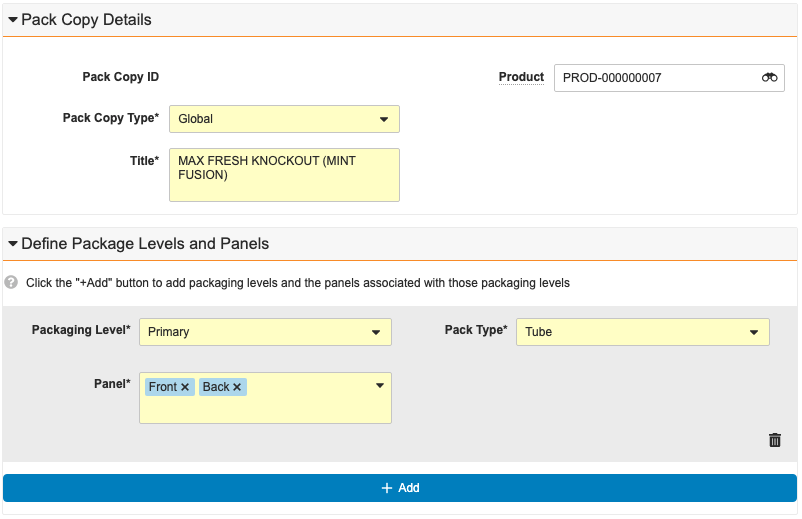
When you create a _Pack Copy_ record, you can create all associated records at the same time in a single dialog or page. When you click **Save** in the _Create Pack Copy_ dialog, Vault creates the _Pack Copy_ record and associates the _Packaging Level_, _Panel_, and _Element_ records.

To create a _Pack Copy_ record:

1. Navigate to **Pack Copies**.
2. Click **Create**.
3. For **Pack Copy Type**, select **Global** or **Local**. You cannot modify this field after saving the new record.
4. Enter a **Title**.
5. Optional: Select a **Product**.
6. Optional: For _Local_ types, select the **Parent Pack Copy**.
7. In the **Define Packaging Levels and Panels** section, click **Add**. If you don't see the _Add_ button, contact your Admin.
    * Select a **Packaging Level**.
    * Select a **Panel**.
    * Select a **Pack Type**.
    * Optional: Click the delete (<i class="fas fa-trash-alt"></i>) icon to remove the level and panel section.
8.  To define another packaging level and panel, click **Add**. You can add up to ten (10) level and panel sections on the _Create Pack Copy_ page.
9.  Click **Save**. To create another _Pack Copy_, click **Save + Create**.

<div class="note-border alert-info">
  <div class="alert alert-info" role="alert">
    <div><i class="far fa-info-circle"></i></div>
    <div class="alert-text">
      <p><strong>Note</strong>: Before you click <strong>Save</strong>, you can remove <em>Packaging Level</em> and <em>Panels</em> by clicking the delete icon. If you click <strong>Save</strong> and then want to delete a <em>Packaging Level</em> or <em>Panel</em> record, you need to navigate to the record and delete it from the context of its location in the pack copy hierarchy. After adding a <em>Packaging Level</em> to a <em>Pack Copy</em>, you cannot modify the <em>Pack Copy</em> field on that <em>Packaging Level</em> record.</p>
    </div>
  </div>
</div>


### Cloning Pack Copy {#clone-pc}

Depending on your Admin's configuration, you may be able to clone a _Pack Copy_ record. This can be useful if you need to create a similar but slightly different pack copy (such as product line extensions). When you clone a _Pack Copy_ record, Vault copies the _Pack Copy_ record and the associated _Packaging Level_ and _Panel_ records. For _Elements_, the _Clone Pack Copy_ action creates new join records to the elements referenced in the _Pack Copy_ record from which the copy was made.

As best practice, ensure you modify the _Title_ of the new _Pack Copy_ record after cloning.

_Pack Copy_ records that have been cloned include a read-only, non-editable field called _Copied From Pack Copy_ which identifies the _Pack Copy_ which the new _Pack Copy_ was copied from.

<div class="note-border alert-info">
  <div class="alert alert-info" role="alert">
    <div><i class="far fa-info-circle"></i></div>
    <div class="alert-text">
      <p><strong>Note</strong>: The cloning process adheres to your permissions and lets you view and copy only the records to which you have read and edit access.</p>
    </div>
  </div>
</div>


To clone a _Pack Copy_ record:

 1. Navigate to the appropriate _Pack Copy_ record.
 2. From the **All Actions** menu, select **Clone Pack Copy**.
 3. When notified, navigate to the newly-created _Pack Copy_ record. The _Title_ of the record includes "_[Copy 1 of] [cloned record Title]_".
 4. Click **Edit**.
 5. Modify the **Title** and select a different **Product** for the new record.
 6. Click **Save**.

Depending on your Admin's configuration, Vault may set the _Vault Owner_ group as the owner of the generated _Pack Copy_ record and its child records. 

## Adding & Replying to Comments {#comments}

When configured by your Admin, you can add and reply to comments on _Pack Copy_ records. See <a href="/en/gr/520894/">Using Comments</a> for more details. 

## Adding Elements to Panels {#add-elements}

After you have created a _Pack Copy_ record and defined all required levels and _Panels_, you can add an _Element_ to each _Panel_ [individually][4] or add [multiple _Elements_ to multiple _Panels_ in a _Pack Copy_][5]. Adding an _Element_ does not create a new _Element_ record, but creates a join between the _Panel_ and the _Element_.

You can also [copy an existing _Panel_ record][6], including the hierarchy of all related _Panel Elements_.

 <div class="note-border alert-info">
  <div class="alert alert-info" role="alert">
    <div><i class="far fa-info-circle"></i></div>
    <div class="alert-text">
      <p><strong>Note</strong>: To add an <em>Element</em> to a <em>Panel</em> for local <em>Pack Copy</em>, ensure the <em>Country</em> field is populated on the applicable local <em>Pack Copy</em> record and that <em>Country</em> is associated with the <em>Element’s</em> language. Contact your Admin for more details about <a href="/en/gr/76208/">country-language mappings</a>.</p>
    </div>
  </div>
</div>


### How to Add an Element to a Single Panel {#add-element-single}

To add an _Element_ to a _Panel_:

  1. Navigate to the appropriate _Panel_ record.
  2. In the _Panel Elements_ section, click **Create**.
  3. Select an **Element**. To view the element text, click the binoculars (<img class="inline" src="https://platform.veevavault.help/assets/images/cpc-icon-binoculars.png" alt="Binoculars Icon" style="" />) icon to open the search dialog. You can use the search bar or filters to help find the element you want to add. Click **Close** after selecting an _Element_.
  4. Optional: Enter any relevant **Instructions**. For example, you might specify a font size or text effect such as italics.
  5. Optional: Select the **Location on Panel** where the element should go.
  6. Click **Save**. To create another _Element_ for the specified panel, click **Save + Create**.
<div class="note-border alert-info">
  <div class="alert alert-info" role="alert">
    <div><i class="far fa-info-circle"></i></div>
    <div class="alert-text">
      <p><strong>Note</strong>: You cannot add a local <a href="#elements"><em>Element</em></a> to a <em>Panel</em> on a global type of <a href="#create-pc"><em>Pack Copy</em></a>, or a global <em>Element</em> to a <em>Panel</em> on a local type of <em>Pack Copy</em>.</p>
    </div>
  </div>
</div>


### How to Add Elements to Multiple Panels {#add-element-multiple}

You can add one (1) or more _Elements_ to multiple _Panels_ associated with a _Pack Copy_ using a <a href="/en/gr/33725/">bulk object record action</a> so long as there are no more than 20 _Panels_ related to the _Pack Copy_. To do this:

 1. Navigate to **Pack Copies > Pack Copy Elements**.
 2. Optional: Set additional filters to narrow down the list of _Elements_ you want to add to _Panels_. 
 3. From the **All Actions** menu, select the option to perform a bulk action on all records.
 4. On the _Refine Selection_ page, review the list of selected records and clear the checkboxes for any _Elements_ you do not want to add.
 5. Click **Next**.
 6. On the _Choose Action (Step 2)_ page, select **Record Actions** in the _Manage Records_ section.
 7. Click Next.
 8. On the _Choose Record Action (Step 3)_ page, select **Bulk Add to Pack Copy**. The action label indicates how many records will be affected. If your Admin has configured the action to apply only to records in a specific lifecycle state, Vault automatically excludes any records you selected that are not in the applicable lifecycle state.
 9. Click **Next**.
 10. On the _Details (Step 4)_ page, select the **Pack Copy** related to the _Panels_ to which you are adding the _Elements_.
 11. Select one (1) or more active **Panels** related to the _Pack Copy_ you selected. If there are more than 20 _Panels_ related to the _Pack Copy_, the field is disabled and you cannot complete this bulk action. Instead, you can [add _Elements_ individually][4].
 12. Click **Next**.
 13. On the _Confirmation_ page, review the summary of changes and click **Finish**.
 
Vault does not add any _Element_ more than once if you already added the _Element_ to any selected _Panel_. When Vault finishes adding the _Element_ to all selected _Panels_, you'll receive an email and a Vault notification letting you know if the action was successful or if there were any errors.

##  Copying a Panel Element Hierarchy {#hierarchical-copy}

Depending on your Admin's configuration, you may be able to <a href="/en/gr/32218/#hierarchical-copy">copy the hierarchy</a> of related _Panel Elements_ when you copy _Panel_ and _Element_ records by selecting the **Copy Related Records** checkbox in the _Hierarchical Copy Option_ dialog. This can be helpful if you have multiple panels with the same pack that share some common elements or when you need to make small changes to element text in a panel.

## Viewing & Navigating the Pack Copy Hierarchy {#pc-hierarchy}

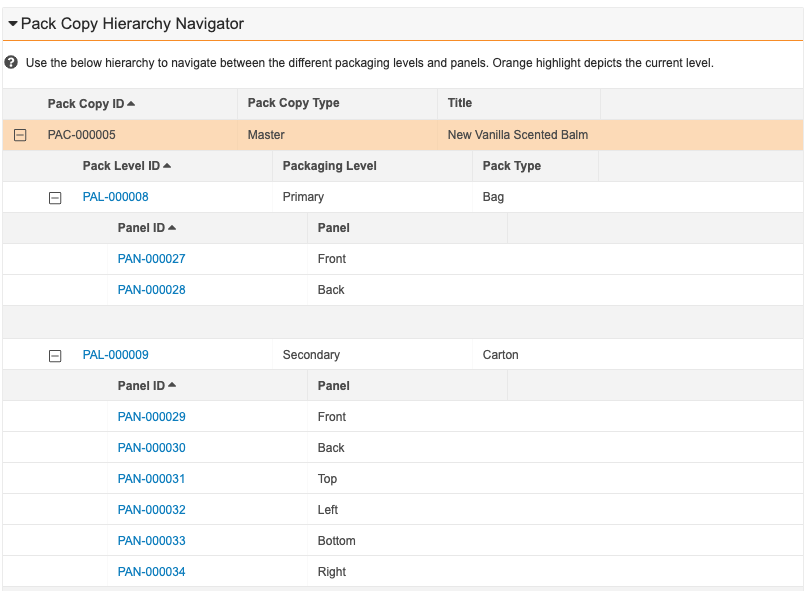
You can use the _Hierarchy_ section to view and navigate the pack copy hierarchy. The hierarchy viewer lets you see the levels of _Pack Copy_, _Packaging Level_, and _Panel_ records and the relationships between each record. Depending on your Admin's configuration, you may be able to access the hierarchy viewer from any _Pack Copy_, _Packaging Level_, and _Panel_ record details page.

The hierarchy viewer and navigator has the following conventions and behavior:

  * The currently-selected row is highlighted in orange.
  * Use the plus (<i class="fal fa-plus-square"></i>) and minus (<i class="fal fa-minus-square"></i>) icons to expand and collapse the levels.
  * Clicking a record takes you to that location in the hierarchy.
  * If a hierarchy contains more than ten (10) _Packaging Levels_ or more than 500 _Panels_, the hierarchy does not display any records and instead displays a message to users. Contact your Admin for more details.
  * If you do not have permission to view an object or an object field, the object row or field column may not be visible to you. Contact your Admin for more details.

<a href="https://platform.veevavault.help/assets/images/CPC-Claims-PackCopy-Hierarchy-Viewer.png" data-lightbox="CPC-Claims-PackCopy-Hierarchy-Viewer.png" data-title="" data-alt="Pack Copy Hierarchy Navigator">
  <img class="docimage" src="https://platform.veevavault.help/assets/images/CPC-Claims-PackCopy-Hierarchy-Viewer.png" alt="Pack Copy Hierarchy Navigator" style="max-width: 70%;"  />
</a>

## Auto-Localizing Pack Copy {#auto-localize}

Depending on your Admin's configuration, you may be able to generate local _Pack Copy_ from a _Global Pack Copy_. See <a href="/en/gr/78473/">Auto-Localizing Pack Copy</a> for more details.

### Translating Pack Copy Elements {#translate}

After creating a local _Pack Copy_ record, you may need to <a href="/en/gr/78473/#translate">provide element text for elements in other languages</a>.

## Deleting Pack Copy

Before you can delete a _Pack Copy_ record, you must first delete the records contained in the specified _Pack Copy_ by doing the following:

  * Delete _Elements_ from _Panels_ (this removes the join from the _Element_ but does not delete the _Element_ itself)
  * Delete _Panels_ from _Packaging Levels_
  * Delete _Packaging Levels_ from _Pack Copy_

 [0]: #create-pc
 [1]: #clone-pc
 [2]: #pc-hierarchy
 [3]: #auto-localize
 [4]: #add-element-single
 [5]: #add-element-multiple
 [6]: #hierarchical-copy
 [7]: #translate
