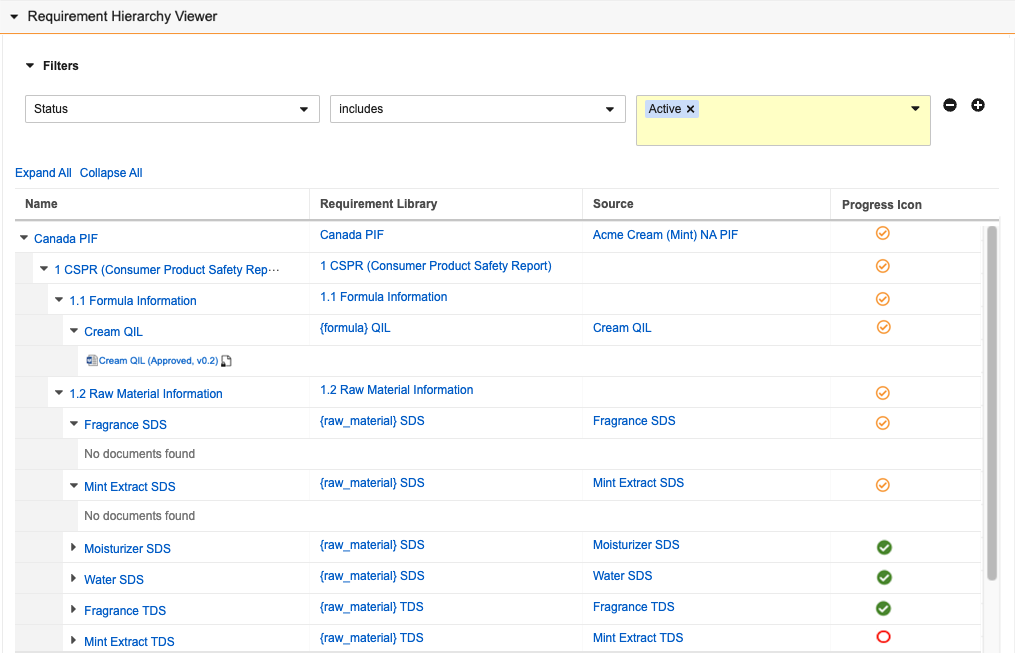
 ## About the Requirement Hierarchy Viewer {#about}
The viewer has the following conventions and behavior:
* The viewer displays up to 500 _Requirements_, including their descendant requirements up to ten (10) depth levels, based on their _Parent Request Requirement_ values.
* By default, the viewer displays up to 100 hierarchical descendant records for each parent record.
* For _Requirements_ generated by the _Generate Requirements_ and _Update Requirements_ actions, records are initially listed according to the _Default Order_ value of the related _Requirement Libraries_ in the associated template until any user [reorders them][1].
* The viewer displays matched documents for each related _EDL_ and _EDL Item_.
* Each document displays an icon denoting the file type.
* Locked documents are denoted with a lock (
## About the Requirement Hierarchy Viewer {#about}
The viewer has the following conventions and behavior:
* The viewer displays up to 500 _Requirements_, including their descendant requirements up to ten (10) depth levels, based on their _Parent Request Requirement_ values.
* By default, the viewer displays up to 100 hierarchical descendant records for each parent record.
* For _Requirements_ generated by the _Generate Requirements_ and _Update Requirements_ actions, records are initially listed according to the _Default Order_ value of the related _Requirement Libraries_ in the associated template until any user [reorders them][1].
* The viewer displays matched documents for each related _EDL_ and _EDL Item_.
* Each document displays an icon denoting the file type.
* Locked documents are denoted with a lock ( ) icon.
* Any requirements referencing a source display the source's matched documents unless any user customized them.
* If no documents match to a particular record, the viewer displays "No documents found" for that item.
* If a _Requirement_ is not linked to any _EDLs_ or _EDL Items_, the viewer displays no document details for that item.
* The viewer hides any records, actions, documents, headers, columns, and cell values you do not have the appropriate permissions to view.
## Interacting with the Viewer {#interact}
You can interact with the viewer in the following ways:
* Apply **Filters** to specify which records the view displays. Depending on your Admin's configuration, some filters may appear by default.
* Click on any hyperlink name to navigate directly to that record or document.
* Click a caret () icon to collapse or expand a section to view any descendant records and matched documents.
* Click **Expand All** or **Collapse All** to display or collapse all sections.
* Click **Show More Documents** to see all matched documents for a record.
* Click **Show More Records** to see all descendant records for a parent record.
* Hover over a document name to view the document's hovercard.
* Hover over any text to display a cell's full value (up to 1,500 characters).
* Hover over an active record or document to see its **Actions** menu and click it to view and run available actions. When the action completes, the viewer refreshes to display the latest data.
* Use the **Move Up** or **Move Down** actions to [reorder the requirements][1] and specify their order in generated [Dossier Binders][2].
* You cannot add matched documents or upload new documents if the parent requirement has the _Use Source_ checkbox selected.
## Reordering Requirements {#reorder}
When configured by your Admin, you can reorder _Requirements_ directly in the viewer. Vault reflects the updated order in any [Dossier Binders][2] you generate for the parent _Requirement_. To do this, click the **Actions** menu for any active _Requirement_ and select **Move Up** or **Move Down** to move that item and all its descendants. You can move items within the same parent record but cannot move any item to a different parent.
Depending on your Admin's configuration, you may be able to view and select additional actions from the **Actions** menu of active records.
) icon.
* Any requirements referencing a source display the source's matched documents unless any user customized them.
* If no documents match to a particular record, the viewer displays "No documents found" for that item.
* If a _Requirement_ is not linked to any _EDLs_ or _EDL Items_, the viewer displays no document details for that item.
* The viewer hides any records, actions, documents, headers, columns, and cell values you do not have the appropriate permissions to view.
## Interacting with the Viewer {#interact}
You can interact with the viewer in the following ways:
* Apply **Filters** to specify which records the view displays. Depending on your Admin's configuration, some filters may appear by default.
* Click on any hyperlink name to navigate directly to that record or document.
* Click a caret () icon to collapse or expand a section to view any descendant records and matched documents.
* Click **Expand All** or **Collapse All** to display or collapse all sections.
* Click **Show More Documents** to see all matched documents for a record.
* Click **Show More Records** to see all descendant records for a parent record.
* Hover over a document name to view the document's hovercard.
* Hover over any text to display a cell's full value (up to 1,500 characters).
* Hover over an active record or document to see its **Actions** menu and click it to view and run available actions. When the action completes, the viewer refreshes to display the latest data.
* Use the **Move Up** or **Move Down** actions to [reorder the requirements][1] and specify their order in generated [Dossier Binders][2].
* You cannot add matched documents or upload new documents if the parent requirement has the _Use Source_ checkbox selected.
## Reordering Requirements {#reorder}
When configured by your Admin, you can reorder _Requirements_ directly in the viewer. Vault reflects the updated order in any [Dossier Binders][2] you generate for the parent _Requirement_. To do this, click the **Actions** menu for any active _Requirement_ and select **Move Up** or **Move Down** to move that item and all its descendants. You can move items within the same parent record but cannot move any item to a different parent.
Depending on your Admin's configuration, you may be able to view and select additional actions from the **Actions** menu of active records.
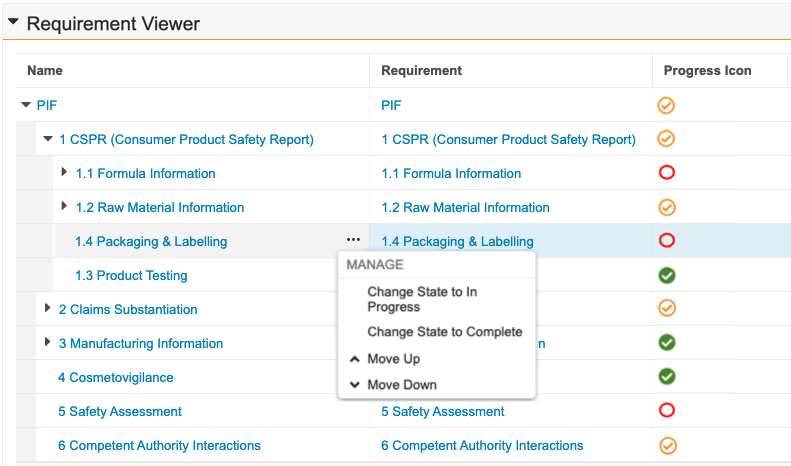 When you reorder items, Vault considers any hidden records you do not have permission to view when you reorder items above or below hidden records. For example, if you cannot see the _5 Safety Assessment_ record in your viewer and move _6 Competent Authority_ above _4 Cosmetovigilance_, another user that does have permission to view all records will see the following order in their viewer:
* _6 Competent Authority_
* _4 Cosmetovigilance_
* _5 Safety Assessment_
When you reorder items, Vault considers any hidden records you do not have permission to view when you reorder items above or below hidden records. For example, if you cannot see the _5 Safety Assessment_ record in your viewer and move _6 Competent Authority_ above _4 Cosmetovigilance_, another user that does have permission to view all records will see the following order in their viewer:
* _6 Competent Authority_
* _4 Cosmetovigilance_
* _5 Safety Assessment_
Note: If another user is reordering Requirements simultaneously, you may see some records arranged according to that user’s specified order when you refresh the page after reordering.