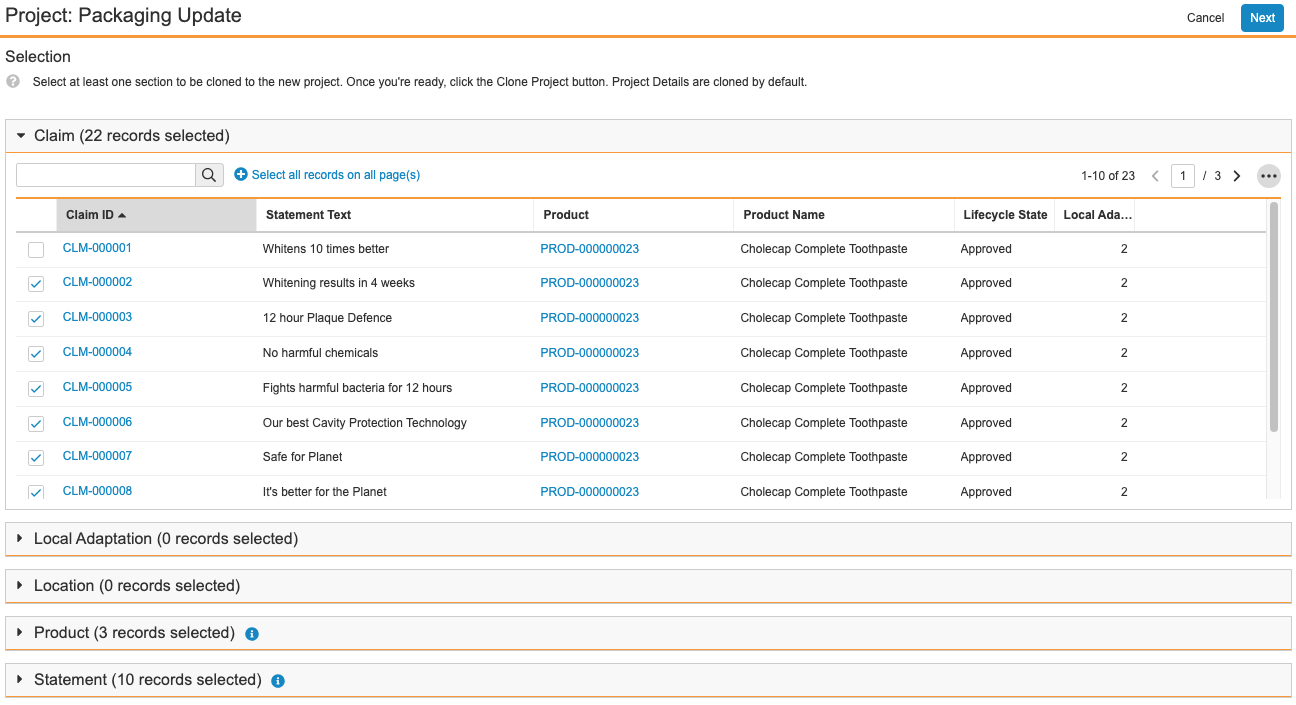
Note: The cloning process adheres to your permissions and lets you view and copy only the records to which you have read and edit access.
As a best practice, ensure you modify the _Project Name_ of the new _Project_ record after cloning. To do this:
1. When notified, navigate to the newly-created _Project_ record.
2. Click **Edit**.
3. Modify the **Project Name** of the new record.
4. Click **Save**.
## Creating a Project Team {#teams}
You can create a team for each _Project_. To do this, add the applicable _Users_ to the _Project Team_ section of a _Project_ record.
## Populating a Project with Claims {#populating}
After you've created a _Project_, you can populate the _Project_ with _Claims_. See Populating a Project with Claims
for more details.
## Creating Local Adaptations from a Project {#la_project}
After you've created a _Project_, you can create _Local Adaptations_ from a _Project_. See Creating Local Adaptations from a Project
for more details.
## Using the Project Hierarchy Viewer {#viewer}
If configured by your Admin, you can use the _Project Hierarchy Viewer_ on _Project_ records. The viewer allows you to visualize and interact with a _Project's_ hierarchy so that you can review all related records within the context of a _Project_ to make an informed assessment.
See Using the Project Hierarchy Viewer
for more details.
## Adding & Replying to Comments {#comments}
When configured by your Admin, you can add comments to _Project_ records. If configured, you can also reply to comments in comment threads for certain object records. See Using Comments
for more details.
## Removing Statements & Related Records from a Project {#remove}
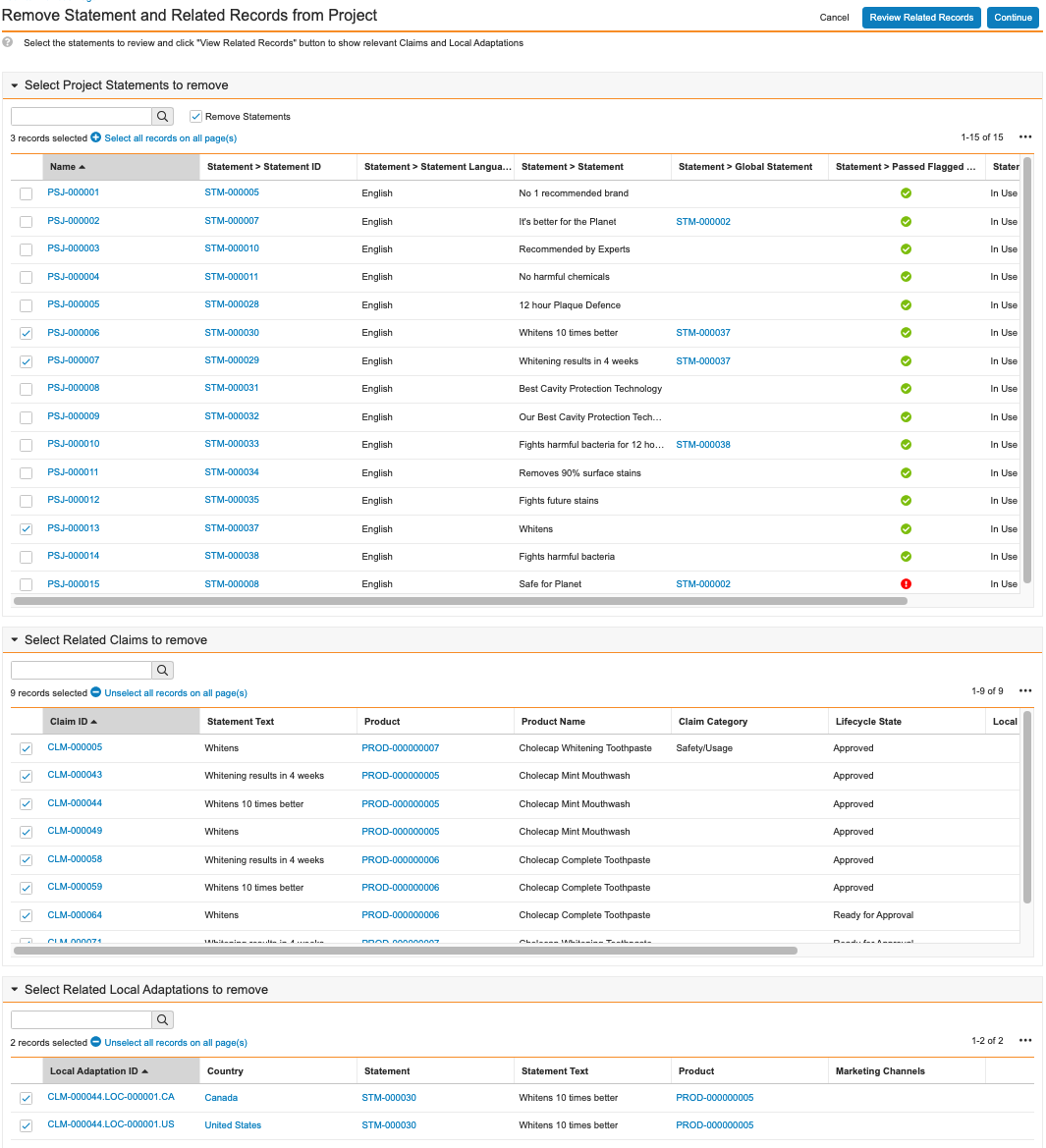
You can remove _Statements_, _Claims_, and _Local Adaptations_ from a _Project_ with the _Remove Statement and Related Records from Project_ action, allowing you to quickly clean up a project before finalizing it. When you run the action on a _Project_ record, Vault displays all related _Statements_, _Claims_, and _Local Adaptations_ in separate grid sections on the _Remove Statement and Related Records from Project_ page. In each section, you can click
**Select all records on all page(s)** and
**Unselect all records on all page(s)** to quickly select and unselect all records in that section.
When removing specific _Statements_, you have the opportunity to select specific related _Claims_ and _Local Adaptations_ to remove as well. Alternatively, you can keep the _Statements_ but remove only selected _Claims_ and _Local Adaptations_ from a project.
 ### How to Remove Statements, Claims, & Local Adaptations {#how-to-remove}
To remove _Statements_, _Claims_, and _Local Adaptations_ from a _Project_:
1. Navigate to the applicable _Project_ record.
2. From the **All Actions** menu, select **Remove Statement and Related Records from Project**. Depending on your Admin's configuration, this action may only be available when the _Project_ is in specific lifecycle states.
3. On the _Remove Statement and Related Records from Project_ page, review the _Statements_ related to this project in the _Select Project Statements to remove_ section. In each section on this page, you can use the search bar to filter the list of related records.
4. In the _Select Project Statements to remove_ section, select the _Project Statements_ you want to remove.
5. Optional: Select the **Remove Statements** checkbox to remove all _Project Statements_ you select or clear the checkbox to keep the _Project Statements_ and remove only the _Claims_ and _Local Adaptations_ you select.
6. Click **Review Related Records** to see all _Claims_ and _Local Adaptations_ related to the _Project Statements_ you selected.
7. Optional: Expand the **Select Project Statements to remove** section to review your selections and make any necessary changes. If you change your initial selections, Vault hides the related record sections and you must click **Review Related Records** again to view the related record sections.
8. Optional: In the _Select Related Claims to remove_ section, select _Claims_ to remove from this _Project_.
9. Optional: In the _Select Related Local Adaptations to remove_ section, select _Local Adaptations_ to remove from this _Project_.
10. When you've selected all related records to remove from the _Project_, click **Continue**.
When Vault finishes removing the _Statements_, _Claims_, and _Local Adaptations_ you selected, you'll receive an email and a Vault notification. The notification lets you know if removal was successful or if it failed and includes details about which records Vault removed.
### Limitations {#limits}
Each section displays up to 500 records. If there are more than 500 records, Vault does not list any records in that section and instead displays a message stating that there are too many items.
## Project Lifecycle {#lifecycle}
Projects use the _Project_ object lifecycle and include the following standard states:
* _New_: The initial state of the _Project_.
* _In Progress_: _Claims_ within the _Project_ are in various stages of approval.
* _Completed_: All _Claims_ within the _Project_ are approved.
Your Admin may add other custom states to suit your organization's needs.
[1]: #selective-claims
[2]: #create-new
[3]: #clone
[6]: #bulk_create_claim
[7]: #add_claims
[9]: #populating
[11]: #la-all
[12]: #la-user-input
[13]: #comments
[14]: #single-comment
[15]: #bulk-comment
[16]: #comment-reply
### How to Remove Statements, Claims, & Local Adaptations {#how-to-remove}
To remove _Statements_, _Claims_, and _Local Adaptations_ from a _Project_:
1. Navigate to the applicable _Project_ record.
2. From the **All Actions** menu, select **Remove Statement and Related Records from Project**. Depending on your Admin's configuration, this action may only be available when the _Project_ is in specific lifecycle states.
3. On the _Remove Statement and Related Records from Project_ page, review the _Statements_ related to this project in the _Select Project Statements to remove_ section. In each section on this page, you can use the search bar to filter the list of related records.
4. In the _Select Project Statements to remove_ section, select the _Project Statements_ you want to remove.
5. Optional: Select the **Remove Statements** checkbox to remove all _Project Statements_ you select or clear the checkbox to keep the _Project Statements_ and remove only the _Claims_ and _Local Adaptations_ you select.
6. Click **Review Related Records** to see all _Claims_ and _Local Adaptations_ related to the _Project Statements_ you selected.
7. Optional: Expand the **Select Project Statements to remove** section to review your selections and make any necessary changes. If you change your initial selections, Vault hides the related record sections and you must click **Review Related Records** again to view the related record sections.
8. Optional: In the _Select Related Claims to remove_ section, select _Claims_ to remove from this _Project_.
9. Optional: In the _Select Related Local Adaptations to remove_ section, select _Local Adaptations_ to remove from this _Project_.
10. When you've selected all related records to remove from the _Project_, click **Continue**.
When Vault finishes removing the _Statements_, _Claims_, and _Local Adaptations_ you selected, you'll receive an email and a Vault notification. The notification lets you know if removal was successful or if it failed and includes details about which records Vault removed.
### Limitations {#limits}
Each section displays up to 500 records. If there are more than 500 records, Vault does not list any records in that section and instead displays a message stating that there are too many items.
## Project Lifecycle {#lifecycle}
Projects use the _Project_ object lifecycle and include the following standard states:
* _New_: The initial state of the _Project_.
* _In Progress_: _Claims_ within the _Project_ are in various stages of approval.
* _Completed_: All _Claims_ within the _Project_ are approved.
Your Admin may add other custom states to suit your organization's needs.
[1]: #selective-claims
[2]: #create-new
[3]: #clone
[6]: #bulk_create_claim
[7]: #add_claims
[9]: #populating
[11]: #la-all
[12]: #la-user-input
[13]: #comments
[14]: #single-comment
[15]: #bulk-comment
[16]: #comment-reply