# Creating Local Adaptations From a Project (Veeva Claims)

[Veeva Claims](/en/lr/54331/) provides the ability to create _Local Adaptations_ from a _Project_. Depending on your Admin's configuration, you may have multiple options for creating _Local Adaptations_ from a _Project_ using a single action on a _Project_ record:

* Create selective _Local Adaptations_ [for specified _Location_ and _Claim_ combinations][0] for that _Project_.
* Create _Local Adaptations_  [for all _Location_ and _Claim_ combinations][3] for that _Project_.

Depending on your [Admin's configuration](/en/lr/78539/), object, field, and section labels may appear differently than the labels mentioned in this article.

## Selectively Creating Local Adaptations {#la-user-input}

Vault generates one (1) _Local Adaptation_ for each specified combination of _Claim_ and _Location_, provided the combination of _Claim_ and _Location_ does not already exist as a _Local Adaptation_ in your Vault. This action is available only if the _Project_ has at least one (1) _Claim_ and one (1) _Location_.

### Using the Generate Local Adaptations Dialog {#generate-la-dialog}

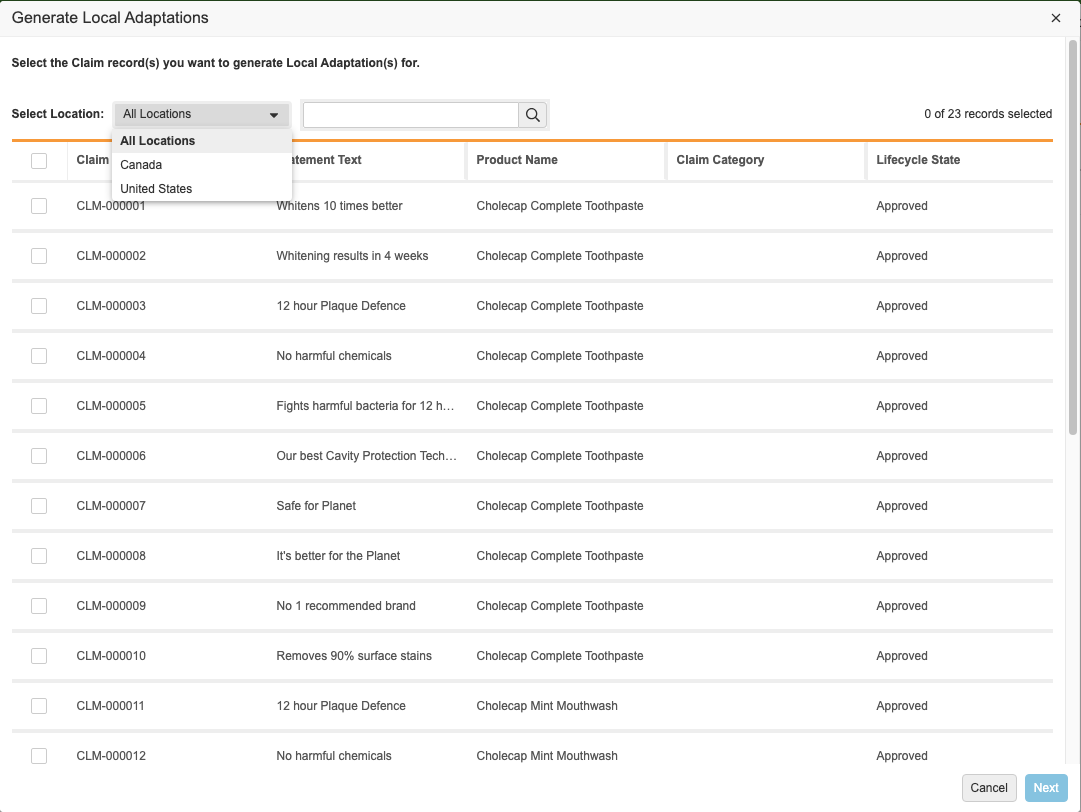
The _Generate Local Adaptations_ dialog opens after you run the _Create Selective Local Adaptations_ action and allows you to select which _Claims_ to create as _Local Adaptations_ for specified _Locations_. Depending on your Admin's configuration, _Claims_ available for selection may be limited to particular lifecycle states.

In the dialog, you can do the following:

* Select the _Claims_ for which you want to create _Local Adaptations_ for all _Locations_ on the _Project_.
* Filter on a specific _Location_ and then select the _Claims_ for which you want to create _Local Adaptations_ for that specific _Location_. You can repeat this process for every _Location_. 
* Hover over cells to see the entire contents of values with more than 250 characters.

_Claims_ you select for a specific _Location_ remain selected when you select and view another _Location_. The number of records selected in the counter displays the records selected for the current _Location_.

The columns in the _Generate Local Adaptations_ dialog are object fields on the _Claim_ object and are configured by your Admin. You can use the search box to search for text values in any of the columns in the dialog except for _Object_ and _Component_ field types.

<a href="https://platform.veevavault.help/assets/images/cp-claims-select-la.png" data-lightbox="cp-claims-select-la.png" data-title="" data-alt="Generate Local Adaptations Dialog">
  <img class="docimage" src="https://platform.veevavault.help/assets/images/cp-claims-select-la.png" alt="Generate Local Adaptations Dialog" style="max-width: 75%;"  />
</a>

<div class="note-border alert-info">
  <div class="alert alert-info" role="alert">
    <div><i class="far fa-info-circle"></i></div>
    <div class="alert-text">
      <p><strong>Note</strong>: The creation process adheres to your permissions and lets you view only the records to which you have read access.</p>
    </div>
  </div>
</div>


### How to Create Selective Local Adaptations {#generate-la-dialog}

To selectively create _Local Adaptations_ from a _Project_:

1. Navigate to the _Project_ from which you want to generate _Local Adaptations_.
2. From the **All Actions** menu, select **Create Selective Local Adaptations**.
3. Do one (1) of the following in the dialog:
    * To create _Local Adaptations_ for all _Locations_, select **All Locations** from the **Select Location** drop-down and select the appropriate _Claims_.
    * To create _Local Adaptations_ for specific _Locations_, select the _Location_ for which you want to create _Local Adaptations_ and then select the appropriate _Claims_. Repeat this step for each _Location_ for which you want to create _Local Adaptations_.
4. Click **Next**.
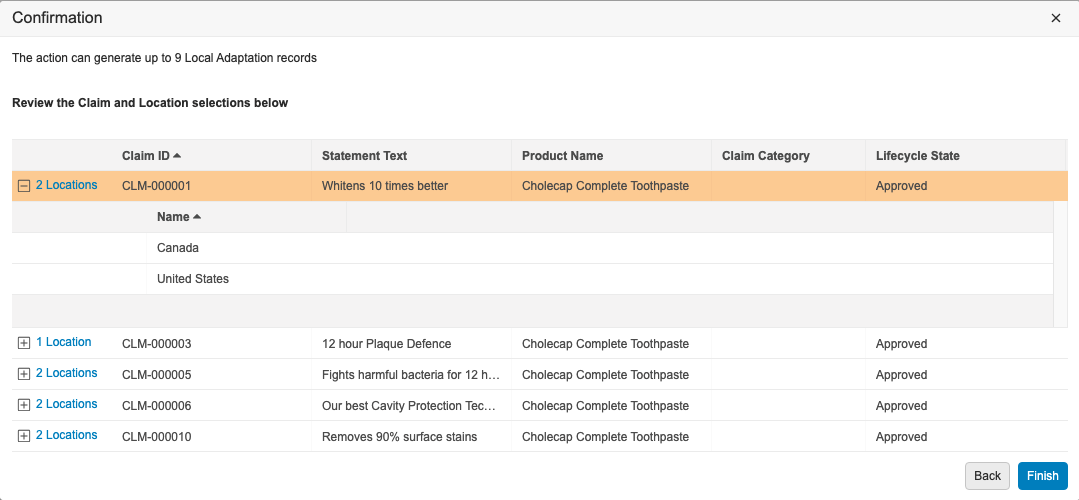
5. Review your selections on the _Confirmation_ page.
    * Click on a **Toggle Row Expanded** (<i class="fal fa-plus-square"></i>) icon to expand that _Claim's_ section and view location details.
6. When you are finished reviewing, click **Finish**.

<a href="https://platform.veevavault.help/assets/images/cp-claims-confirm-la.png" data-lightbox="cp-claims-confirm-la.png" data-title="" data-alt="Confirmation page">
  <img class="docimage" src="https://platform.veevavault.help/assets/images/cp-claims-confirm-la.png" alt="Confirmation page" style="max-width: 75%;"  />
</a>

After receiving a notification that the _Local Adaptations_ are created, you can expand the _Local Adaptations_ section of the _Project's_ details page to view the generated _Local Adaptations_.

<div class="note-border alert-info">
  <div class="alert alert-info" role="alert">
    <div><i class="far fa-info-circle"></i></div>
    <div class="alert-text">
      <p><strong>Note</strong>: Generated <em>Local Adaptations</em>  have a <em>Created By</em> value of “System”.</p>
    </div>
  </div>
</div>


## Bulk Creating All Local Adaptations {#la-all}

Vault generates one (1) _Local Adaptation_ for each combination of _Claim_ and _Location_, provided the combination of _Claim_ and _Location_ does not already exist as a _Local Adaptation_ in your Vault.

<div class="note-border alert-info">
  <div class="alert alert-info" role="alert">
    <div><i class="far fa-info-circle"></i></div>
    <div class="alert-text">
      <p><strong>Note</strong>: The generation process adheres to your permissions and lets you view and create only the records to which you have read and create access.</p>
    </div>
  </div>
</div>


To create _Local Adaptations_ from a _Project_:

1. Navigate to the _Project_ from which you want to generate _Local Adaptations_.
2. Ensure you have [added _Claims_ to the _Project_](/en/lr/78533/).
3. Expand the **Locations** section, and then click **Add**.
4. Select the appropriate _Locations_, and then click **OK**.
5. From the **All Actions** menu, select **Bulk Create Local Adaptations (Project)**.

After receiving a notification that the _Local Adaptations_ are created, expand the **Local Adaptations** section to view the generated _Local Adaptations_.

<div class="note-border alert-info">
  <div class="alert alert-info" role="alert">
    <div><i class="far fa-info-circle"></i></div>
    <div class="alert-text">
      <p><strong>Note</strong>: If you don’t see the <em>Bulk Create Local Adaptations (Project)</em> option in the <strong>All Actions</strong> menu, the action may be part of an entry action. If available, select <strong>Change State</strong> from the <strong>Workflow Actions</strong> menu to change the <em>Project</em> record’s state and trigger the entry action.</p>
    </div>
  </div>
</div>


## Auto-Populating Statement Translations for Local Adaptations {#auto-pop}

After you have created _Local Adaptations_, you can automatically populate _Statement_ translations for the _Local Adaptations_. See [Working with Local Adaptations](/en/lr/76204/) for more details.

[0]: #la-user-input
[1]: #generate-la-dialog
[2]: #create-selective-la
[3]: #la-all
[4]: #auto-pop