# Auto-Localizing Pack Copy (Veeva Claims)

[Veeva Claims](/en/lr/54331/) provides you with the ability to generate local pack copy from a global pack copy. Before generating local pack copy, you can check for missing localizations and then select the elements you want to include in the pack copy for the specified locations. Vault finds any existing local elements for the languages associated with the specified locations and adds them to the local pack copy, allowing you to reuse element translations for different geographical markets with the same language.

Depending on your [Admin's configuration](/en/lr/78475/), object, field, and section labels may appear differently than the labels mentioned in this article.

## About Localize Pack Copy {#auto-localize}

When you generate local pack copy from a global _Pack Copy_ record, Vault creates new _Pack Copy_ records with the same details and associated _Packaging Level_ and _Panel_ records for each location you specify. Vault also creates or associates the applicable local _Elements_ for each generated _Pack Copy_ for which you can provide or reuse [translations][1]. The number of local _Elements_ Vaults creates or associates depends on your Admin's configuration:

* Creates new local _Elements_ for each language associated with each specified location. If any local versions of the selected _Elements_ already exist for a language associated with a specified location, Vault instead associates the existing local _Element_.
* Creates one (1) new local _Element_ per global _Element_. If any local versions of the selected _Elements_ already exist for a specified location, Vault instead associates the existing _Element_.

When the _Localize Pack Copy_ action completes, Vault also does the following: 

* Populates fields on generated _Pack Copy_ records based on the global record, including:
  * Inserts "[_LPC-{Location Name}-#_]" to the _Title_ field. As best practice, we recommend you modify the _Title_ of each new _Pack Copy_.
  * Populates the _Copied From Pack Copy_ field, which identifies the global _Pack Copy_ record from which the local record was generated. You cannot modify this field.
  * Populates the _Country_ field. You cannot modify this field if the _Pack Copy_ contains active or inactive _Elements_.
* For _Claim_ types of generated local _Elements_, creates or references the appropriate _Local Adaptation_.
* If the _Element Language_ field is blank on any existing local _Elements_ referenced in the generated _Pack Copy_, populates the field with the same value defined in the global _Element_.

<div class="note-border alert-info">
  <div class="alert alert-info" role="alert">
    <div><i class="far fa-info-circle"></i></div>
    <div class="alert-text">
      <p><strong>Note</strong>: The auto-localization process adheres to your permissions and lets you view and create new <em>Elements</em> only for the records to which you have read and edit access. Additionally, you must be granted the appropriate permissions to run the action, check for missing localizations, and view all columns in the <em>Localize Pack Copy</em> dialog.</p>
    </div>
  </div>
</div>


## Using the Localize Pack Copy Dialog {#lpc-dialog}

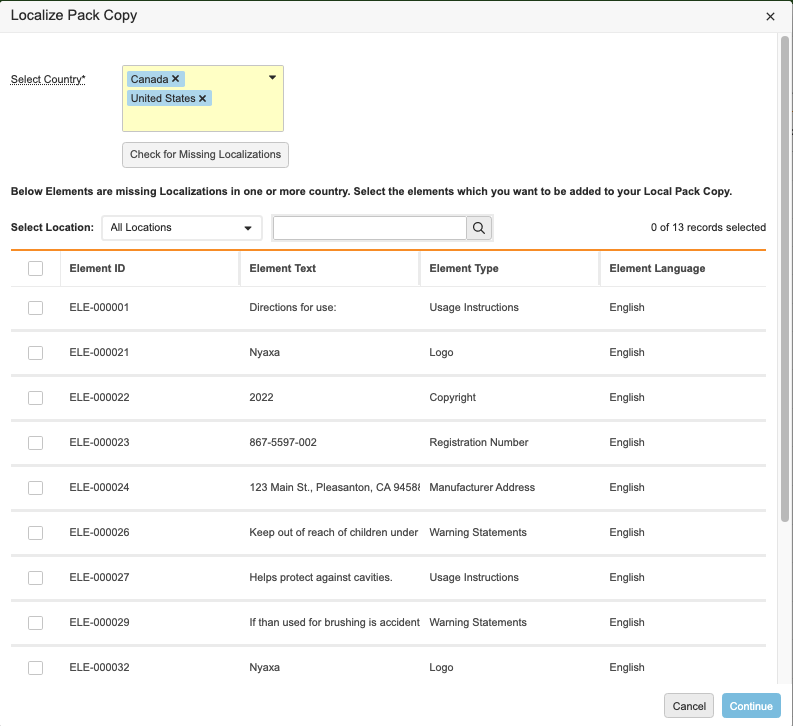
The _Localize Pack Copy_ dialog opens after you select the _Localize Pack Copy_ action and allows you to generate local _Pack Copies_ for the _Locations_ you select. Select which _Elements_ to create as localizations for specified _Locations_. All _Locations_ added to the _Pack Copy_ are available to select in the dialog.

In the dialog, you can do the following:

* Check for _Elements_ missing localizations for specified locations.
* Select the _Elements_ for which you want to include in each local _Pack Copy_.
* Filter on specific _Locations_ and then select the _Elements_ to include in the _Pack Copy_ for that specific _Location_. You can repeat this process for every _Location_ selected.
* Hover over cells to see the entire contents of values with more than 250 characters.

The _Locations_ you select in the _Select Country_ field are available in the _Select Location_ drop-down in the _Localize Pack Copy_ dialog, allowing you to view _Elements_ missing localizations for a specific _Location_. _Elements_ you select for a specific _Location_ remain selected in the background when you select and view another _Location_ from the _Select Location_ drop-down. The number of records selected in the counter displays the records selected for the current _Location_.

You can use the search box to search for text values in any of the columns displayed in the dialog.

<a href="https://platform.veevavault.help/assets/images/cpc-claims-local-pc.png" data-lightbox="cpc-claims-local-pc.png" data-title="" data-alt="Localize Pack Copy dialog">
  <img class="docimage" src="https://platform.veevavault.help/assets/images/cpc-claims-local-pc.png" alt="Localize Pack Copy dialog" style=""  />
</a>

## Generating Local Pack Copy {#generate-lpc}

To generate local _Pack Copy_ records:

1. Navigate to the appropriate global _Pack Copy_ record.
2. From the **All Actions** menu, select **Localize Pack Copy**.
3. In the _Localize Pack Copy_ dialog, select the locations in the **Select Country** field for which you want to create local _Pack Copy_.
4. Optional: Click **Check for Missing Localizations**. This option is available only after you select at least one (1) location in the _Select Country_ field.
5. Optional: Do one (1) of the following:
  * To create localized _Elements_ for all locations, select **All Locations** in the **Select Location** drop-down and select the appropriate _Elements_.
  * To create localized _Elements_ for specific locations, select the _Locations_ in the **Select Location** drop-down for which you want to create localizations and then select the appropriate _Elements_. Repeat this step for each location for which you want to create localizations.
6. Click **Continue**.

Depending on your Admin's configuration, Vault may set the _Vault Owner_ group as the owner of the generated _Pack Copy_ record and its child records. 

## Reviewing Local Elements {#review}

You can review the local _Elements_ in the [_Hierarchy_](/en/lr/63391/#pc-hierarchy) section of generated _Pack Copy_. You cannot make any of the following changes to _Elements_ associated with a local _Pack Copy_ and referenced in a _Usable Element Location_:

* You cannot modify the _Element Language_ or _Global Element_ fields.
* For _Claim_ types, you cannot modify the _Element Type_ or _Claim_ fields.

## Translating Pack Copy Elements {#translate}

After creating local [_Pack Copy_ records][2], you may need to provide element text for elements in other languages. You can do so by editing element text inline, provided you have the appropriate permissions. If the existing text for an element exceeds 500 characters, a link to the _Element_ record displays instead of the text itself. Depending on your Admin's configuration, the option to provide translated element text may be available only in particular lifecycle states of the _Pack Copy_ object. 

Vault displays any existing translations for any _Elements_ reused in other local _Pack Copies_. You can review and edit existing translations if needed. Edits you make to a reused translation are applied to all local _Pack Copies_ in which that _Element_ is included.

### How to Provide Translated Element Text

Depending on your Admin's configuration, you can translate element text either in the _All Elements_ section or the _Translator View_ section. To translate element text:

1. Navigate to the appropriate global _Pack Copy_ record.
2. Expand the applicable section.
3. Locate the global element row for which you need to provide translated text.
4. Double-click in the appropriate grid cell, and enter the translated text.
5. Repeat for all elements requiring translation.

<div class="note-border alert-info">
  <div class="alert alert-info" role="alert">
    <div><i class="far fa-info-circle"></i></div>
    <div class="alert-text">
      <p><strong>Note</strong>: The <em>Pack Copy</em> must be related to at least one (1) active <em>Element</em> on the <em>Package Level</em> and <em>Panel</em> records.</p>
    </div>
  </div>
</div>


## Limitations {#limits}

The following limitations apply to the translation sections:

* There must be elements on the record for translation.
* The _All Elements_ section cannot contain more than 2,500 elements. 
* The _Translator View_ section cannot contain more than 500 global elements or more than 2,500 local elements. 

[0]: #auto-localize
[1]: #translate
[2]: #generate-lpc
