Note: Depending on your Admin’s configuration, Vault may ignore certain matching Registration Items when running this action on an Event.
Note: Depending on your Admin’s configuration, Vault may ignore matching Registration Objectives in certain lifecycle states and records with parent Registrations in certain lifecycle states.
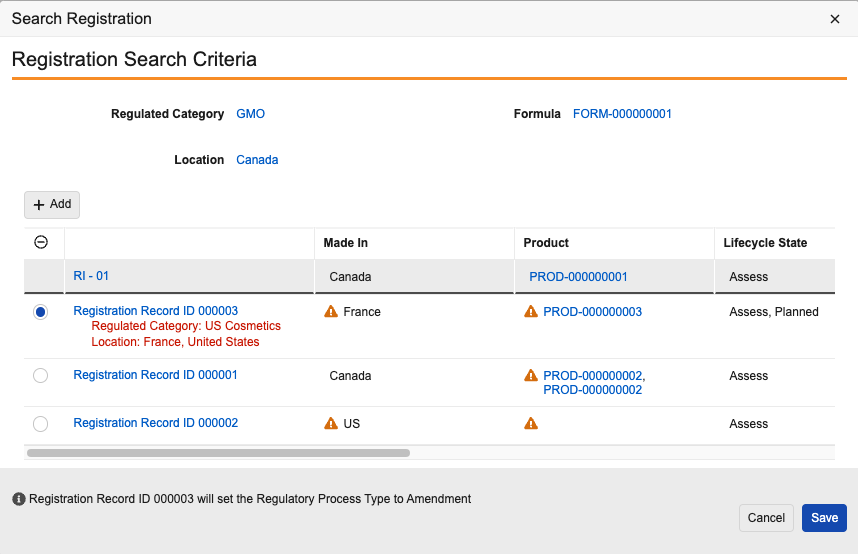
 ) icon next to the **Matching Registrations** field to open the _Search Registration_ dialog. In the dialog, you can review the matched records for the _Registration Item_, select an unmatched _Registration_, or create a new _Registration_. Details appear in the dialog's footer describing how your selection determines the _Regulatory Process Type_. After saving your selection, Vault populates or updates the _Regulatory Process Type_ and _Matching Registrations_ or _Matching Registration Objective_ fields on the _Registration Item_ based on your selection.
Complete one of the following options to select a _Registration_:
* Select a matched _Registration_ to amend:
1. Review the list of matched records. An alert (
) icon next to the **Matching Registrations** field to open the _Search Registration_ dialog. In the dialog, you can review the matched records for the _Registration Item_, select an unmatched _Registration_, or create a new _Registration_. Details appear in the dialog's footer describing how your selection determines the _Regulatory Process Type_. After saving your selection, Vault populates or updates the _Regulatory Process Type_ and _Matching Registrations_ or _Matching Registration Objective_ fields on the _Registration Item_ based on your selection.
Complete one of the following options to select a _Registration_:
* Select a matched _Registration_ to amend:
1. Review the list of matched records. An alert ( ) icon appears next to unmatched fields on partially matched records.
2. Select the appropriate record.
3. Click **Save** to select the record for the _Registration Item_.
* Create a new _Registration_:
1. If applicable, click the clear selection () icon in the grid header to clear any selected record.
2. Click **Save**. When you [create _Registrations_ and _Objectives_][5], Vault generates the new record for the _Registration Item_.
* Select an unmatched _Registration_ to amend:
1. Click the **Add** button to open the _Search: Registration_ dialog.
2. Optional: Use the search bar or **Filters** to help narrow the search results. Depending on your Admin's configuration, some filters may appear by default.
3. Select the appropriate record.
4. Click **Close** to apply your selection and close the _Search: Registration_ dialog.
5. In the _Search Registration_ dialog, click **Save** to select the record for the _Registration Item_. If you selected a _Registration_ with unmatched attributes, those unmatched values display in red text below the record's name in the _Search Registration_ dialog.
### Creating Registrations & Objectives {#create-registrations}
You can create or relate the appropriate _Registration_ and _Registration Objective_ to a _Registration Item_ or to all _Registration Items_ associated with an _Event_. The _Create Registration and Objective_ and _Create Registrations and Objectives_ actions either relate a _Registration Item_ to the existing matching records you select, or create a new _Registration_.
Depending on your Admin's configuration, you may be able to run the following actions:
* Run the _Create Registration and Objective_ action on a _Registration Item_ to generate data for that record.
* Run the _Create Registrations and Objectives_ action on an _Event_ to generate data for all _Registration Items_ associated to that record. When you run this action, Vault populates the _Event_ field on the applicable _Registration Objective_ with the record on which the action ran.
If the _Regulatory Process Type_ is _New_, you must populate the _Regulated Category_ field before running the action. If configured by your Admin, Vault will first search for an active _Registration Item_ with the same _Regulated Category_ and Admin-defined attribute mappings and, when applicable, assign the same _Registration Objective_. If multiple _Registration Items_ exist with the same attributes, Vault assigns the _Registration Objective_ with the highest _Objective Number_. If multiple records have the same _Objective Number_, Vault assigns the most recently created record. If there are no existing _Registration Items_ with the same attributes, Vault creates and relates the appropriate records based on the values in the _Matching Registration_ and _Matching Registration Objective_ fields:
) icon appears next to unmatched fields on partially matched records.
2. Select the appropriate record.
3. Click **Save** to select the record for the _Registration Item_.
* Create a new _Registration_:
1. If applicable, click the clear selection () icon in the grid header to clear any selected record.
2. Click **Save**. When you [create _Registrations_ and _Objectives_][5], Vault generates the new record for the _Registration Item_.
* Select an unmatched _Registration_ to amend:
1. Click the **Add** button to open the _Search: Registration_ dialog.
2. Optional: Use the search bar or **Filters** to help narrow the search results. Depending on your Admin's configuration, some filters may appear by default.
3. Select the appropriate record.
4. Click **Close** to apply your selection and close the _Search: Registration_ dialog.
5. In the _Search Registration_ dialog, click **Save** to select the record for the _Registration Item_. If you selected a _Registration_ with unmatched attributes, those unmatched values display in red text below the record's name in the _Search Registration_ dialog.
### Creating Registrations & Objectives {#create-registrations}
You can create or relate the appropriate _Registration_ and _Registration Objective_ to a _Registration Item_ or to all _Registration Items_ associated with an _Event_. The _Create Registration and Objective_ and _Create Registrations and Objectives_ actions either relate a _Registration Item_ to the existing matching records you select, or create a new _Registration_.
Depending on your Admin's configuration, you may be able to run the following actions:
* Run the _Create Registration and Objective_ action on a _Registration Item_ to generate data for that record.
* Run the _Create Registrations and Objectives_ action on an _Event_ to generate data for all _Registration Items_ associated to that record. When you run this action, Vault populates the _Event_ field on the applicable _Registration Objective_ with the record on which the action ran.
If the _Regulatory Process Type_ is _New_, you must populate the _Regulated Category_ field before running the action. If configured by your Admin, Vault will first search for an active _Registration Item_ with the same _Regulated Category_ and Admin-defined attribute mappings and, when applicable, assign the same _Registration Objective_. If multiple _Registration Items_ exist with the same attributes, Vault assigns the _Registration Objective_ with the highest _Objective Number_. If multiple records have the same _Objective Number_, Vault assigns the most recently created record. If there are no existing _Registration Items_ with the same attributes, Vault creates and relates the appropriate records based on the values in the _Matching Registration_ and _Matching Registration Objective_ fields:
| If Matching Registration is… | And Matching Registration Objective is… | Outcome |
|---|---|---|
| Blank | Blank | Vault creates and relates a new parent Registration to a new child Registration Objective and relates the Registration Item to the child Registration. |
| [Registration] | Blank | Vault creates a new child Registration Objective and relates it to the matching parent Registration and the Registration Item. The existing Registration is up-versioned. |
| [Registration] | [Registration Objective] | Vault relates the Registration Item to the matching parent Registration and incomplete child Registration Objective. The existing Registrations are up-versioned. |
| Matching Registrations Found | Any | No records are created or related. You must first select an applicable Registration. |
Note: Depending on your Admin’s configuration, Vault may ignore certain matching Registrations and Registration Objectives and generated records may be of specific object types.