# Using the Project Hierarchy Viewer (Veeva Claims)
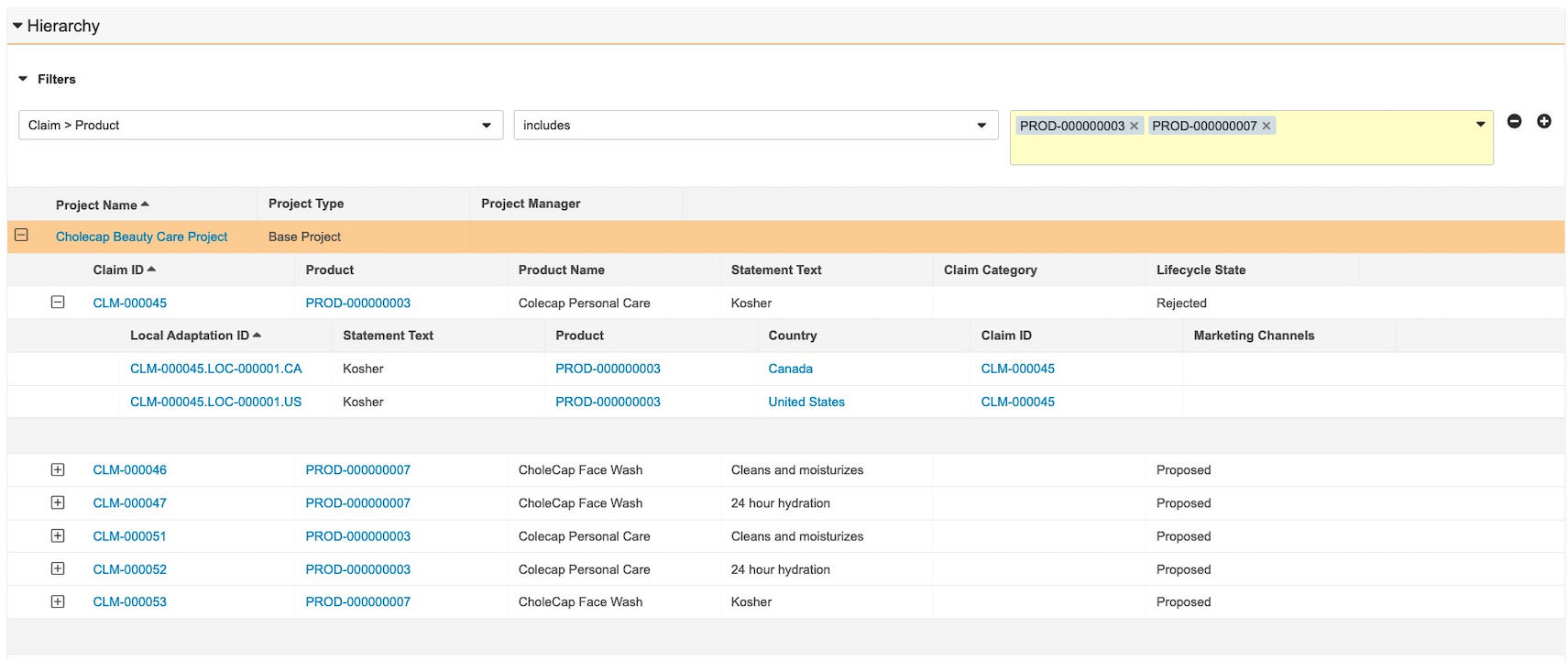
[Veeva Claims](/en/lr/54331/) provides you with the _Project Hierarchy Viewer_, which allows you to visualize a [_Project_](/en/lr/58792/) and its hierarchical structure of _Claims_ and _Local Adaptations_ so that you can review all related records in context and make an informed assessment.
 Depending on your [Admin's configuration](/en/lr/76884/), object, field, and section labels may appear differently than the labels mentioned in this article.
## Accessing the Project Hierarchy Viewer {#access}
You can access the _Project Hierarchy Viewer_ from a _Project_ to review all _Claims_ and _Local Adaptations_ in the _Project_.
If a _Claim_ or a _Local Adaptation_ belongs to only a single _Project_, you may be able to see and interact with the viewer by accessing the _Claim_ or _Local Adaptation_ outside of the context of the _Project_; however, if the _Claim_ or _Local Adaptation_ belongs to more than one (1) _Project_, you must access the viewer from the context of the appropriate _Project_ to see and interact with the project hierarchy.
## Viewing & Navigating a Project Hierarchy {#view}
To use the _Project Hierarchy Viewer_, navigate to the appropriate _Project_ to see all _Claims_ and _Local Adaptations_ in the project and the relationships between each record.
The viewer has the following conventions and behavior:
* The currently-selected row is highlighted in orange.
* If there are no _Claims_ or _Local Adaptations_ in the _Project_, the section displays a message to you.
* If a hierarchy contains more than 500 _Claims_ or more than 1,000 _Local Adaptations_, the hierarchy does not display any records and instead displays a message to you. Contact your Admin for more details.
* If you do not have permissions to a record, object, or field, the row or column may not be visible to you. Contact your Admin for more information.
You can interact with the viewer in the following ways:
* Click the plus () and minus () icons to expand and collapse sections within the hierarchy.
* Click a record's _ID_ to navigate to that record while maintaining your place in the hierarchy. For example, from a _Project_, you can click the _ID_ of a _Claim_ to navigate to that _Claim's_ detail page and continue to navigate through the hierarchy from the _Claim_.
* Add and remove [filters][0] from the _Project's_ detail page. The filters you apply persist to the _Claim_ and _Local Adaptation_ record pages in the viewer section when you navigate through the hierarchy. You can't add and remove filters from the _Claim_ and _Local Adaptation_ record pages.
### Using Filters {#filters}
You can add filters to adjust the scope of the project's related records that appear in the viewer. You can filter on any _Project_, _Claim_, or _Local Adaptation_ object fields configured as column headers by your Admin.
To add filters:
1. In the **Filter** section, select a field from the drop-down.
2. Choose an operator and field value, if needed. The values here depend on the field you select for the **Filter**.
3. Add up to a total of three (3) filters by clicking the **plus** (**+**) icon. You can remove a filter by clicking the **minus** (**-**) icon.
[0]: #filters
Depending on your [Admin's configuration](/en/lr/76884/), object, field, and section labels may appear differently than the labels mentioned in this article.
## Accessing the Project Hierarchy Viewer {#access}
You can access the _Project Hierarchy Viewer_ from a _Project_ to review all _Claims_ and _Local Adaptations_ in the _Project_.
If a _Claim_ or a _Local Adaptation_ belongs to only a single _Project_, you may be able to see and interact with the viewer by accessing the _Claim_ or _Local Adaptation_ outside of the context of the _Project_; however, if the _Claim_ or _Local Adaptation_ belongs to more than one (1) _Project_, you must access the viewer from the context of the appropriate _Project_ to see and interact with the project hierarchy.
## Viewing & Navigating a Project Hierarchy {#view}
To use the _Project Hierarchy Viewer_, navigate to the appropriate _Project_ to see all _Claims_ and _Local Adaptations_ in the project and the relationships between each record.
The viewer has the following conventions and behavior:
* The currently-selected row is highlighted in orange.
* If there are no _Claims_ or _Local Adaptations_ in the _Project_, the section displays a message to you.
* If a hierarchy contains more than 500 _Claims_ or more than 1,000 _Local Adaptations_, the hierarchy does not display any records and instead displays a message to you. Contact your Admin for more details.
* If you do not have permissions to a record, object, or field, the row or column may not be visible to you. Contact your Admin for more information.
You can interact with the viewer in the following ways:
* Click the plus () and minus () icons to expand and collapse sections within the hierarchy.
* Click a record's _ID_ to navigate to that record while maintaining your place in the hierarchy. For example, from a _Project_, you can click the _ID_ of a _Claim_ to navigate to that _Claim's_ detail page and continue to navigate through the hierarchy from the _Claim_.
* Add and remove [filters][0] from the _Project's_ detail page. The filters you apply persist to the _Claim_ and _Local Adaptation_ record pages in the viewer section when you navigate through the hierarchy. You can't add and remove filters from the _Claim_ and _Local Adaptation_ record pages.
### Using Filters {#filters}
You can add filters to adjust the scope of the project's related records that appear in the viewer. You can filter on any _Project_, _Claim_, or _Local Adaptation_ object fields configured as column headers by your Admin.
To add filters:
1. In the **Filter** section, select a field from the drop-down.
2. Choose an operator and field value, if needed. The values here depend on the field you select for the **Filter**.
3. Add up to a total of three (3) filters by clicking the **plus** (**+**) icon. You can remove a filter by clicking the **minus** (**-**) icon.
[0]: #filters