# Splitting Registration Items (Registration & Dossier Management)
[Registration & Dossier Management](/en/lr/71498/) allows you to generate new _Registration Items_ based on the attributes of a single _Registration Item_ by "splitting" a source _Registration Item_ into multiple related _Registration Items_. This allows your organization to create and manage granular registration items that may have to be assessed in different ways. For example, if you need to register a holiday kit composed of four (4) _Products_ to sell, you can "split" the holiday kit _Registration Item_ by _Product_ by selecting an Admin-defined _Split Rule_ that creates four (4) new related _Registration Items_, one (1) for each _Product_ in the holiday kit.
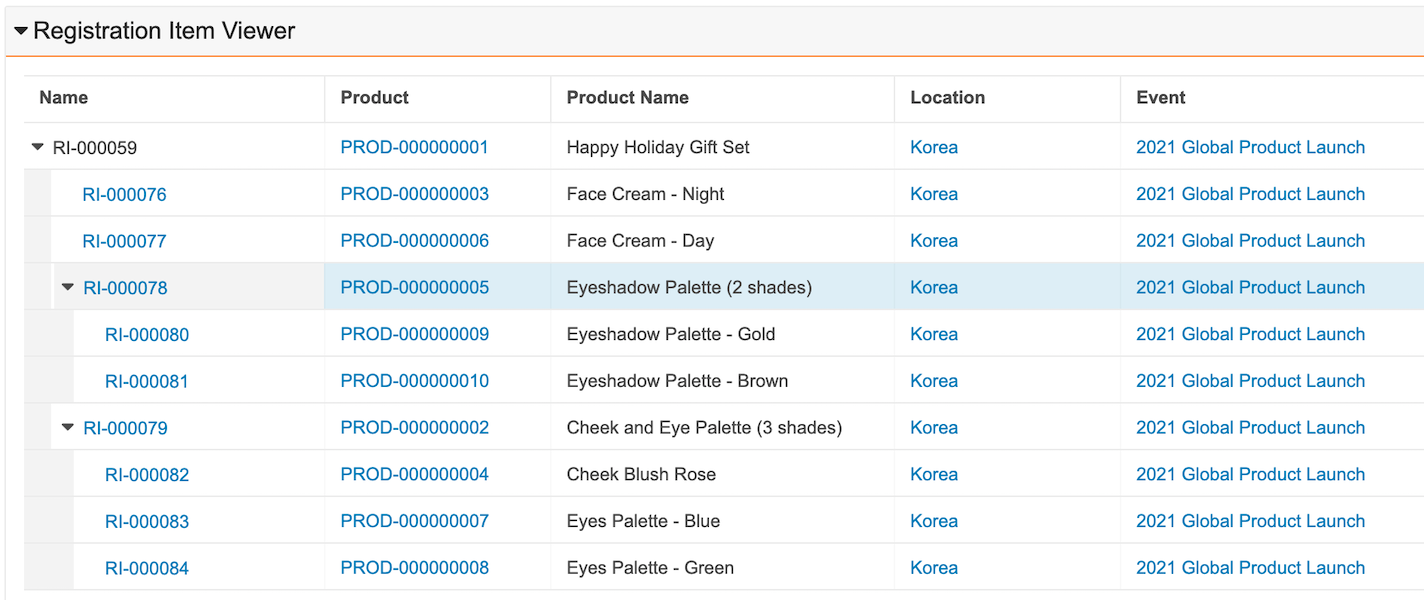
If configured by your Admin, you can view the composition of each _Registration Item_ and its related split records in a hierarchical structure in the [Registration Item Viewer][2] to easily assess the product and its components for registration.
Depending on your [Admin's configuration](/en/lr/75233/), object, field, and section labels may appear differently than the labels mentioned in this article.
## How Splitting Registration Items Works
When configured by your Admin, Registration & Dossier Management includes an action on the _Registration Item_ object that lets you generate _Registration Items_ based on Admin-defined _Split Rules_. Your Admin may also configure this action to run as part of a change to the _Registration Item's_ lifecycle state.
_Split Rules_ allow you to specify how Vault creates and relates new _Registration Items_ based on the attributes of a source _Registration Item_. For example, you could have _Split Rules_ to split _Registration Items_ by product components, states of a country, member nations within a region such as the European Union (EU), or competent authorities in a given jurisdiction.
When you run the _Split Registration Items_ action on a _Registration Item_, Vault creates and relates new _Registration Items_ based on the _Split Rule_ you select and does the following:
* Populates the _Split Source_ field on all new _Registration Items_ to reflect the self-referencing relationship to the source record.
* Populates the _Split Parent_ field on all new _Registration Items_ to reflect the relationship in the split hierarchy.
* Populates the _Depth In Split Hierarchy_ and _Depth In Split Parent Hierarchy_ fields on all new records to indicate each record's place in the split hierarchy.
* Populates fields on new _Registration Items_ based on your Admin's configuration:
* If your Admin configured any _Fields to Inherit_ for the _Split Rule_, Vault populates those fields with the same values of those fields on the source record.
* If your Admin configured any object field mappings, Vault populates those fields as applicable. When configured by your Admin, you will see the _id_ of the source record populated in a field on the new records to help you trace the root of the new split records.
* If a parent _Registration Item_ is filtered out of the generated split hierarchy, such as from Admin-configured post-recursion VQL criteria, Vault re-parents any child record to the next closest ancestor record up in the hierarchy.
* Updates the _Split Job Status_ field to the current status of the job.
* Removes any duplicate sibling _Registration Items_.
## Splitting Registrations Items
To split a _Registration Item_:
1. Navigate to the appropriate _Registration Item_.
2. Click **Edit**.
3. Select a **Split Rule** to define how Vault will split the source item into new records.
4. Click **Save**.
5. From the **All Actions** menu, select **Split Registration Items**. You can track the status of the split job in the _Split Job Status_ field on the source _Registration Item_.
6. When notified, navigate to the detail page of the _Registration Item_ to review the newly-created _Registration Items_ in the related records section.
You can split the source record multiple times. To do this, update the **Split Rule** field to the appropriate value and run the **Split Registration Items** action again. You cannot run the _Split Registration Items_ action if it is already running. You must wait for the action to complete before running it again.
If you don't see the _Split Registration Items_ option in the **All Actions** menu, the action may be part of an entry action. See [Automatic Registration Item Splitting][1] for more details.
### Automatic Registration Item Splitting {#automatic}
Depending on your Admin's configuration, Vault may generate all related _Registration Items_ when the source _Registration Item_ enters a specific lifecycle state rather than, or in addition to, the action being available to you in the **All Actions** menu.
Ensure that the _Split Rule_ field is set appropriately on the source _Registration Item_, then change the state of the record from the **Workflow Actions** menu to trigger the entry action.
### Bulk Registration Item Splitting
To bulk split _Registration Items_ for multiple _Registration Items_, ensure that the _Split Rule_ field is set appropriately on the source _Registration Item_, then [bulk update the lifecycle state](/en/lr/33725/#select) of the relevant records to trigger the entry action for all selected records.
## About the Registration Item Viewer {#viewer}
If configured by your Admin, you can access the Registration Item Viewer on _Registration Items_. The viewer allows you to visualize all _Registration Items_ related to the source _Registration Item_ as well as their children. In the viewer, you can hover over any text to display a cell's full value (up to 1,500 characters). Vault displays a maximum of 500 rows in the grid. If the total number of rows exceeds the maximum rows allowed, Vault will display a message to notify you.
Note: Vault does not display full values of truncated text for Rich Text or Long Text fields.
## Deep Deleting Split Registration Items {#deep-delete}
When you delete a _Registration Item_, Vault also deletes all related child records and their descendant records. Descendant records are identified by way of _Split Parent_ hierarchy values. To delete a _Registration Item_ and all of its descendants, navigate to the _Registration Item_ and select **Deep Delete Split Registration Items** from the **All Actions** menu.
You must have the appropriate permissions to delete a _Registration Item_ and all related descendant records.
## Notifications
When Vault finishes generating or deleting _Registration Items_, you'll receive an email and a Vault notification. The notification lets you know if the action was successful or if there were any errors.
## Limitations
The following limitations apply to the _Split Registration Items_ action:
* Vault will not create more than 2,000 _Registration Items_.
* Vault will not create a split hierarchy more than 15 levels deep.
* Vault will not create a parent split hierarchy more than 15 levels deep.
* If your Admin has configured conflicting field mappings, Vault displays an error and does not create any new _Registration Items_.
[1]: #automatic
[2]: #viewer