# Managing Quantitative Assessments (Compliance Management)

[Compliance Management](/en/lr/71434/) provides you with the ability to use quantitative assessments to quickly compare the total concentration of chemical or packaging substances in a formulation to substance restrictions in a given market, allowing you to determine if that formulation is compliant. This allows you to derisk product launches by assessing the right-to-sell in certain markets before initiating testing and commercialization.

When configured by your Admin, Vault populates total concentration and restriction values on new _Quantitative Assessments_ with data from an integrated third-party application, such as your PLM system.

Depending on your [Admin's configuration](/en/lr/615757/), object, field, and section labels may appear differently than the labels mentioned in this article. In addition, the available fields, order of fields, and required fields may vary based on your Vault.

## Creating Quantitative Assessments {#create}

You can create _Quantitative Assessments_ to track the assessment status of a _Formulation's_ substance concentration in relation to its intended use in a given location. To create a _Quantitative Assessment_:

1. Navigate to the applicable _Formulation_.
2. In the _Quantitative Assessment_ section, click **Create**.
3. Optional: Change the **Formulation Concentration**.
4. Select a **Substance**.
5. Select a **Regulated Category**. Vault populates the _Regulated Restriction_ field based on your selection.
6. Optional: Specify values for any of the following fields that you don't want Vault to populate:
  * _Formula Concentration_
  * _Formula Unit_
  * _Intended Use_
  * _Restriction Type_
  * _Restriction Amount_
  * _Restriction Unit_
7. Select an **Assessment Status**.
8. Click **Save**.

Vault populates the following fields based on the record's _Formulation Concentration_ and _Regulated Restriction_ values, excluding any fields for which you specified values:

<table>
    <tr>
        <th><strong>Target Field</strong></th>
        <th><strong>Source Record</strong></th>
        <th><strong>Source Field</strong></th>
    </tr>
    <tr>
        <td><em>Formula Concentration</em></td>
        <td><em>Formulation Concentration</em></td>
        <td><em>Total Concentration</em></td>
    </tr>
    <tr>
        <td><em>Formula Unit</em></td>
        <td><em>Formulation Concentration</em></td>
        <td><em>Concentration Unit</em></td>
    </tr>
    <tr>
        <td><em>Intended Use</em></td>
        <td><em>Regulatory Restriction</em></td>
        <td><em>Intended Use</em></td>
    </tr>
    <tr>
        <td><em>Restriction Type</em></td>
        <td><em>Regulatory Restriction</em></td>
        <td><em>Restriction Type</em></td>
    </tr>
    <tr>
        <td><em>Restriction Amount</em></td>
        <td><em>Regulatory Restriction</em></td>
        <td><em>Amount</em></td>
    </tr>
    <tr>
        <td><em>Restriction Unit</em></td>
        <td><em>Regulatory Restriction</em></td>
        <td><em>Restriction Unit</em></td>
    </tr>
</table>

Vault also populates the _Converted Concentration_ field based on the record's _Formula Concentration_ and _Restriction Amount_ values. Vault does not populate or replace values when you update an existing _Quantitative Assessment_ record.

## Viewing Quantitative Assessments {#view}

Navigate to the _Quantitative Assessment_ section of a _Formulation_ to view all _Quantitative Assessments_ for that record. If there is a large number of _Quantitative Assessments_ for a specific _Formulation_, you can [create reports](/en/lr/3606/) to review concentration, restriction, and quantitative assessment data for all substances in relation to their intended use in all applicable markets.

## Automatically Creating Quantitative Assessments {#automatic}

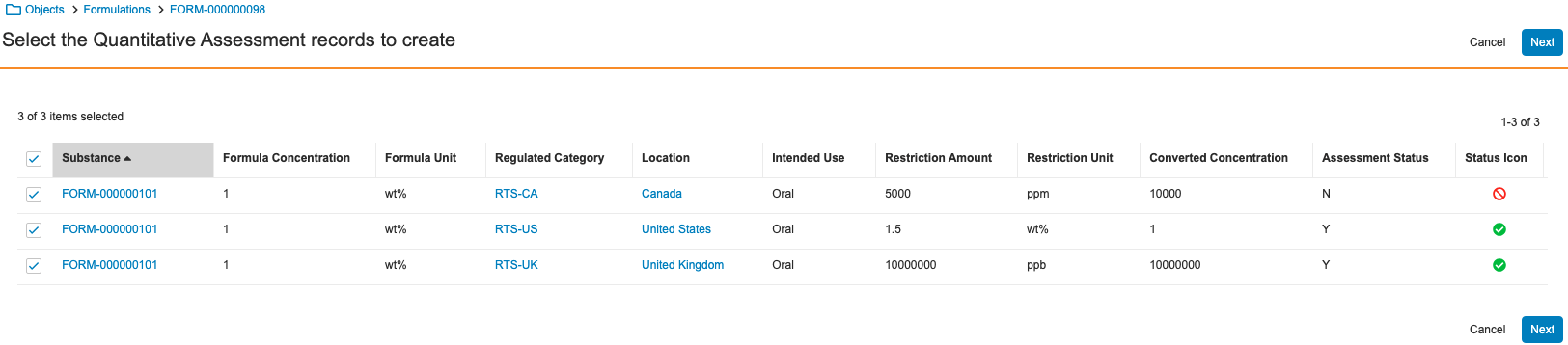
When configured by your Admin, you can automatically create the applicable _Quantitative Assessments_ for a _Formulation_ or _Packaging Component_ type of _Formulation_ using the _Create Quantitative Assessments_ action, allowing you to determine if that substance is compliant. For example, if the substance's concentration exceeds the maximum allowable limit for the intended use case. When you run this action, Vault suggests which records to create after iterating through a list of ingredients for regulated substances and determining whether their concentrations are within acceptable limits in specified local markets, saving you time and reducing risk of non-compliance due to errors. On the first page you see after running the action, you can review all potential _Quantitative Assessments_  and specify which records you want to create.

The field values on the new records are populated based on the corresponding values on the applicable _Regulatory Restrictions_ and _Formulation Concentrations_ and on Admin-defined mappings. The _Assessment Status_ is determined based on the concentration amounts:

* **Y**: If the _Formulation Concentration_ is less than or equal to the _Restriction Amount_.
* **N**: If the _Formulation Concentration_ is more than the _Restriction Amount_.

When the action completes, Vault inactivates any existing _Quantitative Assessments_ with the same _Regulated Restriction_ and _Formulation Concentration_ values as the newly generated records.

<a href="https://platform.veevavault.help/assets/images/cp-compliance-auto-qa.png" data-lightbox="cp-compliance-auto-qa.png" data-title="" data-alt="Select the Quantitative Assessment records to create page">
  <img class="docimage" src="https://platform.veevavault.help/assets/images/cp-compliance-auto-qa.png" alt="Select the Quantitative Assessment records to create page" style=""  />
</a>

###  How to Automatically Create Quantitative Assessments {#automatic-how}

To automatically create _Quantitative Assessments_:

1. Navigate to the appropriate _Formula_ type of _Formulation_.
2. From the **All Actions** menu, select **Create Quantitative Assessments**.
3. On the _Select the Quantitative Assessment records to create_ page, review the potential records Vault has identified for the substances of concern.
  * Optional: If there are more than 50 items displayed, use the caret (**<** and **>**) icons to navigate between pages.
  * Optional: Click column headers to sort the list by that attribute.
  * Optional: Click on any hypertext name to navigate directly to that record. You can return to the _Select the Quantitative Assessment records to create_ page using the breadcrumb links.
4. By default, all potential _Quantitative Assessments_ are pre-selected for creation. Clear the checkboxes for any substances for which you do not want to create _Quantitative Assessments_. Clicking the top-most checkbox clears or selects all checkboxes on that page.
5. Click **Next**.
6. Review the summary of changes on the _Review and confirm [#] Quantitative Assessment records_ page.
7. Click **Finish**.

### Notifications {#notifications}

When Vault finishes creating _Quantitative Assessments_, you'll receive an email and a Vault notification. The notification lets you know how many _Quantitative Assessments_ Vault successfully created or if there were any errors.

### Limitations {#limitations}

The _Create Quantitative Assessments_ action can create up to 500 records. If Vault finds more than 500 potential records, you will see a message that there are too many records to show on the _Select the Quantitative Assessment records to create_ page.
