Note: The availability of comments for certain objects, including the ability to add comments in bulk to multiple records, depends on your Admin’s configuration.
## Viewing Comments {#view}
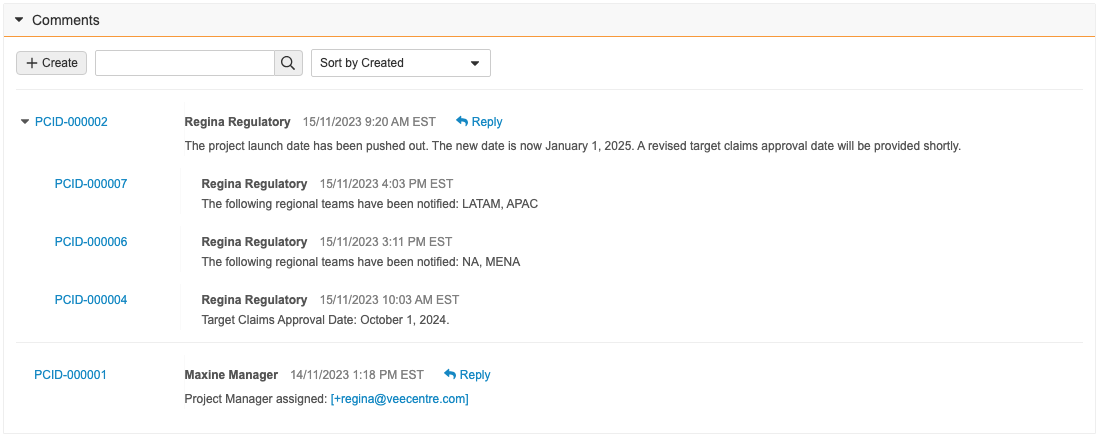
Vault displays all comments in a record's _Comment_ section. When you receive a notification that you've been tagged in a comment, clicking on the link in the notification takes you directly to that comment, with the applicable comment highlighted. In the _Comment_ section, you can do the following:
* Hover over **Show More** to view the full text of any comment that exceeds 400 characters.
* For replies in [comment threads][3] in _Claim_, _Local Adaptation_, _Project_, and _Pack Copy_ records:
* Use the drop-down to specify how top-level comments sort in the viewer. All replies within each top-level comment sort by descending creation date regardless of your selection:
* **Sort by Created**: Top-level comments sort by latest creation date.
* **Sort by Activity**: Top-level comments sort by latest reply and, for comments without replies, by creation date.
* Click the caret () icon to view all replies to a top-level comment.
* Use the search box to filter the displayed comments and replies on the record with specific text found in the comment body, comment ID, and the user that added the comment.
* Enter the applicable search terms (up to 255 characters) and click the magnifying glass button, or press **Enter** on your keyboard, to only display comments that fit your search parameters with search terms highlighted.
* For comment replies in [comment threads][3], Vault displays comment replies matching your search terms as well as the top-level comment for those replies. Click **Show Entire Thread** to see all replies in that thread, including any that do not contain the search terms.
* Click the **X** icon in the search bar to clear the search results and view all comments.
If there are more than 500 comments and replies for a record, Vault does not display any comments.
## Adding Comments to Records {#add-comments}
When configured by your Admin, you can add a comment to a [single record][1] and, for certain objects, [multiple records in bulk][2]. You can also [reply to comments][3] on certain object records. You'll receive a notification letting you know if another user replies to your comment.
### Adding Comments to a Single Record {#single}
To add comments to a single record:
1. Navigate to the record to which you want to add a comment.
2. In the _Comments_ section, click **Create**. Depending on your Admin's configuration, you may need to expand the section.
3. Enter a **Comment**.
4. Optional: Enter the "@" key or "+" key to display a list of users, and then select a user you want to mention.
5. Click **Save**, or to add another comment to that record, click **Save + Create**.
Your newly-added comment is highlighted in orange.
### Bulk Adding a Comment to Multiple Records {#multiple}
When configured by your Admin, you can add a comment to multiple _Claims_, _Projects_, and _Local Adaptations_ using a [bulk object record action](/en/lr/33725/). To do this:
1. Navigate to the applicable object tab to view a list of _Claims_, _Local Adaptations_, or _Projects_ records.
2. Optional: Set additional [filters](/en/lr/44069/) to narrow down the list of records to which you want to add a comment. You can add comments to up to 1,000 records at once.
3. From the **All Actions** menu, select the option to perform a bulk action on all records.
4. On the _Refine Selection_ page, review the list of selected records and clear the checkboxes for any records to which you do not want to add comments.
5. Click **Next**.
6. On the _Choose Action (Step 2_) page, select **Record Actions** in the _Manage Records_ section.
7. Click **Next**.
8. On the _Choose Record Action (Step 3)_ page, select the option to add a comment. The action label indicates how many records will be affected. If your Admin has configured the action to apply only to records in a specific lifecycle state, Vault automatically excludes any records you selected that are not in the applicable lifecycle state.
9. Click **Next**.
10. On the _Details (Step 4)_ page, enter your **Comment**.
11. Optional: Enter the "@" key or "+" key to display a list of users, and then select a user you want to mention.
13. Click **Next**.
14. On the _Confirmation_ page, review the summary of changes and click **Finish**.
When Vault finishes adding the comment to the selected records, you'll receive an email and a Vault notification letting you know if the bulk action was successful or if there were any errors. Any users you mentioned in the comment will receive one (1) email and one (1) notification per 500 records to which you're adding the comment.
### Replying to a Comment in a Comment Thread {#reply}
You can reply to comments in comment threads in _Claim_, _Local Adaptation_, _Project_, and _Pack Copy_ records. To reply to a comment:
1. Navigate to the applicable record and view all comments.
2. Click **Reply** on a top-level comment.
3. Enter your **Comment**.
4. Optional: Type the "@" key or "+" key to display a list of users, and then select a user you want to mention.
5. Click **Save**.
Your reply appears at the top of the comment thread. Comment replies are listed from newest to oldest under each top-level comment.
## Editing & Deleting Comments {#edit-delete}
You can [edit][5] and [delete][6] comments you create but cannot delete any comments with replies.
### Editing Your Comment {#edit}
To edit your comment:
1. Navigate to the applicable record on which the comment appears.
2. Click on the comment's ID to open the comment record.
3. Click the **Edit** icon.
4. Make the applicable changes.
5. Click **Save**.
### Deleting Your Comment {#delete}
To delete your comment:
1. Navigate to the applicable record on which the comment appears.
2. Click on the comment's ID to open the comment record.
3. Select **Delete** from the record's **All Actions** menu.
4. Click **Continue** in the dialog to confirm the deletion.
[1]: #single
[2]: #multiple
[3]: #reply
[4]: #view
[5]: #edit
[6]: #delete