# Configuring Action Triggers

An Action Trigger allows you to create and execute custom business logic when a Create, Update, or Delete record operation occurs on an object record. This capability is similar to <a class="external-link " href="https://developer.veevavault.com/sdk/#About_Record_Triggers" target="_blank" rel="noopener">Vault Java SDK record triggers<i class="fa fa-external-link" aria-hidden="true"></i></a>, however, Action Triggers rely upon Vault formula expressions rather than Java code. Action Triggers are made up of blocks of **IF**, **THEN**, and **ELSE** conditional logic to perform [actions][11] when a record operation occurs. These blocks of conditional logic are referred to as Action Blocks.

You can configure conditional logic to execute before or after a record is saved, referred to as Before Save and After Save events respectively. For example, you can configure an Action Trigger to send a notification to a user when a field is updated. Or, you can configure an Action Trigger to start a workflow when a record is created.

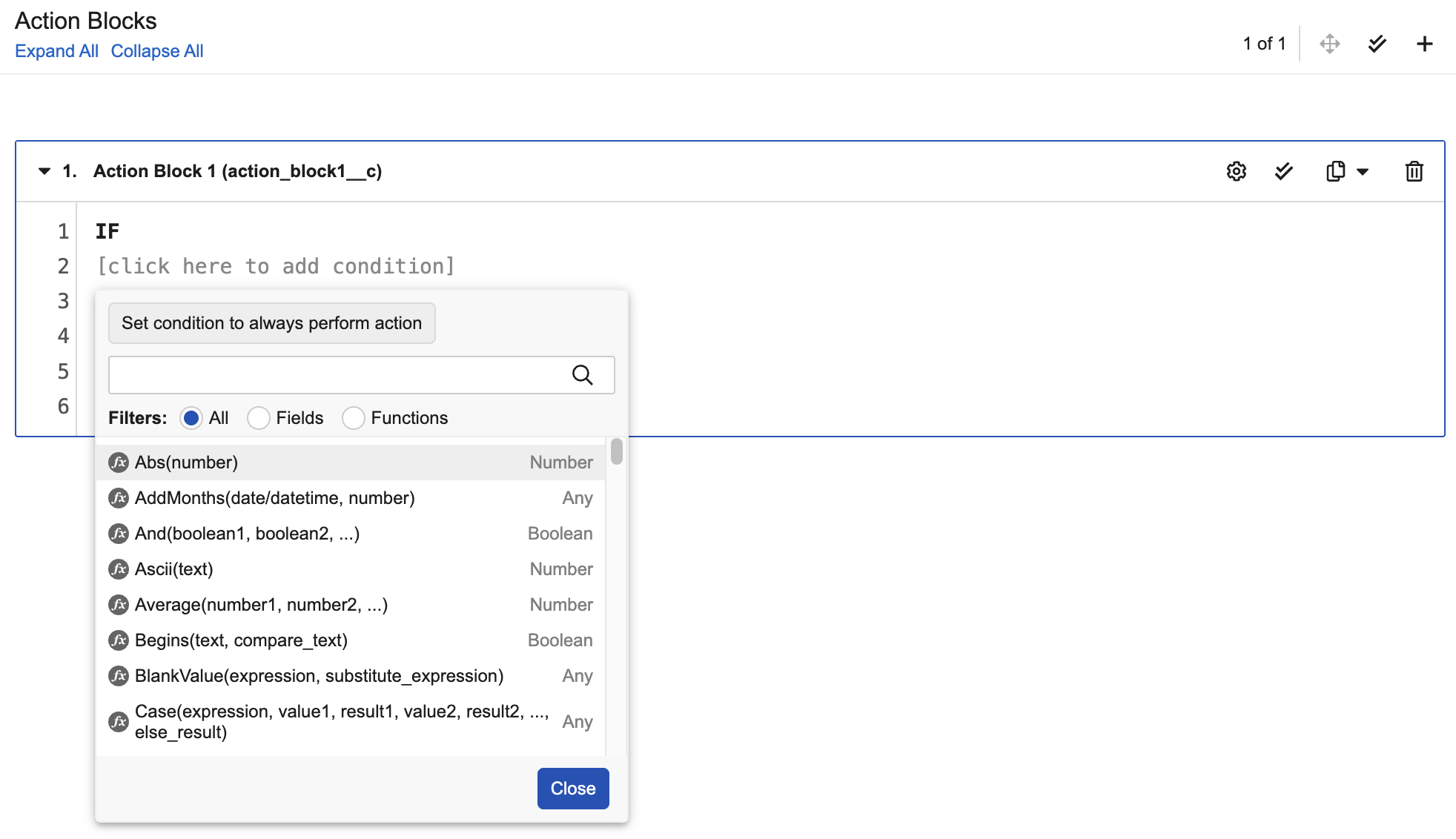
In addition, Action Triggers provide an editor that allows you to select functions and fields and actions, rather than manually type them in, as you build your conditional logic.

<div class="note-border alert-info">
  <div class="alert alert-info" role="alert">
    <div><i class="far fa-info-circle"></i></div>
    <div class="alert-text">
      <p><strong>Note</strong>: Record changes that occur from an Action Trigger are audited as <em>System on behalf of [User]</em>.</p>
    </div>
  </div>
</div>


<a href="https://platform.veevavault.help/assets/images/action-trigger-image-1.png" data-lightbox="images" data-title="" data-alt="Action Trigger">
  <img class="docimage" src="https://platform.veevavault.help/assets/images/action-trigger-image-1.png" alt="Action Trigger" style="width: 900px;"  />
</a>

## Before Save Events {#before-save}

Before Save events occur before a record is saved on the current object. Action Triggers configured in these events are best used with [_Update Current Record_ ][12] actions, which includes operations such as defaulting field values and validating data entry. Updating fields on the current record is more efficient before it's saved than to update the same record again after it is saved.

## After Save Events {#after-save}

After Save events occur after a record is saved on the object. For example, you could configure an After Save Action Trigger to update related records when a user saves a record after a specific update occurs. Or you could change the state of a record after a user saves the record if certain fields are populated with specific values. In addition, you could initiate a workflow after a record is created or updated. Each of these actions are best executed after a record is saved rather than before.

## Example Use Case {#use-case}

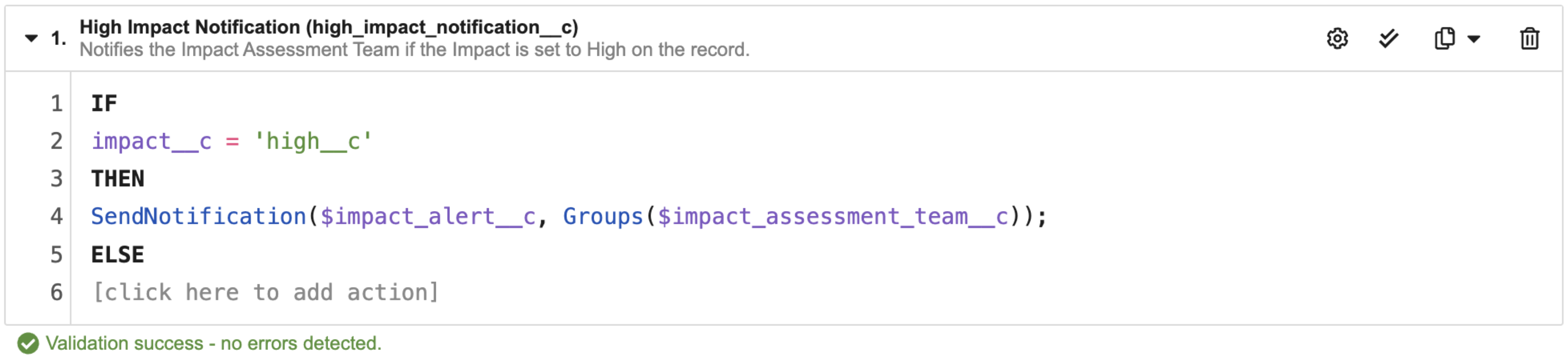
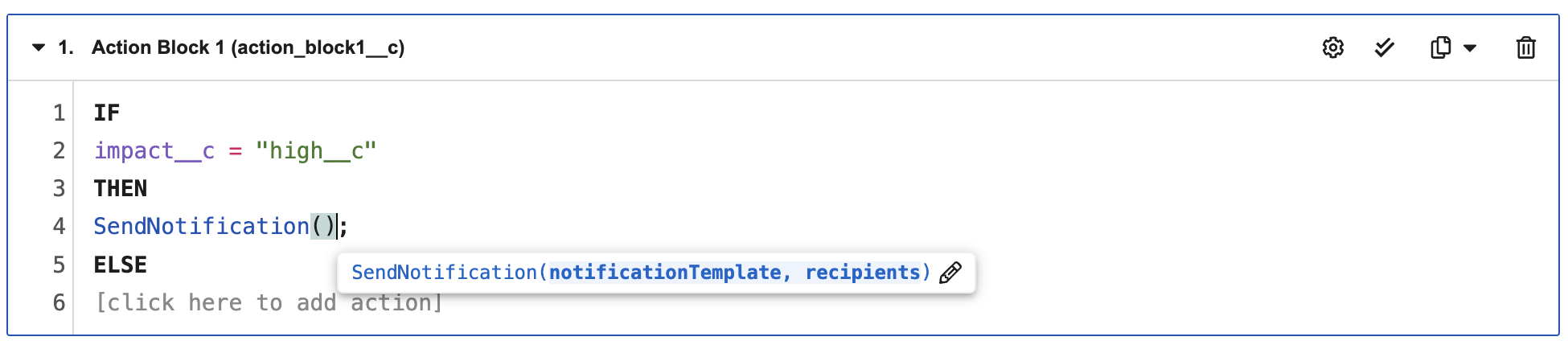
Your Vault contains an object called _Issues_ and you want to ensure the **Impact Assessment Team** is notified when a new record is created with the _Impact_ field set to _High_.

To accomplish this, you can configure an After Save Action Trigger within a _Create_ record operation on the _Issues_ object. This Action Trigger would include an **IF** condition that checks if the _Impact_ field is set to _High_ after an _Issues_ record is created. Then, you would confgure the **THEN** action to use _[Send Notification][30]_ to alert the **Impact Assessment Team** using a pre-defined <a href="/en/gr/2157/">notification template</a>
.

With this setup, the process of alerting the **Impact Assessment Team** of high impact issues is completely automated. No manual configuration is needed to achieve this functionality on an ongoing basis.
<a href="https://platform.veevavault.help/assets/images/action-trigger-image-2.png" data-lightbox="images" data-title="" data-alt="Example Use Case">
  <img class="docimage" src="https://platform.veevavault.help/assets/images/action-trigger-image-2.png" alt="Example Use Case" style="width: 900px;"  />
</a>

## Accessing Action Trigger Configuration {#access-action-trigger-configuration}

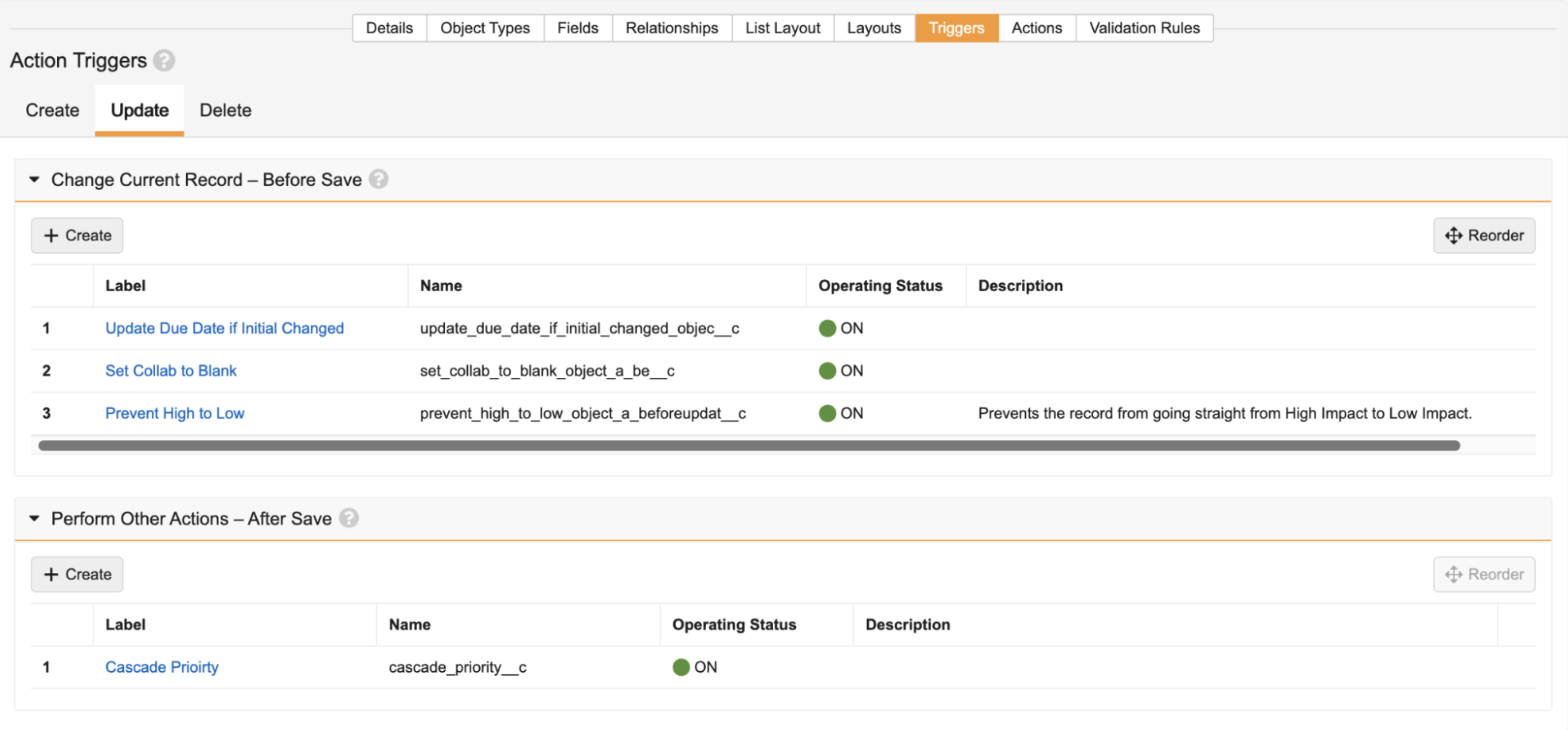
You can configure Action Triggers in your Vault from **Admin > Configuration > Objects > \[Object] > Triggers**. The _Triggers_ tab displays _Create_, _Update_, and _Delete_ tabs which represent record operations.

Each record operation tab displays a _Change Current Record - Before Save_ and a _Perform Other Actions - After Save_ section which allow you to configure Before Save and After Save Action Triggers. For example, if you configure a Before Save Action Trigger on the _Create_ tab, you can create business logic that states whenever a record is created on this object, certain fields on the record must contain a specific value before the record is saved.

<div class="note-border alert-info">
  <div class="alert alert-info" role="alert">
    <div><i class="far fa-info-circle"></i></div>
    <div class="alert-text">
      <p><strong>Note</strong>: Up to ten (10) Action Triggers are allowed per  Save and After Save event.</p>
    </div>
  </div>
</div>


## How to Configure an Action Trigger {#how-to-configure-action-triggers}

To configure an Action Trigger:

1. Navigate to **Admin > Configuration > Objects > \[Object] > Triggers**.
2. Click **Create** under the **Change Current Record - Before Save** or **Perform Other Actions - After Save** section on the **Create**, **Update**, or **Delete** tab.
3. Enter a **Label** and **Name** for the Action Trigger.
4. Optional: Enter a **Description**.
5. Click on line 2 in the Action Block and create an **IF** condition. Vault displays the [Action Trigger editor][8] that provides context-sensitive help to create the condition. If the **THEN** action should always execute when the record operation occurs, click **Set condition to always perform action in the editor**. This option is available only when the **IF** condition line is blank. You cannot use Lookup, Formula, or Roll-up fields in Action Triggers.
6. Click the line under **THEN** to select an  that will execute when the **IF** condition returns true. You can use the **[Action Configuration][8]** dialog to configure the action's parameters.
7. Optional: Click the line under **ELSE** to select an [action][11] that will execute when the **IF** condition returns false.
8. Optional: Hover your cursor before or after an Action Block to display the _Add Action Block_ button. Click this button to add an Action Block. You can also click **Add Action Block** (<i class="fa fa-plus" aria-hidden="true"></i>) to add an Action Block right after the current one selected.
9.  Optional: Click **Edit Details** (<i class="far fa-cog"></i>) to change the **Label**, **Name**, or **Description** of the Action Block.
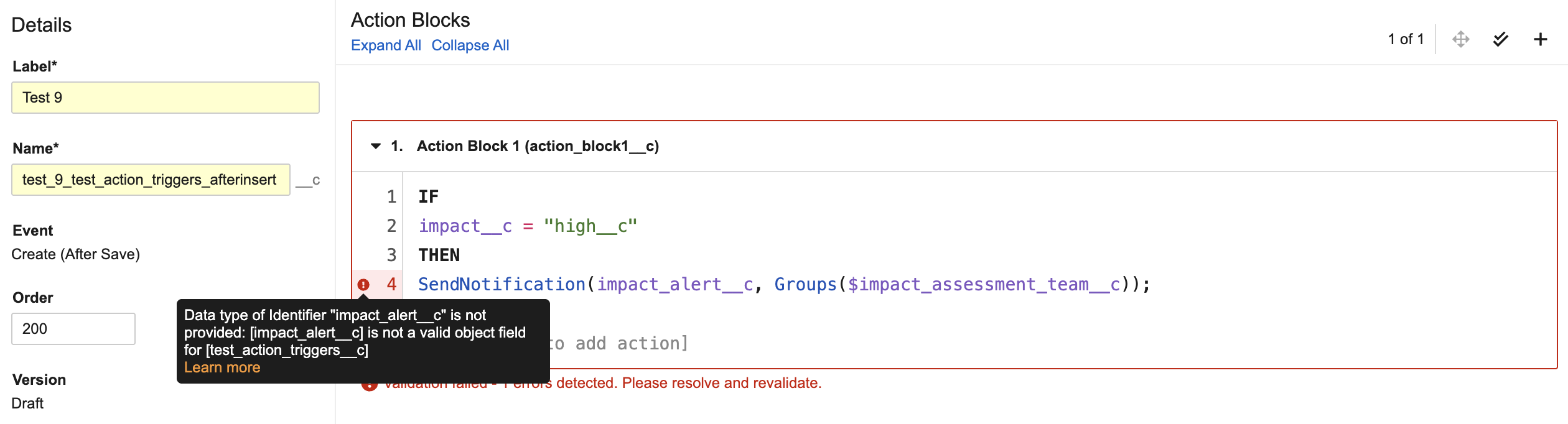
10. Optional: Click **Validate** (<i class="fal fa-check-double"></i>) to validate the conditions and actions in your Action Block. If an error occurs, Vault highlights the line where the error is located. Hover your cursor over this highlighted area for more information on the error. You can also click **Validate All** (<i class="fal fa-check-double"></i>) to validate all conditions and actions in all Action Blocks for this Action Trigger.
11. Optional: Click **Copy Actions** (<i class="far fa-copy"></i>) to copy the conditions and actions in the Action Block to your clipboard, replace them with conditios and actions from your clipboard, or duplicate the conditions and actions in a new Action Block.
12. Optional: Click **Delete** (<i class="far fa-trash-alt"></i>) to remove the Action Block.
13. Click **Save**.
14. Optional: Change the **Order** the Action Trigger executes in the Before Save or After Save event. Vault automatically orders Action Triggers in Before Save and After Save events from the lowest number to the highest number.
15. Optional: Click **Save + Exit** to leave editing the Action Trigger.

### How to Edit an Action Trigger

To edit an existing Action Trigger:

1. Navigate to **Admin > Configuration > Objects > \[Object] > Triggers > \[Action Trigger]**.
2. Click the **Actions** menu.
3. Click **Edit Trigger** (<i class="fal fa-pencil-alt"></i>).
4. Make any modifications to the Action Trigger as necessary.
5. Click **Save**.

Vault saves your changes as a draft and does not run them in production until you [turn on][4] the Action Trigger or [make the configuration active][5].

### How to Delete an Action Trigger

To delete an Action Trigger:

1. Navigate to **Admin > Configuration > Objects > \[Object] > Triggers > \[Action Trigger]**.
2. Click the **Actions** menu.
3. Click **Delete Trigger**.
4. Click **Continue** in the **Delete Trigger** dialog.

Vault removes the Action Trigger.

### How to Turn an Action Trigger On & Off {#turn-on-off-action-triggers}

When you save the Action Trigger, Vault saves it as a draft and does not execute your changes in production. To activate the Action Trigger, click **Turn ON Trigger** (<i class="fa fa-power-off" aria-hidden="true"></i>). This action changes the **Operating Status** to **On**. 

Click **Turn OFF Trigger** (<i class="fa fa-ban" aria-hidden="true"></i>) to turn the Action Trigger off and make it inactive. This icon is only available when the Action Trigger is saved after initial creation.

If an active version and a draft version of the Action Trigger exist when you click **Turn ON Trigger**, Vault prompts you to select whether to replace the active version with the draft version or keep the active version running. This situation can occur if you turn off an active Action Trigger, make changes to create a draft version, then turn the trigger on again.

### How to Activate an Action Trigger Configuration {#activate-action-triggers}

If you made changes to an existing active Action Trigger, Vault saves those changes as a draft. The _Version_ field contains a _View Active_ button that allows you to view the active version of the Action Trigger. You can also click **View Active Configuration** in the Action Trigger's **Actions** menu. 

Click **Make Configuration Active** (<i class="far fa-file-upload"></i>) to replace the current active version with the draft version. This action immediately runs the new version of the Action Trigger in production.

You can also click **Revert to Last Active Configuration** (<i class="fa fa-undo" aria-hidden="true"></i>) to use the previous active version. These options are also available in the Action Trigger's **Actions** menu.

### Best Practices for Update Record Operations {#update-operation-best-practices}

When configuring an Action Trigger in an _Update_ record operation, ensure the Action Trigger executes only when the record is updated to meet a specific criteria. This process helps optimize performance and reduces redundant actions. You can accomplish this by using functions such as `PriorValue($field)` to compare new field values with their previous value.

For example, the following formula compares the previous value of the _Impact_ field with the new value of _High_: 
`IF`
`PriorValue($impact__c) != impact__c && impact__c = "high__c"`

### Component Reference Formula Attribute {#component-reference-formula-attribute}

Some functions within Action Triggers require the use of components as attributes rather than the API _Name_ value. To reference a component, such as an object, object type, or workflow, use the API _Name_ preceded by a `$` sign. For example, `$vern_bio__v` is valid while `vern_bio__v` is invalid.

### Using the Action Trigger Editor {#using-action-trigger-editor}

When you click or begin typing below an **IF**, **THEN**, or **ELSE** line, Vault displays the Action Trigger editor. You can use the editor to select fields, functions, and parameters rather than manually typing them in. This editor is context sensitive and provides the following features to help you write Action Trigger logic and avoid errors:

Syntax Highlighting
: Vault highlights different parameters in the **IF** condition and **THEN** or **ELSE** action. This function helps distinguish between the different parameters for readability purposes.

Fields and Functions Menu
: When creating an **IF** condition, the Action Trigger editor provides a menu to search and select available object fields and functions to create your condition. The menu includes an auto-complete functionality that helps in building your condition. For example, if you select _Country_, the editor displays a full list of operators you can select. Once you select an operator, you can select another field or function, or manually enter the next value. Click **Set condition to always perform action** in the editor if the **THEN** action should always execute when the record operation occurs. When you add a function to the Action Block, click it to display an edit icon (<i class="fal fa-pencil-alt"></i>) that reopens the menu of fields and functions.

<a href="https://platform.veevavault.help/assets/images/action-trigger-image-3.png" data-lightbox="images" data-title="" data-alt="Fields and Functions Menu">
  <img class="docimage" src="https://platform.veevavault.help/assets/images/action-trigger-image-3.png" alt="Fields and Functions Menu" style="width: 800px;"  />
</a>

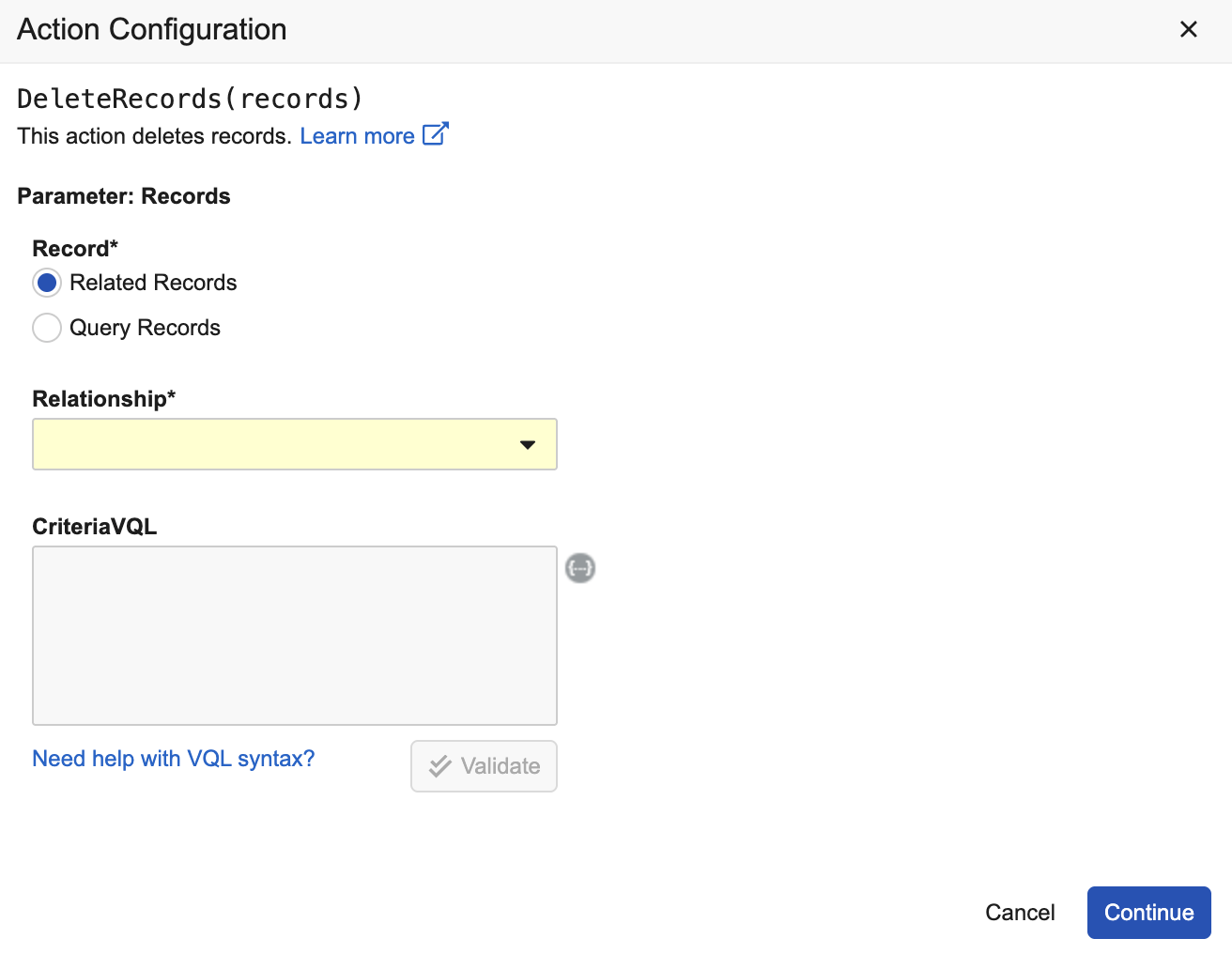
Action Configuration Dialog
: When you select an action, click it in the Action Block to display an edit icon (<i class="fal fa-pencil-alt"></i>) that opens the **Action Configuration** dialog.
<a href="https://platform.veevavault.help/assets/images/action-trigger-image-6.png" data-lightbox="images" data-title="" data-alt="Link to Action Configuration Dialog">
  <img class="docimage" src="https://platform.veevavault.help/assets/images/action-trigger-image-6.png" alt="Link to Action Configuration Dialog" style="width: 800px;"  />
</a>

This dialog allows you to build the action's parameters without typing them in. For example, if you select _Create Record_, you can select the relevant object and field from the **Action Configuration** dialog. When you click **Continue**, Vault adds the action to the Action Block with functions and parameters related to your selection. For example, if you select a related record for the _Delete Records_ action, Vault adds the [`GetRelatedRecords`][21] function to the action.
<a href="https://platform.veevavault.help/assets/images/action-trigger-image-4.png" data-lightbox="images" data-title="" data-alt="Action Trigger">
  <img class="docimage" src="https://platform.veevavault.help/assets/images/action-trigger-image-4.png" alt="Action Trigger" style="width: 700px;"  />
</a>

Set Picklist Field Value
: When you select a field in the **Action Configuration** dialog, Vault prompts you to enter the field's value via manual entry or using the menu of fields and functions. If you select a picklist field, the menu displays a **Set Value** button that allows you to select a value from the picklist.

Vault Help Link
: When you select an action or function, click it in the Action Block to display a link to Vault Help with more information and examples.

Validation Checks
: You can click **Validate** (<i class="fal fa-check-double"></i>) to ensure your conditions and actions are valid. If you run into an error, Vault highlights the line in the Action Block where the error occurred and provides an error message with specific details.

### Order of Operations for Action Triggers {#order-of-operations}

When a _Create_, _Update_, or _Delete_ operation occurs, Vault performs the following sequence of steps:

1. Before Save Action Triggers
   1. Execute Before Save Action Triggers
   2. Execute `BEFORE` custom Vault Java SDK record triggers
2. Save record changes to database
3. After Save Action Triggers
   1. Execute `AFTER` custom Vault Java SDK record triggers
   2. Execute After Save Action Triggers
   3. Commit saved record changes to database

Data available in Before Save and After Save events is dependent on the _Create_, _Update_, and _Delete_ record operations. For example, in a _Create_ record operation, you cannot retrieve old or existing values because a new record is being created. Likewise, it is not efficient to set a field value after it has been persisted in a _Delete_ record operation.

Action Triggers can overwrite field values on records. For example, if a Before Save Action Trigger is configured in a _Create_ operation to populate the optional Region Text field with value _United States of America_, Vault overwrites any other value the user enters in the field after they save the record.

<div class="note-border alert-info">
  <div class="alert alert-info" role="alert">
    <div><i class="far fa-info-circle"></i></div>
    <div class="alert-text">
      <p><strong>Note</strong>: After Save Action Triggers in Create record operations always execute before <em>Create Record</em> event actions.</p>
    </div>
  </div>
</div>


### Excluded Action Triggers {#excluded-action-triggers}

Action Triggers are excluded from execution in the following scenarios:

* If _Record Migration Mode_ and _No Triggers_ are selected in Vault Loader.
* If the `X-VaultAPI-NoTriggers` header is set to true
* If a Roll-up field calculation occurs
* If operations on a parent record cascade down to the child record
* If a user sync occurs on domain-level attributes

## Configurable Actions {#configurable-actions}

Vault allows you to perform the actions listed below on records through Action Triggers. This section describes creating these actions using the Action Trigger editor.

Actions that use related records accept three (3) levels of outbound object relationships from the originating object. Actions that use `fields{}` must use a valid, active field on the specified object.

Not all actions are available in each record operation and Before Save or After Save event. See the [table][29] below for availability of each action.

<div class="note-border alert-info">
  <div class="alert alert-info" role="alert">
    <div><i class="far fa-info-circle"></i></div>
    <div class="alert-text">
      <p><strong>Note</strong>: You cannot use system-managed or read-only fields in any of the actions or functions.</p>
    </div>
  </div>
</div>


### Update Current Record {#update-current-record}

The _Update Current Record_ (`UpdateCurrentRecord(fields{})`) action updates fields on the current record the user is modifying or creating. You can enter multiple fields with their values. You cannot set a value on a parent object reference field if this action is used in a Before Save Action Trigger within a _Create_ operation.

#### Parameters

`fields{}`: Required, a comma delimited list of fields and values to set on the current record.

#### Example

`UpdateCurrentRecord(`
 `{$description__c:"New contract",`
 `$contract_date__c:Today(),`
 `$contract_code__c:code__c})`

: Sets a value for the _Description_, _Contract Date_, and _Contract Code_ fields on the current record.

### Create Record {#create-record}

The _Create Record_ (`CreateRecord(object/objectType, fields{})`) action creates a single record on a specified object or object type with specified field values.

You must select an object where the record will be created, an active field on the object, and enter a field value. You must select an object type if one exists on the selected object. You can enter multiple fields with their values.

You can use _Create Record_ to create a related record by setting the object reference field using the below formula:

`CreateRecord($child_object__c, {$parent_field__c : RecordByUniqueField($parent_object__c, {$id: id})});`

#### Parameters

- `object/objectType`: required, indicates the object or object type to create the new record, such as `$product__v` for object and `$product__v.device__v` for object type. The `$` component reference format is required on the object name.

- `fields{}`: Required, a comma delimited list of fields and values to set on the record.

#### Example

`CreateRecord($contract__c,`
 `{$description__c:"New contract",` 
 `$contract_date__c:Today(),`
 `$contract_code__c:code__c})`

: Creates a record on the Contract object and sets a value for the _Description_, _Contract Date_, and _Contract Code_ fields on the created record.

### Update Records {#update-records}

The _Update Records_ (`UpdateRecords(records, fields{})`) action updates fields on a related record or queried record on an object. If you query an unrelated object, you must provide VQL criteria to select the records to update. This action can update up to 5,000 records.

#### Parameters

* `records`: Required, accepts the `GetRecords` and `GetRelatedRecords` functions.
* `fields{}`: Required, a comma delimited list of fields and values to set on the record.

#### Example

`UpdateRecords(GetRecords($accounts__v, "reviewed=true"),{done__c : true})`

: Updates records in the _Accounts_ object where _Reviewed_=true and sets the _Done_ field value to true

### Delete Records {#delete-records}

The _Delete Records_ (`DeleteRecords(records)`) action deletes records on a related or queried object. If you select an unrelated object, Vault requires you to use VQL criteria to select the records to delete. This action can delete up to 5,000 records.

When this Action Trigger executes on a batch of records or the `records` parameter returns multiple records, the delete action will fail if a parent record attempts to cascade deletion to any of its child records.

#### Parameters

`records`: Required, accepts a `GetRecords` or `GetRelatedRecords` function.

#### Example

`DeleteRecords(GetRelatedRecords($accounts__cr, "reviewed=true")`

: Deletes records where _Reviewed_=true in the related _Accounts_ related object

### Cancel Workflow {#cancel-workflow}

The _Cancel Workflow_ (`CancelWorkflow(records, workflowName)`) action cancels an active single-record workflow. The action skips any records without an associated workflow. This action can cancel an active workflow on up to 100 records.

#### Parameters

- `records`: Required, accepts the `GetRecords`, `GetRelatedRecords`, and` ThisRecord` functions.

- `workflowName`: Required, accepts the _Name_ value of an active, single record workflow in the specified object's lifecycle. The _Name_ value must be appended with a component reference format (`$`).

#### Example

`CancelWorkflow(GetRecords($accounts__v, "reviewed=true"),$review__c)`

: Cancels the _Review_ workflow on records in the _Accounts_ object where _Reviewed_=true

### Change State {#change-state}

The _Change State_ (`ChangeState(records, state)`) action changes the lifecycle state on the current record, a related record, or a queried record. This action can change the lifecycle state on up to 100 records.

_Change State_ can cause a [loop][24] if it is used on the current record in an _Update_ event. The loop can also occur if a _Change State_ action is initiated by another process within the same execution path, such as a workflow started with a _Change State Action_ step.

#### Parameters

* `records`: Required, accepts the `GetRecords`, `GetRelatedRecords`, and `ThisRecord` functions.
* `state`: Required, name of a state in the specified object's lifecycle. The _Name_ value must use the `$` component reference format.

#### Example

`ChangeState(GetRelatedRecords($Object_Relationship.contracts__cr),$approved__c)`

: Changes the state of related _Contracts_ records to _Approved_

### Start Workflow {#start-workflow}

The _Start Workflow_ (`StartWorkflow(records, workflowName)`) action initiates a workflow on the current record, related records, or queried records. You can only start a single record workflow with _Auto-start from entry action and event action_ enabled. Limit of 100 records.

#### Parameters

* `records`: Required, accepts the `GetRecords`, `GetRelatedRecords`, and `ThisRecord` functions.
* `workflowName`: Required, accepts the _Name_ value of an active, single record workflow in the specified object's lifecycle. _Auto-start from entry action and event action_ must be enabled on the workflow.

#### Example

`StartWorkflow(ThisRecord(), $review__c)`
: Starts the _Review_ workflow on the current record the user is modifying or updating

`StartWorkflow(GetRelatedRecords($accounts__cr, "reviewed=true"), $review__c)`
: Starts the _Review_ workflow on related _Accounts_ records where _Reviewed_=true

### Cancel Operation {#cancel-operation}

The _Cancel Operation_ (`CancelOperation((optional) errorMessage)`) cancels the record operation initiated by the user. This action rolls back any Action Triggers already performed in a Before Save or After Save event.

You can display a default, custom, or catalog error message to the end user when this action occurs. This message also displays in the API error response.`  CancelOperation()  `with no parameters uses the default error message.

#### Parameters

`errorMessage`: Optional, accepts a custom error message, such as `"This operation is canceled"`, an expression that returns a string value, such as `Concat("ABC-", name__v)`, or a reference to a message in the _Message Catalog,_ such as `$my_group__c.my_message__c`. The component referece format (`$`) is required on the catalog message name value.

#### Example

`CancelOperation("Record update canceled")`
: Displays the custom error message "Record update canceled" when this action occurs.

`CancelOperation($custom_message_group__c.message_name__c)`
: Displays the message defined in the _Custom Message Group_ component in the _Message Catalog_ when this action occurs

### Print Log {#print-log}

The _Print Log_ (`PrintLog(messageType, message)`) action writes a log item to the Debug Log if _Include Action Triggers_ is enabled. This action does not provide contextual help in the Action Trigger editor.

#### Parameters

* `messageType`: Required, accepts a _Log Level_ filter, such as `INFO`, `DEBUG`, `WARN` and `ERROR`.
* `Message`: Required, accepts a string or a formula that returns a string, such as `Concat("name__v=", name__v)`. If a string is provided, Vault logs the message once, regardless of the number of records in the batch. If a string is not provided, Vault evaluates it once for each record in the batch, and outputs an array of results to the _Debug Log_.

#### Example

`PrintLog("WARN", "Entered else condition unexpectedly for recordIds")`
: Captures _WARN_ logs in the _Debug Log_ with the custom warning message: "Entered else condition unexpectedly for recordIds"

### Send Notification {#send-notification}

The _Send Notification_ (`SendNotification(notificationTemplate, recipients)`) action sends a Vault notification to a specified user. You must select a notification template available to the current object and a recipient.

You can select recipients from user names, _User_ and _Person_ object reference fields, active user groups, users assigned to a lifecycle role on the object, or an email address. You can enter up to 100 email addresses.

Inactive users, _Persons_, groups, and lifecycle roles will not receive a Vault notification. You can send 5,000 notifications per _Send Notification_ action.

You cannot send notifications to active lifecycle roles via the `Roles()` function if _Send Notification_ is configured in an After Save event within a _Delete_ record operation.

#### Parameters

* `notificationTemplate`: Required, accepts the _Name_ value of a notification template using the component reference format (`$`), such as `$trigger_notification__c`.
* `recipients`: Required, accepts a user's email address, _User_ reference field, _Person_ reference field, active user group, or an active lifecycle role. See examples below.

#### Example

`SendNotification($trigger_notification__c, UserNames("john.smith@biorad.com","jane.doe@biorad.com"))`
: Sends a Vault notification to John Smith and Jane Doe.

`SendNotification($trigger_notification__c, UserFields(account_owner__c, application__cr.reviewer__c))`
: Sends a Vault notification to the user specific in the _Account Owner_ field and the _Reviewer_ field on the _Application_ record related to the current object

`SendNotification($trigger_notification__c, Persons(account_owner__c, application__cr.reviewer__c))`
: Sends a Vault notification to the _Person_ specified in the _Account_ owner field and the _Reviewer_ field on the related _Application_ record

`SendNotification($trigger_notification__c, Groups($reviewers__c ))`
: Sends a Vault notification to all users in the _Reviewer_ group

`SendNotification($trigger_notification__c, Roles($reviewers__c))`
: Sends a Vault notification to all users assigned to the _Reviewer_ lifecycle role

`SendNotification($trigger_notification__c, Emails("john.smith@biorad.com", "jane.doe@abc.com"))`
: Sends a Vault notification to users associated with the specified email addresses: "john.smith\@biorad.com", "jane.doe\@abc.com"

## Action Trigger Functions {#action-trigger-functions}

You can use the below functions to configure **THEN** and **ELSE** actions in Action Triggers. See below for details on each function, their parameters, and usage examples. The `GetRecords`, `GetRelatedRecords`, and `ThisRecord` functions can only be used within a `records` parameter in a configurable action.

### GetRecords {#getrecords}

The `GetRecords(object, criteria_vql)` function retrieves records from a specified object. This function can only be used within a `records` parameter in a configurable action.

#### Parameters

* `object`: Required, accepts the object's _Name_ value, such as, `$vern_bio__v`.
* `criteria_vql`: Required, allows you to filter records to be used in the `GetRecords` function. Outbound relationships only retrieve one (1) record. If the criteria VQL filters out this record, no update occurs. Inbound relationships can retrieve multiple records. If the criteria VQL filters out all related records, no update occurs. Otherwise, a filtered subset of records are updated. `{{this.fieldName}}` is supported as a field value from the current record. For example, `sub_account__c={{this.name__v}}` returns the current record _Name_ value. If `{{this.fieldName}}` is used and the resolved value contains a single quote ('), Vault does not escape the single quote and users will encounter an error when saving the record associated with the Action Trigger. `{{IN_LAST()}}` and `{{IN_NEXT()}}` are supported as in the last number of days from today and in the next number of days from today, respectively. This function does not support nested queries in criteria VQL when used in an IF condition.

#### Example

`UpdateRecords(GetRecords($accounts__v, "reviewed=true"),{done__c : true})`
: Updates _Reviewed_ records in the _Accounts_ object and sets the _Done_ field to true.

`ChangeState(GetRecords($accounts__v, "reviewed=true"),$approved__c)`
: Changes the state of _Reviewed_ records to _Approved_ on the _Accounts_ object.

### GetRelatedRecords {#getrelatedrecords}

The `GetRelatedRecords(relationship_name, (optional) criteria_vql)` function retrieves records related to the current record. This function can only be used within a `records` parameter in a configurable action.

#### Parameters

* `relationship_name`: Required, accepts the related objects _Name_ value, such as `$vern_bio__v`. The `$` reference component is required. This parameter accepts three (3) levels of outbound relationships.
* `criteria_vql`: Optional, allows you to filter records to be used in the `GetRelatedRecords` function. Outbound relationships only retrieve one (1) record. If the criteria VQL filters out this record, no update occurs. Inbound relationships can retrieve multiple records. If the criteria VQL filters out all related records, no update occurs. Otherwise, a filtered subset of records are updated. `{{this.fieldName}}` is supported as a field value from the current record. For example, `sub_account__c={{this.name__v}}` returns the current record _Name_ value. If `{{this.fieldName}}` is used and the resolved value contains a single quote ('), Vault does not escape the single quote and users will encounter an error when saving the record associated with the Action Trigger. `{{IN_LAST()}}` and `{{IN_NEXT()}}` are supported as in the last number of days from today and in the next number of days from today, respectively. This function does not support nested queries in criteria VQL when used in an IF condition.

#### Example

`StartWorkflow(GetRelatedRecords($accounts__cr, "reviewed=true"), $review__c)`
: Starts the Review workflow on related Accounts records in the Reviewed state.

`ChangeState(GetRelatedRecords($accounts__cr), $active_state__c);`
: Changes the state on related Accounts records to Active.


<div class="note-border alert-info">
  <div class="alert alert-info" role="alert">
    <div><i class="far fa-info-circle"></i></div>
    <div class="alert-text">
      <p><strong>Note</strong>: The <code class="language-plaintext highlighter-rouge">GetRelatedRecords</code> function supports only <a href="/en/gr/28740/#complex-relationship">complex join objects</a>
 and not <a href="/en/gr/28740/#simple-relationship">simple join objects</a>
.</p>
    </div>
  </div>
</div>


### ThisRecord {#thisrecord}

The `ThisRecord()` function returns the current record. This function can be used within a `records` parameter in a configurable action or you can use this function in [_Create Record_][34] and [_Update Records_][13] actions to set a reference field value.

#### Example

`CancelWorkflow(ThisRecord()), $review__c)`
: Cancels the _Review_ workflow on the current record.

### PriorValue {#priorvalue}

The `PriorValue($field)` function returns a field's previous value.

#### Parameters

`$field`: Accepts a field _Name_ value using the component reference format (`$`).

#### Example

`PriorValue($name__v)`
: Returns the previous value of the _Name_ field.

<div class="note-border alert-info">
  <div class="alert alert-info" role="alert">
    <div><i class="far fa-info-circle"></i></div>
    <div class="alert-text">
      <p><strong>Note</strong>: The <code class="language-plaintext highlighter-rouge">PriorValue($field)</code> function is only available in Update record operations.</p>
    </div>
  </div>
</div>


### IsChanged {#action-trigger-ischanged}

The `IsChanged($field)` function compares a field value to the previous value and returns true if the values are different.

#### Parameters

`$field`: Accepts a field _Name_ value using the component reference format (`$`).

#### Example

`IsChanged($priority__c) && priority__c = PicklistValue($priority__c, "high__c")`

Returns false if the previous value of the _Priority_ picklist is _High_.

<div class="note-border alert-info">
  <div class="alert alert-info" role="alert">
    <div><i class="far fa-info-circle"></i></div>
    <div class="alert-text">
      <p><strong>Note</strong>: The <code class="language-plaintext highlighter-rouge">IsChanged()</code> function is only available in Before Save and After Save events in <em>Update</em> record operations. In addition, this function can accept Long Text and Rich Text fields, returning up to 1,500 characters. Rich Text fields return the first 1,500 characters of their plain text value.</p>
    </div>
  </div>
</div>


### PicklistValue {#picklist-value}

The `PicklistValue($picklist_name, value)` function returns a single value from a picklist.

#### Parameters

* `$picklist_name`: Accepts an active, single-value picklist _Name_ value, such as `impact__c`.
* `value`: Accepts the _Name_ value of a value from the picklist, such as `medium__c`.

#### Example

`UpdateRecords(GetRelatedRecords($policy__cr), {$confirm_receipt__c: "received__c"});`
: Sets the _Confirm Receipt_ picklist to _Received_ on the related _Policy_ object records when an _Update Records_ Action Trigger occurs on a related object.

### PicklistValues {#picklist-values}

The `PicklistValues($picklist_name, value1, value2)` function returns single and multiple values from a picklist field. Values with a hyphen are supported.

#### Parameters

* `$picklist_name`: Accepts an active, multi-value picklist _Name_ value, such as `impact__c`.
* `value1, value2`: Accepts the _Name_ value of values from the picklist, such as `low__c`.

#### Example

`UpdateRecords(GetRelatedRecords($__cr), {$sales_territory__c: PicklistValues($territory_a__c, "northwest__c", "southwest__c")});`
: Sets the _Sales Territory A_ picklist to _Northwest_ and _Southwest_ on related _Territories_ records when an _Update Records_ Action Trigger occurs on a related object.

## Action Availability {#action-availability}

The table below details which actions are allowed in Before Save and After Save events according to the record operation.

|Action|Before Save Create|Before Save Update|Before Save Delete|After Save Create|After Save Update|After Save Delete|
|--- |:---: |:---: |:---: |:---: |:---: |:---: |
|Create Record||||X|X|X|
|Update Current Record|X|X|||||
|Update Records||||X|X|X|
|Delete Records||||X|X|X|
|Cancel Workflow||||X|X|X|
|Change State||||X|X||
|Start Workflow||||X|X|X|
|Cancel Operation|X|X|X|X|X|X|
|Print Log|X|X|X|X|X|X|
|Send Notification||||X|X|X|

## Performance Considerations {#performance-considerations}

For optimal performance, each Action Trigger processes a batch of 500 records at a time. Action Triggers that process over 500 records create a separate batch until all records are processed. For example, if an Action Trigger processes 600 records, the first batch contains 500 while the second batch contains 100.

Action Triggers execute once and once only, even if a loop occurs on the same Action Trigger, such as a _Change State_ action used on the current record. In this situation, Vault skips executing each subsequent iteration in the loop. However, it's important to avoid creating Action Triggers that loop on themselves.

Action Triggers execute synchronously, similar to Vault Java SDK record triggers. This functionality means the longer an Action Trigger executes, the longer a user must wait for the UI to respond.

## Action Trigger Errors {#errors}

Action Triggers can run into errors during execution and when you are building the conditional logic. When Action Triggers encounter an error and are terminated, Vault reports them in the <a href="/en/gr/14341/#debug_log">Debug Log</a>
 and <a href="/en/gr/14341/#runtime_log">Runtime Log</a>
. If the Action Trigger is performed on multiple records, the first error encountered is logged with a detailed error message.

Errors can occur due to system actions, such as time and nested depth limits exceeded, or due to an error in the Action Trigger, such as missing required fields, invalid validation rules, or entry criteria not met.

If an Action Trigger exceeds the limit of records it can update, Vault cancels it with an error message and rolls back any changes the trigger prompts.

<a href="https://platform.veevavault.help/assets/images/action-trigger-image-5.png" data-lightbox="images" data-title="" data-alt="Action Trigger Errors">
  <img class="docimage" src="https://platform.veevavault.help/assets/images/action-trigger-image-5.png" alt="Action Trigger Errors" style="width: 900px;"  />
</a>

## Known Issues {#known-issues}

* If you configure a _Send Notification_ action in an After Save event within a _Delete_ record operation, the notification will not include the object record's field values. In addition, the notification will fail to send to active lifecycle roles via the `Roles()` function.
* If `{{this.fieldName}}` is used in the `GetRecords` or `GetRelatedRecords` function and the resolved value includes a single quote ('), Vault does not escape the single quote and users will encounter an error when saving the record associated with the Action Trigger. For example, `GetRelatedRecords($contract_ammendments__cr, "name__v ={{this.name__v}}")` returns an error on the object record if the value of `{{this.name__v}}` resolves to `Cote d'Ivoire`.

## Limits {#limits}

The following limits apply to configuring action triggers:

* Up to ten (10) Action Triggers per Before Save and After Save event.
* Up to 50 Action Blocks per Action Trigger
* Action Triggers process up to 500 records at a time
* You cannot use system-managed, Lookup, Formula, or Roll-up fields in Action Triggers.
* The _Change State_ action can only change the lifecycle state on up to 100 records.
* Action Triggers and Java SDK record triggers time out if all triggers in the transaction are not executed within 100 seconds. If a timeout occurs, all record operations in the transaction are rolled back. You can find information about your trigger execution times in the <a href="/en/gr/14341/#debug_log">Debug Log</a>
.
* You cannot use Action Triggers on objects where the object component definition has `triggers_disallowed(true)`.
* Action Triggers are not executed on _User_ object records in the following scenarios:
  * Synchronizing user attributes across multiple domains. For example, updates to domain user attributes such as _First Name_, _Last Name_, or _Email_ only execute <a class="external-link " href="https://developer.veevavault.com/sdk/#user-triggers" target="_blank" rel="noopener">user triggers<i class="fa fa-external-link" aria-hidden="true"></i></a> in the Vault where the change originated. This also applies to cross-domain users.
  * Updating system-managed permission fields following changes to permission sets, application roles, or user roles.
  * Creating or updating system-managed users.
  * Changing the domain user _Status_ to _Inactive_.
  * Syncing users during a sandbox refresh or during Vault creation processes.
  * Updating a user's profile picture, _Last Login_ date, or _Activation_ date.

## Related Permissions {#permissions}

|Type|Permission Label|Controls|
|--- |--- |--- |
|Security Profile|Admin: Action Triggers: Read|Ability to view _Triggers_ tab on an object|
|Security Profile|Admin: Action Triggers: Create|Ability to create Action Triggers|
|Security Profile|Admin: Action Triggers: Edit|Ability to edit Action Triggers, including reordering, activating configurations, reverting active configurations, and turning Action Triggers on and off.|
|Security Profile|Admin: Action Triggers: Delete|Ability to delete Action Triggers.|
|Security Profile|Admin:Objects:Read|Ability to configure Action Triggers|

[0]: #before-save
[1]: #after-save
[2]: #access-action-trigger-configuration
[3]: #how-to-configure-action-triggers
[4]: #turn-on-off-action-triggers
[5]: #activate-action-triggers
[6]: #update-operation-best-practices
[7]: #component-reference-formula-attribute
[8]: #using-action-trigger-editor
[9]: #order-of-operations
[10]: #excluded-action-triggers
[11]: #configurable-actions
[12]: #update-current-record
[13]: #update-records
[14]: #delete-records
[15]: #cancel-workflow
[16]: #change-state
[17]: #start-workflow
[18]: #cancel-operation
[19]: #print-log
[20]: #getrecords
[21]: #getrelatedrecords
[22]: #thisrecord
[23]: #priorvalue
[24]: #performance-considerations
[25]: #errors
[26]: #known-issues
[27]: #limits
[28]: #permissions
[29]: #action-availability
[30]: #send-notification
[31]: #action-trigger-functions
[32]: #picklist-value
[33]: #picklist-values
[34]: #create-record
[35]: #action-trigger-ischanged