# Using the Formulation Composition Viewer (Compliance Management)

<a href="/en/gr/71434/">Compliance Management</a> provides the Formulation Composition Viewer, which allows you to easily visualize a formula's hierarchical composition in relation to its formulation data, including all compositional components. You can use the viewer to quickly check if the chemical or packaging components meet regulatory requirements by reviewing and managing compliance data in the viewer, including all _Qualitative Assessments_ generated from <a href="/en/gr/492101/">imported formulation questionnaire data</a>. This allows you to ensure that the formula is compliant before approving it for use by your organization.

The viewer displays all relevant child _Formulations_ based on the child _Formulation Compositions_ of the parent _Formulation_. When you add child _Formulation Compositions_ to a _Formulation_, Vault includes the relevant _Formulations_ in the viewer. From within the viewer, you can create and edit _Qualitative Assessments_ for _Formulations_ listed in the viewer for each _Regulated Category_. You can also update active _Qualitative Assessments_ to reflect changes to existing assessment statuses.

Depending on your <a href="/en/gr/74427/">Admin's configuration</a>, object, field, and section labels may appear differently than the labels mentioned in this article.

## About the Formulation Composition Viewer

You can access the viewer on _Formulation_ and _Packaging Component_ types of _Formulations_ to view that record's composition, review and create _Qualitative Assessments_ for each _Formulation_, and open existing _Qualitative Assessments_. The viewer lists all relevant _Formulations_ based on the active child _Formulation Compositions_ that make up the formulation. The cells on the left side of the viewer display _Formulation Composition_ attributes and the cells on the right display the compliance status of each formula for the specific _Regulated Category_. The cell is empty if there is no active _Qualitative Assessment_ for the specific formula and category.

If a _Formulation_ listed in the grid has child records, you can click on the caret (<i class="fas fa-caret-down"></i>) icon to collapse or expand that section. Hover over any text to display a cell's full value (up to 1,500 characters). Vault hides any records, columns, and cell values that you do not have the appropriate permissions to view. If a formulation contains more than 500 compositions, the viewer does not display any records and instead displays a message stating that there are too many records to show. You can create a <a href="/en/gr/3631/">report</a> to view more than 500 compositions.

Depending on your Admin's configuration, the viewer may shade hierarchical levels to help you distinguish the hierarchical composition of the _Formulation_. The viewer may also highlight an entire row when you hover over it to help you easily distinguish the relevant grid values.

<div class="note-border alert-info">
  <div class="alert alert-info" role="alert">
    <div><i class="far fa-info-circle"></i></div>
    <div class="alert-text">
      <p><strong>Note</strong>: Your Admin may have configured the viewer to only display <em>Formulations</em> that fit specific criteria.</p>
    </div>
  </div>
</div>


<a href="https://platform.veevavault.help/assets/images/cp-compliance-fcv.png" data-lightbox="cp-compliance-fcv.png" data-title="" data-alt="Formulation Composition Viewer">
  <img class="docimage" src="https://platform.veevavault.help/assets/images/cp-compliance-fcv.png" alt="Formulation Composition Viewer" style="max-width: 75%;"  />
</a>

<div class="note-border alert-info">
  <div class="alert alert-info" role="alert">
    <div><i class="far fa-info-circle"></i></div>
    <div class="alert-text">
      <p><strong>Note</strong>: Vault does not display full values of truncated text for Rich Text or Long Text fields.</p>
    </div>
  </div>
</div>


## Defining Referenced Items {#define}

To utilize the viewer, your Vault must include the applicable records:

* **Formulations**: Use the _Formulation Type_ field to specify type. When this field value is _Packaging Component_, Vault associates the _Formulation_ record with the packaging details of the associated _Product_, allowing users to see the packaging components in the viewer. You cannot change the type after creating the record.
* **Formulation Compositions**: Use the _Parent_ and _Child_ fields to specify the composition of each _Formulation_.
* **Products**: Use the _Formulation_ field to associate each _Product_ with a _Formulation_ and the _Packaging_ field to associate each _Product_ with the applicable components.

<div class="note-border alert-info">
  <div class="alert alert-info" role="alert">
    <div><i class="far fa-info-circle"></i></div>
    <div class="alert-text">
      <p><strong>Note</strong>: To use this feature, each raw material in the applicable <em>Formulation</em> can be associated with no more than one (1) supplier.</p>
    </div>
  </div>
</div>


## Creating Qualitative Assessments

You can create [single][1] and [multiple][2] _Qualitative Assessments_ for any _Formulation_ displayed in the viewer.

### How to Create a Single Qualitative Assessment {#create-single}

To create new _Qualitative Assessments_ from the viewer:

1. Hover over the empty cell for the specific _Formulation_ and _Regulated Category_ that requires an assessment.
2. Click on the plus (<i class="fas fa-plus-circle"></i>) icon to open the _Create Qualitative Assessment_ page. Vault populates the _Formulation_ and _Regulated Category_ fields based on the cell you clicked into from the grid.
3. Optional: You can change the **Status** to **Inactive**, but the inactive record will not appear in the Formulation Composition Viewer.
4. Select a **Compliance Assessment Status**. This value will appear in the cell that you clicked into on the  grid.
5. Optional: Select an **Assessment Status Color**. The viewer displays the _Compliance Assessment Status_ in this color for all users to draw special attention to the status. If you leave this field blank, Vault displays the _Compliance Assessment Status_ in Vault's default hyperlink color.
6. Click **Save**.
7. Click **Back to previous page** to return to the _Formulation_ record's detail page.

### How to Create Multiple Qualitative Assessments in Bulk {#create-multiple}

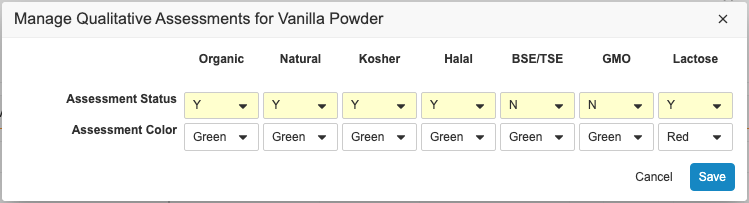
When configured by your Admin, you can create up to 15 _Qualitative Assessments_ for a _Formulation_ in bulk in the viewer using the _Manage Qualitative Assessments for [Formulation Title]_ dialog. If configured by your Admin, fields in the dialog may be pre-populated with default values. 

If any existing _Qualitative Assessments_ already exist for that _Formulation_, those values are pre-populated in the dialog. If you change values for any existing _Qualitative Assessments_, the original records are inactivated by Vault and replaced with new records with the values you specified.

To create and replace _Qualitative Assessments_ in bulk:

1. Hover over the _Formulation_ row for which you want to create or replace _Qualitative Assessments_.
2. Click the **Manage Qualitative Assessments** (<i class="far fa-pencil-alt"></i>) icon to modify _Qualitative Assessments_ for that row.
3. In the _Manage Qualitative Assessments for [Formulation Title]_ dialog, select the applicable **Compliance Assessment Status** values. You can replace any existing status values.
4. Optional: If configured by your Admin, you will see a secondary field in the dialog, such as **Assessment Status Color**. Select the applicable values.
5. Click **Save**. The viewer refreshes and displays the new assessment statuses. 

<a href="https://platform.veevavault.help/assets/images/cp-compliance-manage-qas.png" data-lightbox="cp-compliance-manage-qas.png" data-title="" data-alt="Manage Qualitative Assessments dialog">
  <img class="docimage" src="https://platform.veevavault.help/assets/images/cp-compliance-manage-qas.png" alt="Manage Qualitative Assessments dialog" style=""  />
</a>

## Updating a Qualitative Assessment {#update}

If a cell in a market attribute column displays a status value, there is an existing _Qualitative Assessment_ record for that specific _Formulation_ and _Regulated Category_. You can open a specific assessment from within the viewer and update it to reflect its current status.

 
<div class="note-border alert-info">
  <div class="alert alert-info" role="alert">
    <div><i class="far fa-info-circle"></i></div>
    <div class="alert-text">
      <p><strong>Note</strong>: To inactivate and replace existing <em>Qualitative Assessments</em> instead of updating an existing record, click a <em>Formulation’s</em> <strong>Manage Qualitative Assessments</strong> (<i class="far fa-pencil-alt" style="color: #000000;"></i>) icon to <a href="#create-multiple">create records in bulk</a>.</p>
    </div>
  </div>
</div>


To open and update an existing _Qualitative Assessment_ from the viewer:

1. Click on the hyperlink value in a cell to open an existing record.
2. Click on the **Edit** (<i class="far fa-pencil-alt"></i>) icon and make any necessary changes.
3. Click **Save**.
4. Click **Back to previous page** to return to the _Formulation_ record's detail page.

## Deleting a Qualitative Assessment

If a cell in a market attribute column displays a status value, there is an existing _Qualitative Assessment_ record for that specific _Formulation_ and _Regulated Category_. To delete an existing _Qualitative Assessment_ record from within the viewer:

1. Click on the hyperlink value in the cell to open the existing _Qualitative Assessment_ record.
2. Click the **Delete** (<img class="inline" src="https://platform.veevavault.help/assets/images/CPC-Icon-Delete.png" alt="Delete Icon" style="" />) icon.
3. In the dialog, click **Continue** to confirm the deletion and return to the _Formulation's_ detail page.

[1]: #create-single
[2]: #create-multiple
[3]: #update