# Substantiating Claims & Local Adaptations (Veeva Claims)
Veeva Claims provides the ability to substantiate claims and local adaptations to provide proof of validity. You can add multiple substantiations to each claim and local adaptation, minimizing the amount of time you spend assessing. You can also view all _Substantiations_, and their related _Claims_ and _Local Adaptations_, supported by each substantiation document in your Vault.
Depending on your Admin's configuration, object, field, and section labels may appear differently than the labels mentioned in this article.
## Creating & Modifying Substantiations {#create}
You can create and modify _Substantiations_ to [add to _Claims_ and _Local Adaptations_][2]. You can optionally link each _Substantiation_ to a relevant reference document that supports it.
To create a _Substantiation_:
1. Navigate to _Substantiations_.
2. Click **Create** to create a new record or open the record you want to modify and click **Edit**.
3. Optional: Enter a **Description**.
4. Optional: Link this record to a new or existing substantiation document by populating the **Related Reference** field:
* To add a new document: Click the **Upload** ( ) button and select a supported file up to 100 MB.
* To reference an existing document: Select the document. You can click the binoculars (
) button and select a supported file up to 100 MB.
* To reference an existing document: Select the document. You can click the binoculars ( ) icon to open the search dialog, then use the search box or filters to find the applicable document. Click **Close** after selecting the document.
* To remove a referenced document, click the delete (
) icon to open the search dialog, then use the search box or filters to find the applicable document. Click **Close** after selecting the document.
* To remove a referenced document, click the delete ( ) icon to unlink the document.
5. Click **Save**, or to create another _Substantiation_, click **Save + Create**.
If you uploaded a new document to the _Related Reference_ field, Vault notifies you that the upload was successful or if there were any errors. Depending on your Admin's configuration, the document may be assigned a classification and added to your Vault Library. We recommend populating all applicable document fields and, when applicable, assigning a classification. You can do this on the document's [Doc Info page][4] and from the Document Inbox for unclassified documents.
## Adding Substantiations {#add}
To add one (1) or more _Substantiations_ to each _Claim_ and _Local Adaptation_:
1. Navigate to the appropriate record.
2. In the _Substantiation_ section, click **Add**.
3. In the _Search: Substantiation_ dialog, select the applicable records to relate to this record. You can also click **Create** to [create a new _Substantiation_ record][1] and automatically relate it to this record.
4. When you've selected all applicable _Substantiations_ to add, click **OK** to link the _Substantiations_.
## Bulk Adding Substantiations to Claims {#bulk-add}
To add _Substantiations_ to multiple _Claims_ using a bulk object record action:
1. Navigate to the **Claims** tab.
2. Optional: Set additional filters to narrow down the list of _Claims_ to which you want to add a _Substantiation_. You can add the _Substantiation_ to up to 1,000 records at once.
3. From the **All Actions** menu, select the option to perform a bulk action on all records.
4. On the _Refine Selection_ page, review the list of selected records and clear the checkboxes for any _Claims_ to which you do not want to add the _Substantiation_.
5. Click **Next**.
6. On the _Choose Action (Step 2)_ page, select **Record Actions** in the _Manage Records_ section.
7. Click **Next**.
8. On the _Choose Record Action (Step 3)_ page, select **Substantiate Claims**. The action label indicates how many records will be affected. If your Admin has configured the action to apply only to records in a specific lifecycle state, Vault automatically excludes any records you selected that are not in the applicable lifecycle state.
9. Click **Next**.
10. On the _Details (Step 4)_ page, you can select one or multiple _Substantiations_. Depending on your Admin's configuration, do one of the following:
* Select a single _Substantiation_ in the **Select Substantiation** field.
* Select up to 100 _Substantiations_. You can click the **Select All** () and **Unselect All** () icons to quickly select and unselect all listed _Substantiations_.
11. Click **Next**.
12. On the _Confirmation_ page, review the summary of changes and click **Finish**.
Vault does not add any _Substantiation_ twice if you already added it to any selected _Claims_. When Vault finishes adding the _Substantiation_ to all selected _Claims_, you'll receive an email and a Vault notification letting you know if the action was successful or if there were any errors.
## Viewing Substantiation Documents & Supported Records {#doc-info}
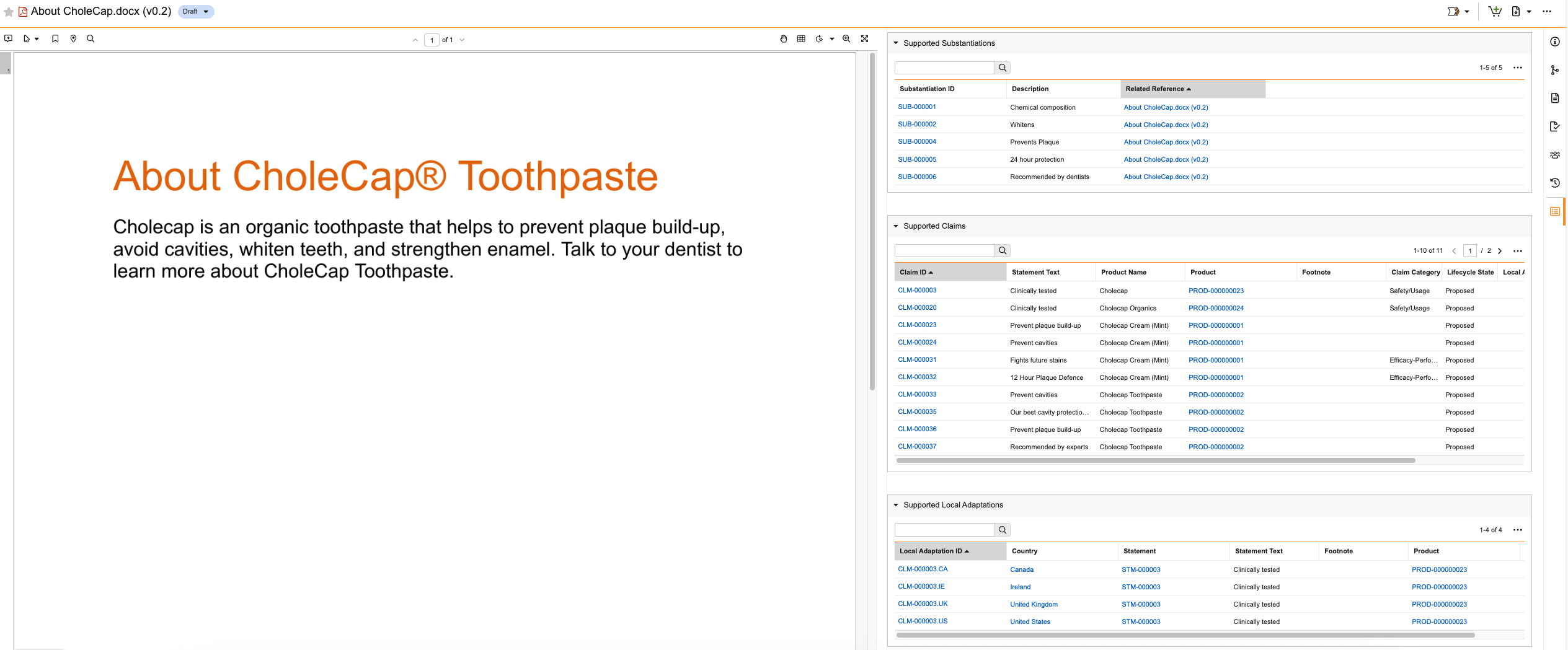
You can view all _Substantiations_ and related _Claims_ and _Local Adaptations_ supported by a substantiation document in your library to easily see where you are using each document and make informed decisions. To view supported records, click the **Substantiations** () icon from a document's Doc Info pane to open the _Substantiations_ panel. This icon is only visible if the document is referenced in the [_Related Reference_ field][1] of at least one (1) _Substantiation_.
You can do the following in the _Substantiations_ panel:
* View supported records in the _Supported Substantiations_, _Supported Claims_, and _Supported Local Adaptation_ records grid sections.
* Search for specific supported records in each section using the search boxes.
* Click a section's **Actions** menu to customize the records grid. You can edit the columns to change which fields display in each section.
* Click the **Previous Page** () and **Next Page** () icons to navigate between pages of records.
* Click on any hyperlink to navigate directly to that record.
The _Substantiations_ panel only displays records and fields for which you have permission to view. If the document relates to more than 1,000 _Substantiations_, _Claims_, or _Local Adaptations_, the panel displays a message stating that there are too many records to display.
) icon to unlink the document.
5. Click **Save**, or to create another _Substantiation_, click **Save + Create**.
If you uploaded a new document to the _Related Reference_ field, Vault notifies you that the upload was successful or if there were any errors. Depending on your Admin's configuration, the document may be assigned a classification and added to your Vault Library. We recommend populating all applicable document fields and, when applicable, assigning a classification. You can do this on the document's [Doc Info page][4] and from the Document Inbox for unclassified documents.
## Adding Substantiations {#add}
To add one (1) or more _Substantiations_ to each _Claim_ and _Local Adaptation_:
1. Navigate to the appropriate record.
2. In the _Substantiation_ section, click **Add**.
3. In the _Search: Substantiation_ dialog, select the applicable records to relate to this record. You can also click **Create** to [create a new _Substantiation_ record][1] and automatically relate it to this record.
4. When you've selected all applicable _Substantiations_ to add, click **OK** to link the _Substantiations_.
## Bulk Adding Substantiations to Claims {#bulk-add}
To add _Substantiations_ to multiple _Claims_ using a bulk object record action:
1. Navigate to the **Claims** tab.
2. Optional: Set additional filters to narrow down the list of _Claims_ to which you want to add a _Substantiation_. You can add the _Substantiation_ to up to 1,000 records at once.
3. From the **All Actions** menu, select the option to perform a bulk action on all records.
4. On the _Refine Selection_ page, review the list of selected records and clear the checkboxes for any _Claims_ to which you do not want to add the _Substantiation_.
5. Click **Next**.
6. On the _Choose Action (Step 2)_ page, select **Record Actions** in the _Manage Records_ section.
7. Click **Next**.
8. On the _Choose Record Action (Step 3)_ page, select **Substantiate Claims**. The action label indicates how many records will be affected. If your Admin has configured the action to apply only to records in a specific lifecycle state, Vault automatically excludes any records you selected that are not in the applicable lifecycle state.
9. Click **Next**.
10. On the _Details (Step 4)_ page, you can select one or multiple _Substantiations_. Depending on your Admin's configuration, do one of the following:
* Select a single _Substantiation_ in the **Select Substantiation** field.
* Select up to 100 _Substantiations_. You can click the **Select All** () and **Unselect All** () icons to quickly select and unselect all listed _Substantiations_.
11. Click **Next**.
12. On the _Confirmation_ page, review the summary of changes and click **Finish**.
Vault does not add any _Substantiation_ twice if you already added it to any selected _Claims_. When Vault finishes adding the _Substantiation_ to all selected _Claims_, you'll receive an email and a Vault notification letting you know if the action was successful or if there were any errors.
## Viewing Substantiation Documents & Supported Records {#doc-info}
You can view all _Substantiations_ and related _Claims_ and _Local Adaptations_ supported by a substantiation document in your library to easily see where you are using each document and make informed decisions. To view supported records, click the **Substantiations** () icon from a document's Doc Info pane to open the _Substantiations_ panel. This icon is only visible if the document is referenced in the [_Related Reference_ field][1] of at least one (1) _Substantiation_.
You can do the following in the _Substantiations_ panel:
* View supported records in the _Supported Substantiations_, _Supported Claims_, and _Supported Local Adaptation_ records grid sections.
* Search for specific supported records in each section using the search boxes.
* Click a section's **Actions** menu to customize the records grid. You can edit the columns to change which fields display in each section.
* Click the **Previous Page** () and **Next Page** () icons to navigate between pages of records.
* Click on any hyperlink to navigate directly to that record.
The _Substantiations_ panel only displays records and fields for which you have permission to view. If the document relates to more than 1,000 _Substantiations_, _Claims_, or _Local Adaptations_, the panel displays a message stating that there are too many records to display.
 [1]: #create
[2]: #add
[3]: #bulk-add
[4]: #doc-info
[1]: #create
[2]: #add
[3]: #bulk-add
[4]: #doc-info