# About Document Search Results

Vault uses several internal rules to find the right documents that match your search terms and to sort them in the most relevant way. This article explains the logic we use "behind-the-scenes" to find and sort documents. If you're not seeing the documents you expect to see, or the documents are not presented in the right order, understanding the basics of our search algorithm may help you to find documents more effectively.

## How We Search

By default, Vault is always searching for words that begin with the entered search string. For example, searching _ind_ returns _independent_, but not _find_ and _rescind_. You can override this behavior by using quotes, which will do an exact-match search.

<div class="note-border alert-info">
  <div class="alert alert-info" role="alert">
    <div><i class="far fa-info-circle"></i></div>
    <div class="alert-text">
      <p><strong>Note</strong>: Number-type fields are not included in search.</p>
    </div>
  </div>
</div>


### Special Exact-Match Text Fields {#exact}

Some fields, like **Checksum**, use a field type called Text (Exact-Match). When searching, Vault only matches to fields with this type if the search term is an exact match for the document's field value, including capitalization. This field type is only used on fields that are searched very infrequently, or where only finding an exact match makes sense.

## Stop Words

Stop words are words that are so common in a language that including them in a search returns many irrelevant results. For each language, Vault has a list of stop words. For English, these include terms like _and_, _the_, and _on_. When these words are included in the search terms when searching within document content, Vault removes them when performing the search. You can use quotes to force inclusion of these terms. See a <a href="/en/gr/20161/">complete list of stop words</a>
.

## Searching on Alpha-Numeric & Punctuated Fields {#searching_on_alpha-numeric_punctuated_fields}

Vault separates search terms into various segments. This process is called "tokenization." The following table explains how Vault splits terms:

| Tokenization Rule | Original Term | Tokenized Terms |
| --- | --- | --- |
| Strip leading and trailing punctuation | Report (FDA) | Report, FDA |
| Strip & preserve leading zeros | 0008670 | 0008670, 8670 |
| Split on punctuation (hyphen, underscore, period, apostrophe, etc.) | CholeCap-300mg/400iu | CholeCap, 300mg, 400iu |
| Split on space | 109839 CC US | 109839, CC, US |
| Split on number | CC356 | CC, 356 |
| Case change | GludactaBrochure | Gludacta, Brochure |
| Preserve strings between punctuation | GL-45RLC-JA | GL, 45RLC, JA |
| Concatenate All | CA-MDD-415A | CAMDD415A |

When performing searches for documents fields containing any of the above, we recommend that you:

* Search with the complete field value if known: _CA-MDD-415A_
* Avoid searching only with only the tail end of a term, for example, 9A-SOP will not find 129A-SOP.
* Use double quotes when you are searching for a phrase: _"Report FDA"_
* Only use leading zeros when they are included in the original term. Leading zeros are not stripped from search terms so 000123 will not match when the original term is 0123.

Because we use "Starts with" search, Vault only finds partial matches on a segment if you've included the beginning. For example, a search for _DD415A_ would not match _MDD415A_.

## Special Characters

Vault allows users to enter common special characters (@, \#, $, Δ, etc.) in text fields. Vault search can find matches on special characters both when they are part of an alphanumeric string (like _53.4%_ or _#wonderdrug_) and when they are used by themselves.

However, special character support is only for metadata fields. When indexing document or attachment content for full-text search, Vault treats special characters in the content as a signal to split terms. The example below shows how Vault treats the same string differently based on whether it's found in the document content or document metadata.

| String | Found In | Indexed Strings |
| --- | --- | --- |
| wonderdruginfo@veeva.com | Document Field | wonderdruginfo@veeva.com |
| wonderdruginfo@veeva.com | Document Source File | wonderdruginfo, veeva, com |

## Quotes

To search for an exact match, put double quotes around the terms. (Single quotes will not change how Vault searches.) You can also put quotes around a single search term, like a document number. This will force an exact match of words and word order. For example, a search on _"reduced blood pressure"_ would not return documents that contained the phrase _blood pressure reduced._ Note that this will not prevent search term segmentation.

<div class="note-border alert-info">
  <div class="alert alert-info" role="alert">
    <div><i class="far fa-info-circle"></i></div>
    <div class="alert-text">
      <p><strong>Note</strong>: Searching for multiple IDs, such as document numbers, does not require the use of double quotes. Vault automatically detects search terms that look like IDs.</p>
    </div>
  </div>
</div>


## Synonyms

If an Admin <a href="/en/gr/48194/">configures search synonyms</a>
, Vault expands search results based on the Admin-created thesaurus. When you search for terms that are listed as an entry in the thesaurus, Vault also includes results that include any of that entry's synonyms as well. Your Admin can also choose whether each entry is multidirectional. If an entry is multidirectional, Vault also expands searches for the synonyms to include the entry.

## Search Operators

When you enter multiple search terms without quotes, Vault performs searches using the "OR" operator. The "OR" operator finds matches for any document that contains at least one of the search terms. Documents matching multiple terms appear earlier in the search results. See [below][1] for details on results ranking.

## Matching Across Document Versions

Vault matches search criteria across all the latest document versions you have access to, but only returns a document if the latest version for which you have _View Document_ permission matches the search criteria.

When you are assigned to multiple roles on a document through any means, such as membership to multiple groups, sharing rules, or direct user assignment, Vault may not return the latest document version. This happens when your search criteria only match a prior document version and that version is the latest that one of your assigned roles can access. By belonging to multiple roles, the user effectively has multiple versions of a document that qualify as the latest version they can view.

This behavior does not apply when Vault Owners execute a search. Vault Owners only see the absolute latest version of a document. If the prior version of a document matches a Vault Owner's search criteria, it will not be returned as a result.

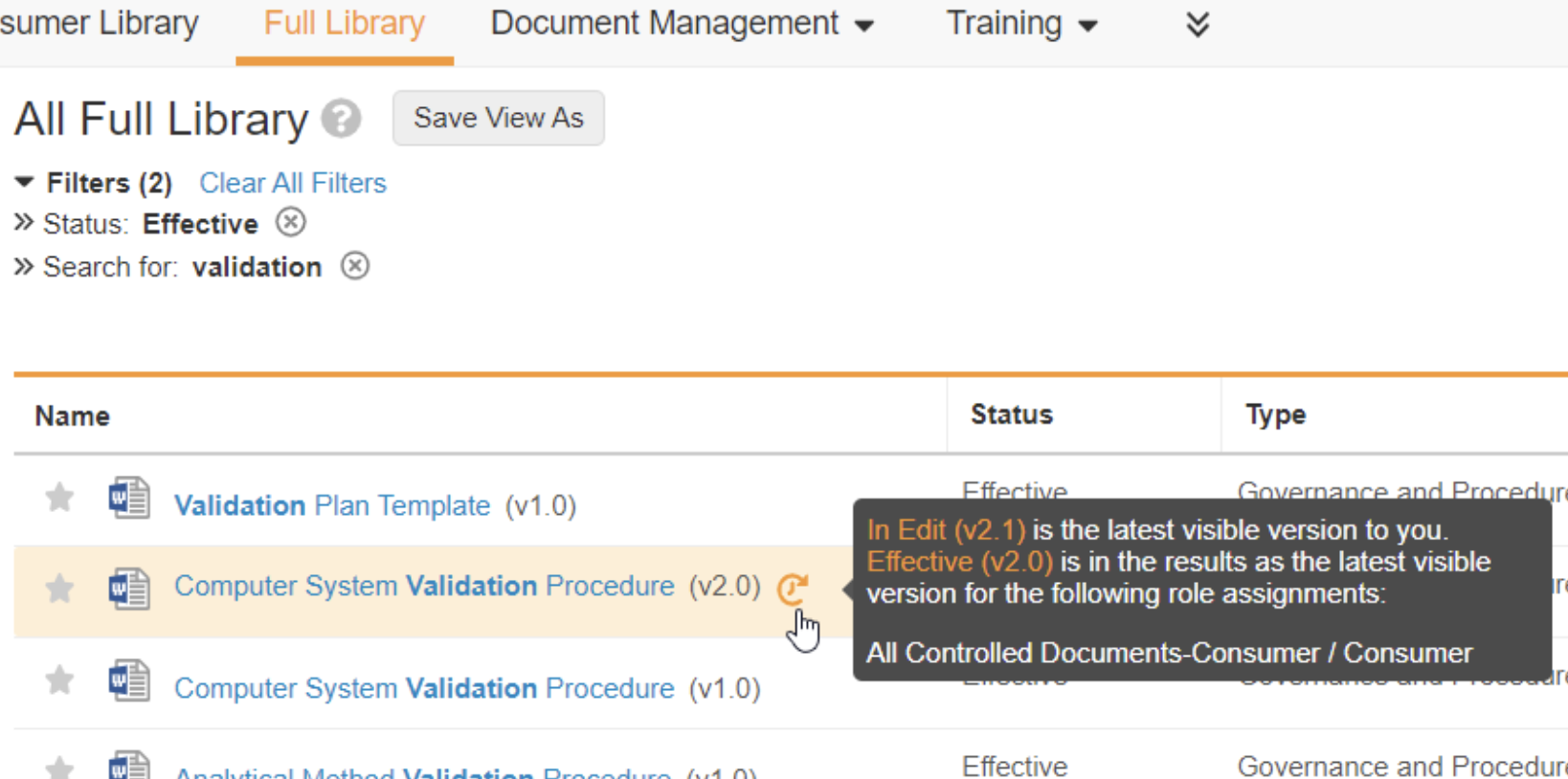
If a user has access to a later version of a particular document, the Later Version Available icon (<i class="fal fa-history fa-flip-horizontal"></i>) appears next to the document name. A user can click on the icon to display the latest document version available to them and list any role assignments that are causing the prior version of the document to appear in the results.

### Example Search & Results

The tables below show the versions that exist for each document and whether Thomas has **View Document** permission.

| Document Number | Version & Status | View Permission | Match Details |
| --- | --- | --- | --- |
| SOP-1 | 0.1 - Draft | Yes | Latest for user in _Editor_ role and Match |
|     | 0.2 - In Review | No  | \-  |
|     | 1.0 - Approved | Yes | Latest for user in _Viewer_ role |
| SOP-2 | 1.0 - Approved | Yes | Latest for user in _Viewer_ role |
|     | 1.1 - Draft | Yes | Latest for user in _Editor_ role and Match |
|     | 1.2 - In Review | No  | \-  |

Thomas filters on _Document Type = SOP_ and _Status = Draft_. For this search, Vault returns the following results:

  * **SOP-1**: Match on v0.1 (Not the latest available)
  * **SOP-2**: Match on v1.1 (latest available)

In this scenario, Thomas is assigned the _Editor_ role for SOP's which he has the _View Document_ permission for _Drafts_, but does not have access to _Approved_ versions in this role. He is also assigned the _Viewer_ role for these SOPs which he has the _View Document_ permission on _Approved_ documents, but not _Drafts_. When he filters on _Document Type = SOP_ and _Status = Draft_, Vault returns a match for v0.1 of SOP-1 with the Later Version Available icon (<i class="fal fa-history fa-flip-horizontal"></i>) next to the document name indicating that the later steady-state version is available to him. If Thomas clicks the icon, the dialog shows that his assignment to an _Editor_ role via an editors group is what caused the prior version to appear in the results.

<a href="https://platform.veevavault.help/assets/images/24r3_later_version_available.png" data-lightbox="images" data-title="" data-alt="Later Version Available">
  <img class="docimage" src="https://platform.veevavault.help/assets/images/24r3_later_version_available.png" alt="Later Version Available" style="max-width: 500px;"  />
</a>

Granting _Editors_ the _View Document_ permission to _Approved_ documents in this scenario would prevent SOP-1 v0.1 from matching because 1.0 would be the latest version for both the _Editor_ and _Viewer_ roles.

## Results Count

When there are over 5,000 document results returned from a search, Vault displays an estimate of the total result count in increments of 25. Multiple versions of documents can match the user's search criteria if they belong to multiple roles and groups. Vault does not eliminate duplicate results when there are more than 5,000 to avoid performance issues with large quantities of results.

<a href="https://platform.veevavault.help/assets/images/24r3_results_count.png" data-lightbox="images" data-title="" data-alt="Results Count">
  <img class="docimage" src="https://platform.veevavault.help/assets/images/24r3_results_count.png" alt="Results Count" style="max-width: 500px;"  />
</a>

##  Results Ranking {#ranking}

Search results are returned in order of relevance. This does not affect which documents are found in the search, only the order in which Vault displays them. For relevance ranking, Vault uses various criteria to determine which documents appear earlier in the search results.

  * **Search Term Frequency**: Documents with multiple matches to a single search term appear earlier.
  * **Search Term Proximity**: For multi-term searches, documents that contain all search terms appear first, followed by documents that contain fewer search terms. When all matching terms are close together (within the same document field, for example), the document also appears earlier.
  * **Exact Matches**: If a document contains an exact search term match, rather than a match on part of a word, it appears earlier.
  * **Document Name Field**: If a search term matches a word in the **Document Name** field, the document appears earlier.
  * **Classification Field**: If a search term matches a word in the **Classification** field (part of the document type), the document appears earlier.

## Multi-language Search

By default, Vault performs searches based your Vault's **Base Language**. To use multi-language search, your Admin must enable <a href="/en/gr/13272/">multilingual document handling</a>
, which adds the _Language_ standard document field to your Vault. Vault <a href="/en/gr/13272/#docLanguage">automatically populates the _Language_ field</a>
, but you can edit it to update the document's language at any time. The _Language_ field must be set to the correct language in order for Vault's language-specific search functionality to work properly.

When users search, Vault respects the language of a document by incorporating language-specific elements like word separators, stop words (ignores "a" and "the" in English), and word stemming. The _Language_ field affects Vault searches on both document content and metadata.

[1]: #ranking
